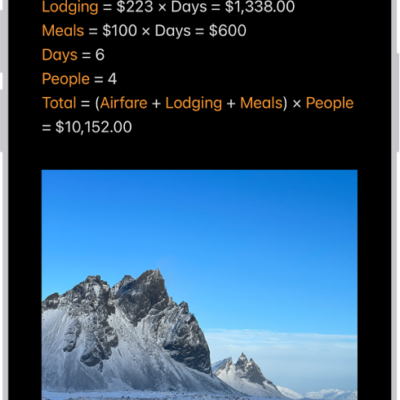
With math in the Notes app, you can draw diagrams, solve equations, assign variables, and plot graphs. Mathematical expressions are solved inline when you write or type an equal sign.
You can type a math expression and include an equal sign, or write one with Markup. You can even write a stack of numbers and draw a horizontal line below them to add them, and you can create a graph.
Note: The Notes app supports math you write using Western Arabic numerals and common mathematical symbols, or math you type using Arabic (Eastern & Western) and Devanagari numerals and common mathematical symbols.

Add mathematical expressions to a note
- Start the Notes app on your iPhone.
- Open a note, or tap the New Note button to start a new note.
- Do any of the following:
- Type a math expression, then include an equal sign.
- Tap the Markup button, write a math expression horizontally, then include an equal sign.
- Tap the Markup button, write a stack of numbers, then draw a horizontal line below the numbers to add the numbers in the stack. Write a different symbol to the left of each digit if you want a different operation.
- Tap the equal sign to see what Notes understood in what you wrote and tap Solve.
- To correct mistakes, you can fix any of the following:
- Unrecognized math and unsolvable expressions: Tap any dotted red lines to see details about the error.
- Ambiguous characters: Tap any dotted blue lines to clarify what you wrote.
Create a graph
- Start the Notes app on your iPhone.
- Open a note, or tap the New Note button to start a new note.
- Type or write an equation with x and y variables, with the y variable on the left side of the equation. For example, y = 5x + 3. You can also tap the equal sign in an equation you already wrote.
- When you finish the equation, a menu appears. Tap Insert Graph.
- The y variable is represented on the vertical axis, and the x variable is represented on the horizontal axis.
- To add another equation to the same graph, type or write a new equation and then tap Add to Existing Graph.
Access Math Notes created in the Calculator app
- Start the Notes app on your iPhone.
- In the Folders list, tap Math Notes. You may have to tap the Back button to see your folders.
Tag: Notes