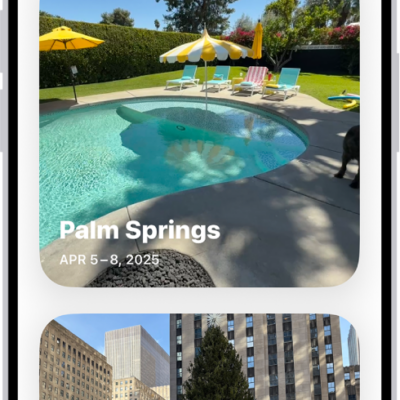
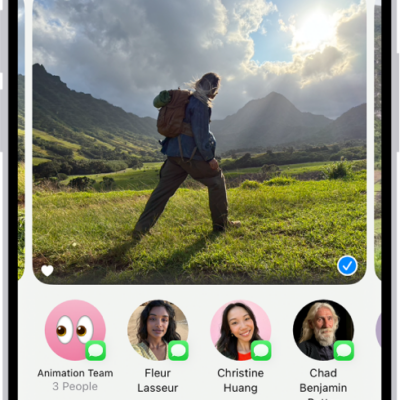
In the Photos app, you can create a slideshow to view a selection of photos and videos that you choose from your photo library. You can also turn any album or collection into a slideshow. Slideshows are automatically formatted and set to music.
You can still make it your own. As the slideshow plays, you can change the transition style, speed, and time per slide, choose a song, or play it on loop.
Make a slideshow from selected photos
- Open the Photos app on your iPhone.
- Tap Library.
- Tap Select and tap each item you want to include.
- Tap the More button, then tap Start Slideshow.
- As the slideshow plays, tap the screen to do any of the following:
- Change the transition style, speed, and time per slide: Tap Customize and tap Transition & Duration.
- Choose a song: Tap Customize, tap Music, and then tap Choose Song.
- Mute the song: Tap the Mute button.
- Play on loop: Tap Customize and tap Loop.
- Share: Tap the More button, tap Share, and select a sharing option such as Messages or Mail.
- Play on a connected AirPlay device: Tap the More button and tap AirPlay. Select a device.
Make a slideshow from an album or collection
- Open the Photos app on your iPhone.
- Tap Collections.
- Open any album or collection and tap the More button. Tap Start Slideshow.
Tag: Photos