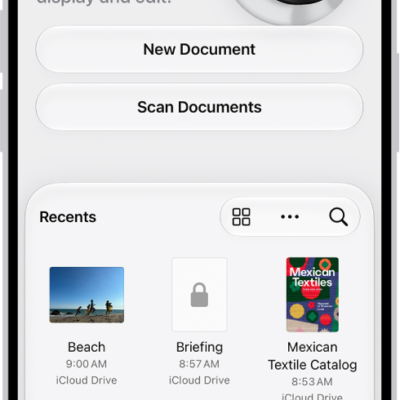
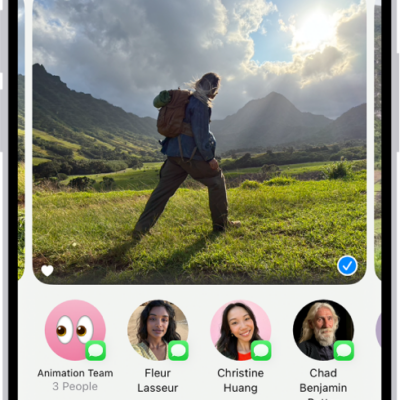
You can use the Preview app to fill out and sign PDF forms, scan documents, and make changes to PDF documents and images. When you scan a document, the pages are combined into a single PDF that you can save and edit, and you can sign with your finger.
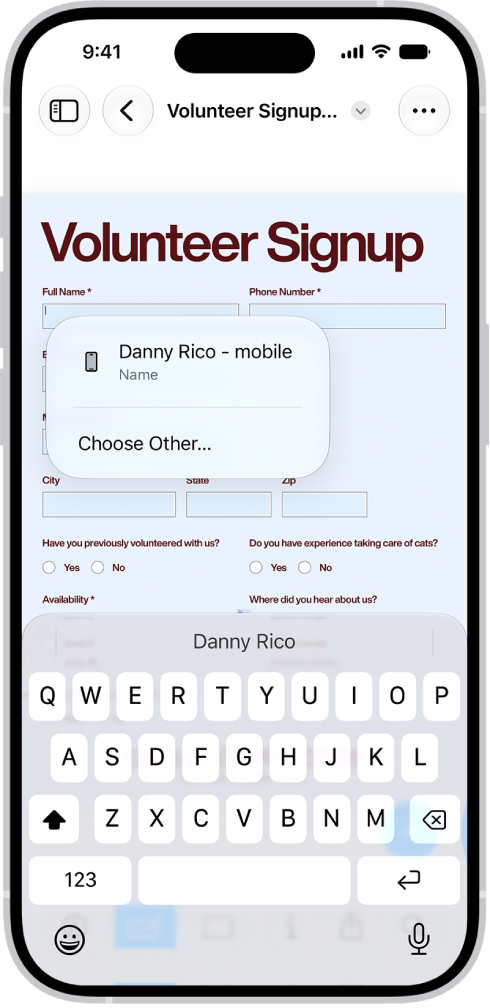
Fill out PDF forms
Open a PDF form, tap the Form Filling button, then select a field. Enter text, or tap an AutoFill suggestion that appears above the onscreen keyboard. In signature fields, you can use your finger to sign.
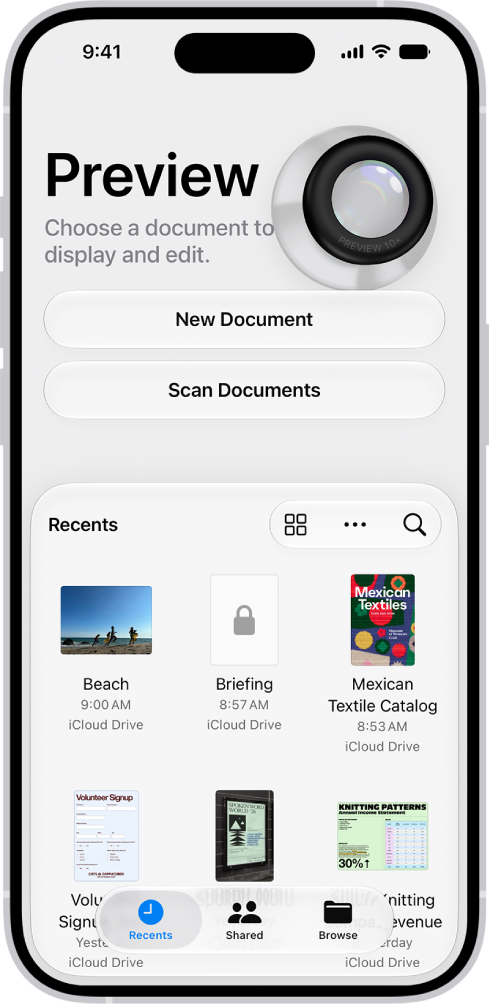
Scan a document to create a PDF file
Tap Scan Documents on the Preview start screen, position each page in the camera to capture it, then tap the Done button. Preview combines the pages into a single PDF that you can save and edit.
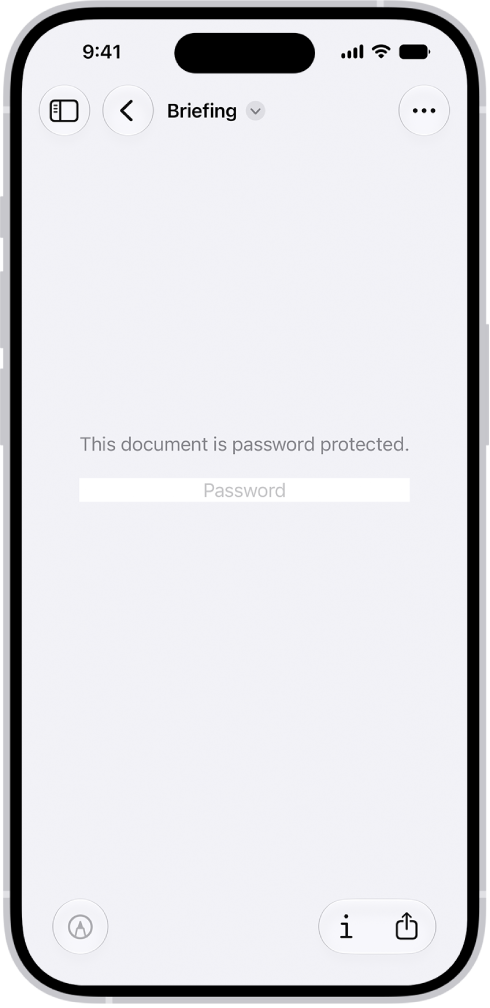
Protect a PDF with a password
Open a PDF, tap the Actions Menu button next to the filename, then tap Lock. Enter a password, then tap the Done button.
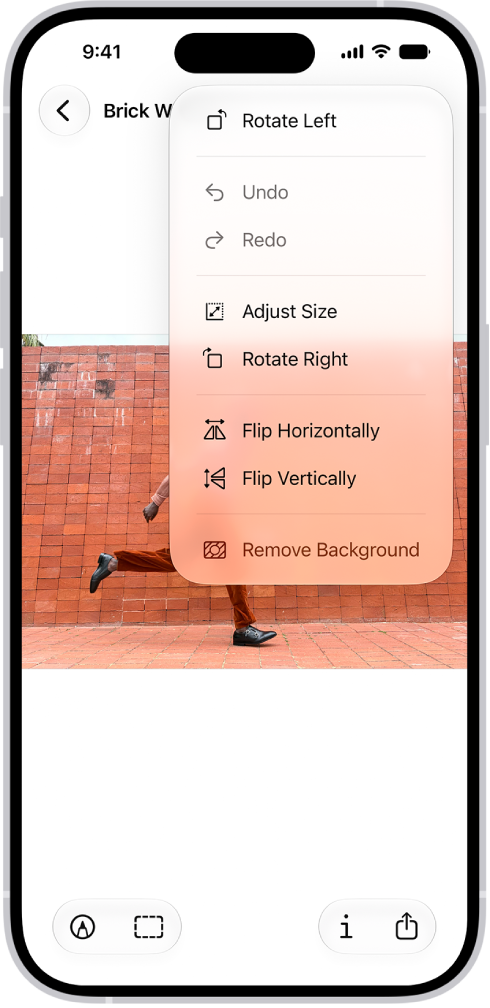
Edit an image
Open an image, then tap the More button to rotate or flip it, adjust its size, or remove the background. To crop an image, tap the Crop button, adjust the borders, then tap Crop.
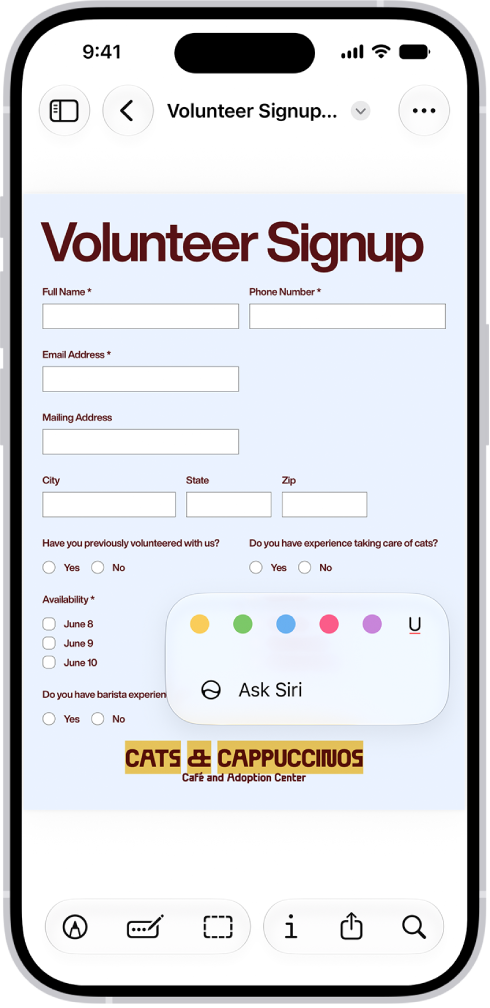
Highlight or underline text
You can highlight or underline text in a PDF. Open a PDF, then select text. Tap Highlight, then choose an option.