You can delete text messages, attachments, and entire conversations from your iPhone anytime, without affecting what your recipients see. Deleted messages and attachments remain in your Recently Deleted folder for up to 30 days, and you can recover them.
It doesn’t have to be one at a time. You can select the messages or attachments you want to delete, delete multiple photos, videos, or other attachments, or delete a conversation entirely.
Quick tip: Sent a message accidentally? You have 2 minutes to retract it with Undo send, which deletes it from both your phone and your recipient’s phone.
Delete messages and attachments
- Open the Messages app on your iPhone.
- Open a conversation, touch and hold a message bubble or attachment, and then tap More.
- Select the messages or attachments you want to delete. Tap the Delete button.
You can also delete a conversation entirely.
Delete multiple photos, videos, or other attachments
- Open the Messages app on your iPhone.
- Tap the contact or group icon at the top of the conversation.
-
Tap a category, such as Photos.
Tip: To see only one kind of image, tap the Filter button, then tap Screenshots, Videos, or Photos.
- Tap Edit, then tap Select.
- Tap each attachment you want to delete, tap the Delete button, and tap the Delete button to confirm the number of attachments you want to delete.
Delete a conversation
- Open the Messages app on your iPhone.
- In the conversation list, do one of the following:
- Swipe left on the conversation, then tap the Delete button.
- Touch and hold the conversation, then tap Delete.
Delete multiple conversations
- Open the Messages app on your iPhone.
- At the top of the conversation list, tap Edit.
- Tap Select Messages and then select conversations you want to delete.
- Tap the Delete button and tap Delete.
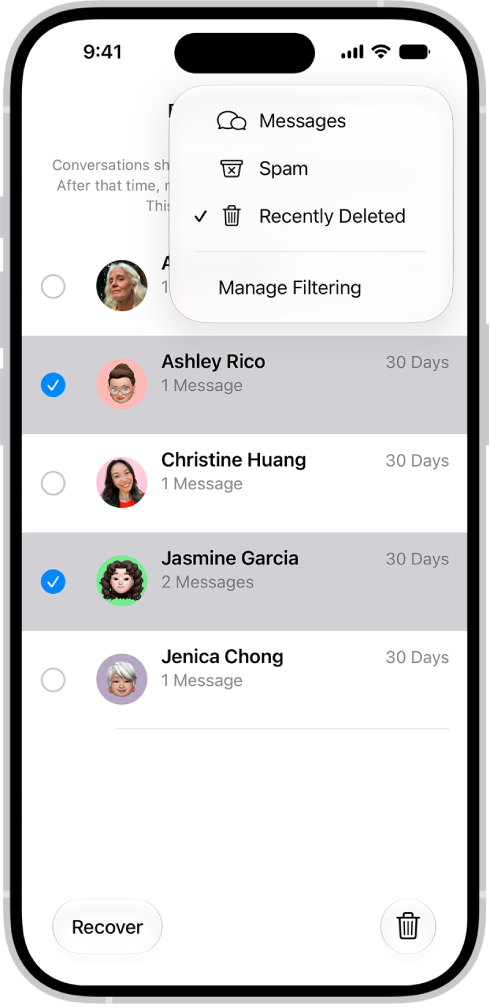
Permanently remove recently deleted messages and attachments
You can permanently remove deleted messages and attachments before their 30 days in the Recently Deleted folder are up.
- Open the Messages app on your iPhone.
- In the conversation list, tap the Filter button and tap Recently Deleted.
- Select the conversations whose messages you want to delete permanently, tap the Delete button, and then tap Delete.
Important: This can’t be undone.
Automatically delete old messages
On an ongoing basis, you can delete messages and attachments once they’re older than 30 days or a year.
- Open the Settings app on your iPhone.
- Tap Apps, then tap Messages.
- Scroll down and tap Keep Messages (below Message History). Then choose an option.
Important: If you choose an option other than Forever, your conversations (including all attachments) are automatically removed after the specified time period elapses.
With Messages in iCloud, deleting a message or conversation on your iPhone also deletes it on all your devices that have Messages in iCloud turned on.
Note: Deleting messages only affects your iPhone and the other Apple devices that are signed in to the same Apple Account. There is no way to delete messages, attachments, and conversations for anyone else.