As soon as you subscribe to Apple Music, you can add and download songs and videos from Apple Music to your music library. You can stream music you add to iPhone when you have an internet connection. To play music when you’re not connected to the internet, you need to download it first.
Before you can download anything, Sync Library needs to be turned on. Once it is, music you add is also added to your other devices signed in to the same Apple Account.
Here’s how to add music to iPhone and listen offline.
Siri: Ask Siri something like, “Add this to my library” while playing something.
Add music from Apple Music to your library
- Open the Music app on your iPhone.
- Do any of the following:
- Touch and hold a song, album, playlist, or video, then tap Add.
- While viewing the contents of an album or playlist, tap the Add to Library button to add the album or playlist, or tap the More button next to a song, then tap Add to add that song.
- On the Now Playing screen, tap the More button, then tap Add.
Music you add to iPhone is also added to other devices if you’re signed in to the same Apple Account and have Sync Library turned on (go to Settings > Apps > Music, then turn on Sync Library).
Download music from Apple Music to your iPhone
Before you can download music from Apple Music to your library, you need to turn on Sync Library. Go to Settings > Apps > Music, then turn on Sync Library. Then follow these steps to download music.
- Open the Music app on your iPhone.
-
Do any of the following:
-
Download a song, album, or playlist: Touch and hold music you added to your library, then tap Download.
After you add a playlist or album, you can also tap the Download button at the top of the screen.
-
Always download music: Open Settings, tap Apps, tap Music, and then turn on Automatic Downloads.
Songs you add are automatically downloaded to iPhone.
- See download progress: On the Library tab, tap Downloaded and tap Downloading.
-
Download a song, album, or playlist: Touch and hold music you added to your library, then tap Download.
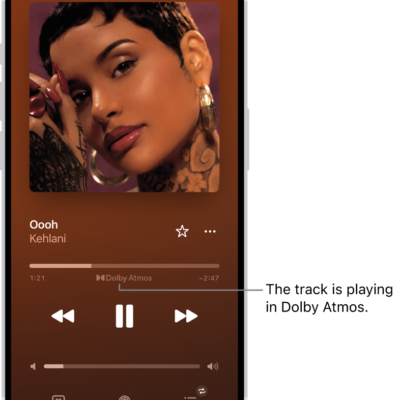
Note: Music that’s available in Dolby Atmos shows the Dolby icon next to the item. You can then download it either in Dolby Atmos or in stereo. If you want Dolby Atmos downloads whenever they’re available, go to Settings > Apps > Music and turn on Download in Dolby Atmos.
Delete music from your library
- Open the Music app on your iPhone.
- Touch and hold the song, album, playlist, or music video. Tap Delete from Library.
Note: A song you delete from your library stays in your playlists. To change this, go to the Settings app , tap Apps, tap Music, and turn on Add & Delete Playlist Songs.
Manage storage space
If you’re running low on storage space, try any of the following:
-
Remove music and videos stored on iPhone: Go to the Music app on your iPhone, touch and hold an item that you downloaded, then tap Remove Download.
The item is removed from iPhone, but not from your music library on your other devices.
- Free up music storage: If iPhone is low on storage space, you can automatically remove downloaded music that you haven’t played in a while. Go to Settings > Apps > Music > Optimize Storage.
- Remove all songs or certain artists from iPhone: Go to Settings > Apps > Music > Downloaded Music, tap Edit, then tap the Delete button next to All Songs or the artists whose music you want to delete.
-
Remove all Apple Music songs from iPhone: Go to Settings > Apps > Music, then turn off Sync Library.
The songs are removed from iPhone but remain in your music library on your other devices. Music you purchased or synced also remains.
Choose cellular data options for Music
- Open the Settings app on your iPhone.
- Tap Apps and tap Music.
-
Turn on Cellular Data. Do any of the following:
- Turn Download over Cellular on or off.
- Tap Audio Quality, turn on Lossless Audio, then tap Cellular Streaming to choose a setting (None, High Efficiency, High Quality, Lossless, or High-Resolution Lossless).
High Quality, Lossless, and High-Resolution Lossless use significantly more cellular data than High Efficiency, which may incur additional charges from your cellular carrier. Songs may also take longer to start playing.
When you purchase access to movies, TV shows, music, music videos, ebooks, audiobooks, or ringtones from Apple, you also have the option to permanently download these items to a compatible iPhone, iPad, Mac, or PC. Apple cannot revoke your downloaded content, and you can always access your downloaded content without an internet connection.