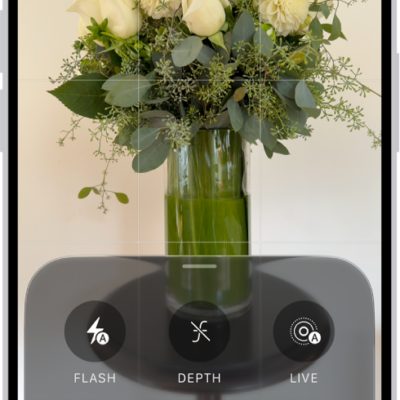
In the Photos app, you can find collections of photos and videos organized into different categories in Utilities. You can revisit photos that you captured, or recently edited, saved, or shared.
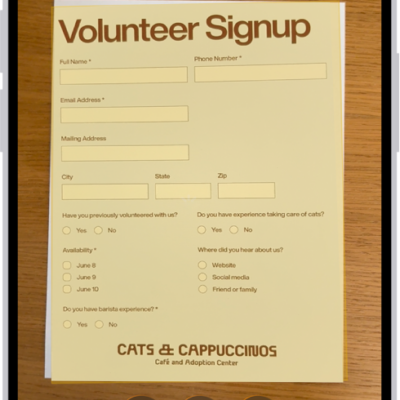
You can also find photos based on their content—like identity documents, receipts, handwriting, illustrations, and QR codes. And you can reorder the Utilities list to put the collections you use most at the top. For your privacy, some collections, like Hidden and Recently Deleted, are locked by default.
Find receipts, QR codes, and more in Utilities
- Open the Photos app on your iPhone.
- Tap Collections, scroll down, and tap Utilities.
- Tap the collection you want to view.
Note: Some Utilities collections, like Hidden and Recently Deleted, are locked by default for your privacy.
Reorder the Utilities list
To help you find the collections you access most often, you can reorder the Utilities list.
- Open the Photos app on your iPhone.
- Tap Collections, scroll down, and tap Utilities.
- Tap Edit, touch and hold the collection you want to move, and then drag it to a new position. To undo your changes, tap Reset.
- Tap the Done button.
Find recovered items and save or delete them
Couldn’t add a photo or video to your library because it wasn’t saved properly? You may find a copy of it in Recovered.
- Open the Photos app on your iPhone.
- Tap Collections, scroll down, and tap Utilities.
- Tap Recovered and then tap the photo or video you want to recover.
- Tap Permanently Delete or Restore to Library.
Important: When you delete a recovered photo or video, it’s deleted permanently. You can’t recover photos that you deleted from the Recovered collection in Utilities.