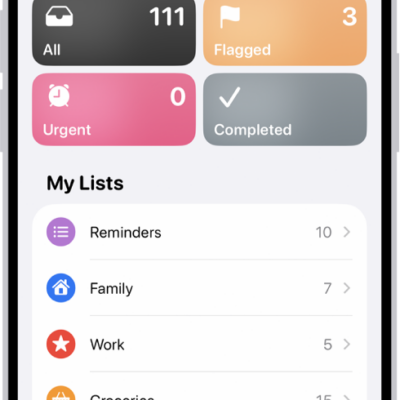
You can add details to your reminders such as notes, links, due dates, and photos. You can also flag important items, set a priority, or scan a document right into a reminder.
Reminders can even be tied to a place or a person. You can be reminded when you arrive home, get into a car with a Bluetooth connection to your iPhone, or the next time you chat with someone in Messages.
Here’s how to add details in Reminders on iPhone.
Note: You get every Reminders feature described in this guide when you use updated reminders in iCloud. With other accounts, some features aren’t available.
Add a note, URL, and other details to a reminder
- Start the Reminders app on your iPhone.
- Tap an item.
- Tap Add Note and then add more information.
- Tap the Edit Details button to edit the item details. For example, you can set a date and time, set a location-based reminder, flag an important item, or attach a photo.
Set when and where to be reminded
Reminders can show up on a certain date, at a specific time or location, or while you’re texting someone in Messages.
- Start the Reminders app on your iPhone.
-
Tap an item and then do any of the following:
-
Schedule a date and time: Tap the Date and Time button, then choose an option.
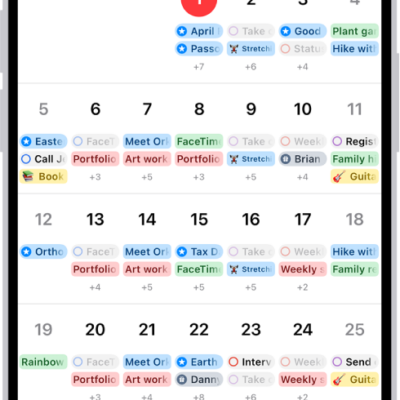
Tip: Reminders with a due date appear as an all-day event in Calendar. See Use Reminders in Calendar.
- Mark a reminder as urgent: Tap the Edit Details button. Then turn on Urgent to get an alarm when the reminder is due. If Date and Time aren’t already set, they default to the next hour. You can edit Date and Time to change when the alarm activates.
- Set a recurring reminder: Tap the Edit Details button, turn on Date or Time, tap Repeat, and choose the frequency.
- Get an early reminder before the scheduled date and time: Tap the Edit Details button, tap Early Reminder, and choose when you want to be reminded. For example, “5 minutes before,” “2 days before,” or another choice.
-
Add a location: Tap the Location button. Then choose where you want to be reminded—for example, when you arrive home or get into a car with a Bluetooth® connection to your iPhone.
Note: To receive location-based reminders, you must allow Reminders to use your precise location. Go to Settings > Privacy & Security > Location Services. Turn on Location Services, tap Reminders, choose While Using the App, then turn on Precise Location.
- Get a reminder in Messages: Tap the Edit Details button and turn on When Messaging. Then choose someone from your contacts list. The reminder appears the next time you chat with that person in Messages.
-
Schedule a date and time: Tap the Date and Time button, then choose an option.
- Tap the Done button.
Set a flag and priority
- Start the Reminders app on your iPhone.
- Tap an item.
- Do any of the following:
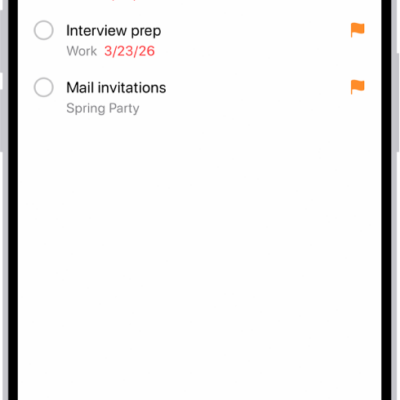
- Flag an important item: Tap the Flag button.
- Set a priority: Tap the Edit Details button, tap Priority, and then choose Low, Medium, or High.
Add a photo or scan a document
- Start the Reminders app on your iPhone.
- Tap an item, then tap the Photos button.
- Do any of the following:
- Take a new photo.
- Choose a photo from your photo library.
- Scan a document.
- Scan and insert text.