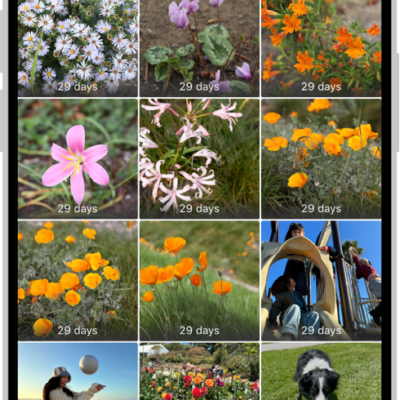
On supported models, Camera uses the Ultra Wide camera to capture macro photography, close-ups in sharp focus. You can take macro photos and Live Photos, and shoot macro slow-motion and time-lapse videos.
You don’t need a separate mode for it. In Photo or Video mode, you just get close to the subject. You can also control automatic macro switching.
Here’s how to take macro photos and videos with your iPhone camera.
Take a macro photo or video
-
Open Camera on your iPhone.
Make sure Camera is in Photo or Video mode.
- Get close to the subject—as close as 2 centimeters. Camera will automatically switch to the Ultra Wide camera to enable macro photography.
- Tap the Shutter button to take a photo or the Record button to start and stop recording video. On models with the Camera Control, click to take a photo or to start and stop recording.
Take a macro slow-motion or time-lapse video
- Open Camera on your iPhone.
- Swipe right to select Slo-mo or Time-lapse mode.
- Tap .5x to switch to the Ultra Wide camera and then move close to the subject.
- Tap the Record button or click the Camera Control on (supported models) to start and stop recording.
Control automatic macro switching
For macro photos and videos, you decide when Camera automatically switches to the Ultra Wide camera.
- Open Camera on your iPhone.
-
Get close to your subject.
When you get within macro distance of your subject, the Auto Macro On button appears on the screen.
- Tap the Auto Macro On button to turn off automatic macro switching.
Quick tip: If the photo or video becomes blurry, you can back up or tap .5x to switch to the Ultra Wide camera.
- Tap the Auto Macro Off button to turn automatic macro switching back on.
To turn off the manual Macro Control when taking photos and videos, go to Settings > Camera, then turn off Macro Control.
If you want to maintain your Macro Control setting between camera sessions, go to Settings > Camera > Preserve Settings, then turn on Macro Control.