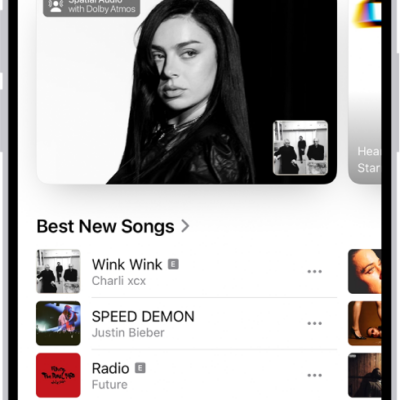
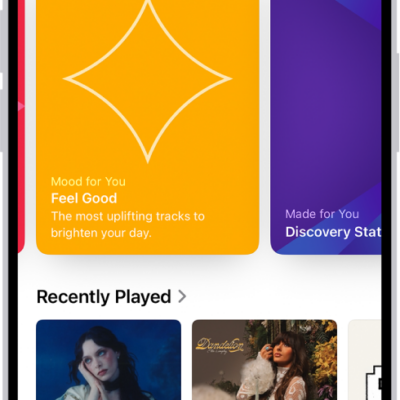
You can mark items as “favorites” in Music to make them easier to find. If you subscribe to Apple Music, you can get notifications on new releases from your favorite artists, and easily get back to their music from the Home tab.
Artists you mark as favorites show up below Favorite Artists in Home, with their music recommended more often, and favorite songs go into the Favorite Songs playlist. You can remove favorites later.
Here’s how to mark items as favorites in Apple Music on iPhone.
Add favorite playlists, artists, albums, and songs
- Start the Music app on your iPhone.
-
Do any of the following:
- Add a favorite playlist: Touch and hold a playlist or tap the More button when viewing a playlist. Then tap Favorite.
-
Add a favorite artist: Go to an artist page and tap the More button. Tap the Favorite button at the top of the screen.
When you mark an artist as a favorite, they appear below Favorite Artists in Home, and their music is recommended more often.
- Add a favorite album: Touch and hold an album and then choose Favorite. Or tap an album, tap the More button, and tap Favorite.
-
Add a favorite song: Touch and hold a song or tap the More button next to a song. Tap Favorite. Or on the Now Playing screen, tap the Favorite button.
When you mark a song as a favorite, it appears in the Favorite Songs playlist. To view that playlist, tap Library , then tap Playlists.
You can easily find favorite items in your music library. Tap Library , choose Playlists, Artists, Albums, or Songs, tap the Filter button, then choose Favorites.
Remove playlists, artists, albums, and songs as favorites
- Start the Music app on your iPhone.
- Tap Library, choose Playlists, Artists, Albums, or Songs, tap the Filter button, and choose Favorites.
- Touch and hold a playlist, artist, album, or song. Tap Undo.
Note: Deleting a song from your library leaves it in your favorites. To change this, go to the Settings app , tap Apps, tap Music, and turn on Add & Delete Favorite Songs.