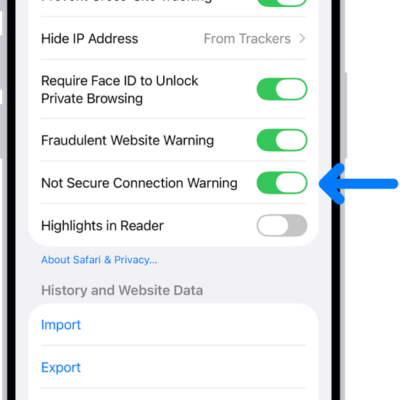
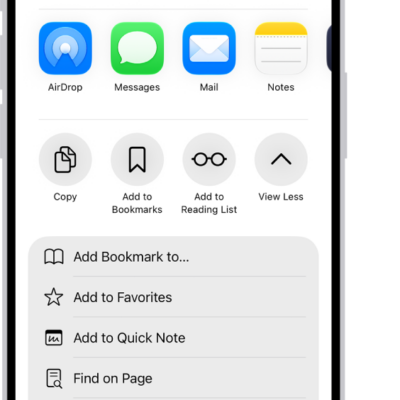
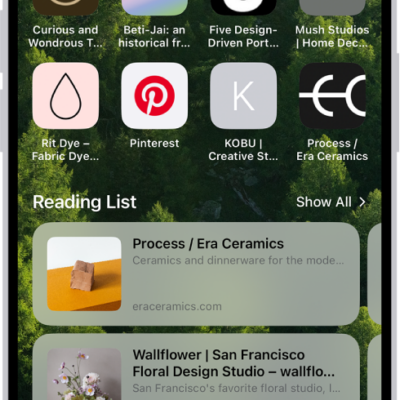
Use Reader to hide navigation menus and other distracting items. Longer pages include a summary and table of contents.
Reader formats a webpage to show only the relevant text and images, and you can return to the full page at any time. You can even automatically use Reader for a website, or for all websites that support it.
Here’s how to hide distractions when reading articles in Safari on iPhone.
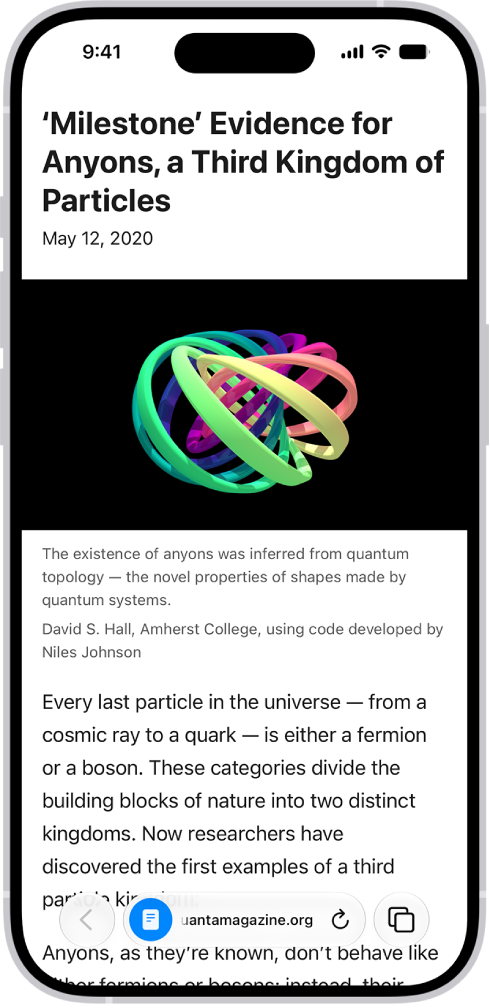
Show Reader
In Reader, a webpage is formatted to show just the relevant text and images.
- Open the Safari app on your iPhone.
- On a supported website, tap the Page Menu button. Then tap Show Reader.
To return to the full page, tap the Selected Page Menu button, then tap Hide Reader.
Automatically use Reader for a website
- Open the Safari app on your iPhone.
- On a supported website, tap the Page Menu button. Then tap Website Settings.
- Turn on Use Reader Automatically.
- Tap the Done button.
To automatically use Reader for all websites that support it, go to Settings > Apps > Safari > Reader, then turn on All Websites.
Tag: Safari