Got a tip for us?

Safari

Safari is the native browser for iPhones. It comes pre-installed on iPhone, and it’s designed to be fast and efficient for it. However, most people are complaining that Safari is not working on their iPhones after updating to iOS 26.

If Safari isn’t working on iOS 26,, it means there’s a setting or software issue. It could also be due to Internet problems.

Follow these simple troubleshooting steps to fix Safari if it’s not working on your iPhone after iOS 26 update.

1. Close And Reopen Safari

Does Safari keep crashing on iOS 26? Closing and reopening Safari can get rid of minor bugs causing crashes. The app gets a fresh start when it’s opened again.

Swipe up from the bottom to the center of the screen. Hold your finger in the center of the screen until the app switcher opens.

Then, swipe Safari up and off the top of the screen. You’ll know Safari is closed when it no longer appears in the app switcher.

Open Safari again to see if it’s working now. If it’s not, move onto the next step!

2. Clear Safari History And Website Data

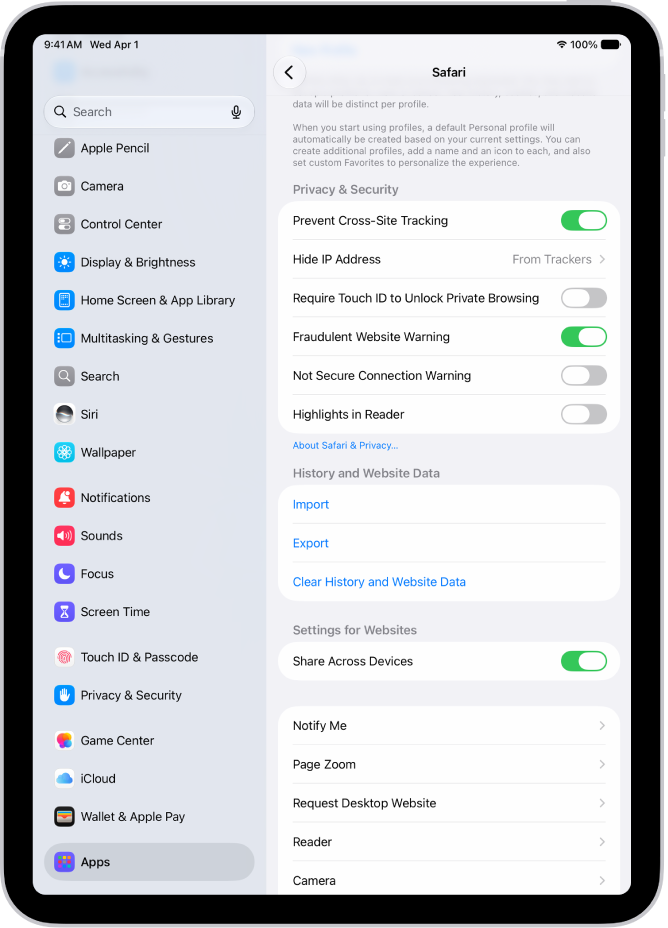
Your iPhone saves website data every time you visit a webpage in Safari (unless you’re using an private browsing mode. Cached webpages can sometimes prevent websites from loading, and a large amount of saved website data can really slow down Safari over time. You can fix this problem by clearing Safari history and website data. To do this, go to Settings > Apps > Safari > Clear History and Website Data. Select All History, and then tap Clear History. This will erase all extra data in the Safari app. Some users report this works, but you’ll need to do it often if you can’t eliminate storage space elsewhere on your iPhone.

3. Turn Off Safari Suggestions

Turning off Safari Suggestions is one of the simplest and most common fixes for Safari not loading or crashing on iOS 26. While we aren’t sure why this works, many users have reported that turning this off fixes the problem.

To turn off Safari suggestions, go to Settings > Apps > Safari > Safari Suggestions and turn this off. You can also turn off Search Engine Suggestions while you’re there too, as some users reported this also fixes the issue.

Some users have also said that blocking Safari popups on your iPhone can improve the memory usage of Safari. So, you may also want to give this a try.

If this fixes your issue, then you’re all set. If not, try the following steps.

4. Make Sure You Are Connected to The Internet

If you are trying to use Safari over Wi-Fi, try opening another app that uses Wi-Fi to load new content, such as Facebook or Twitter. Is new content loading, or are these apps not working either?

If new content loads, there’s an issue with Safari, not your Wi-Fi network. If content won’t load on Safari, Facebook, X, or another app that requires a Wi-Fi connection, there’s probably an issue with your Wi-Fi network. Check out our other article to learn how to fix Wi-Fi issues on iOS 26.

If you’re trying to use Safari over cellular data, make sure you have service by opening Control Center. 3G, LTE, and 5G speeds will typically be fast enough to load webpages. However, if your iPhone says SOS, SOS Only, No Service or Searching, webpages won’t load. Check out our other article to learn what to do when cellular data is not working on iOS 26.

5. Edit Your Screen Time Settings

If you’ve ever changed your Screen Time settings or blocked certain websites through Screen Time, try turning these settings off. To block websites, you need to enable Content Restrictions which can inadvertently block websites you still want to use. If you can’t load a link from an email or text message, this could also be a sign that content restrictions are on.

To fix this issue, go to Settings > Screen Time > Content & Privacy Restrictions and turn this option off. If it was on, then this was most likely your issue. If it was off already, proceed to the next fix.

6. Restart Your iPhone

Restarting your iPhone can fix a variety of small software issues, including one that may be preventing Safari from working. If Safari is frozen or just a blank white screen, restarting your iPhone can also fix these problems.

Press and hold the side button and either volume button simultaneously until slide to power off appears on the screen. Swipe the Slide to Power Off slider from left to right to turn off your iPhone. Wait about a minute to let your iPhone completely shut down. Then, press and hold the side button until the Apple logo appears on the screen.

7. Update iOS to the Latest iOS 26 Version

Some users have reported that updating their iPhone to the latest iOS 26 version resolves issues with Safari. Whether Safari isn’t loading, is crashing, or just isn’t connecting to websites, try updating iOS on your iPhone.

Apple does a great job of fixing bugs with iOS updates. Since Safari is a native iOS app, updating your iPhone is the only way to update the app too. Go to Settings > General > Software Update. Tap Update Now if an iOS update is available. After the update is complete, open Safari and see if it’s working again.

8. Reset Your Network Settings

If you’ve had issues with your network before, like not getting service or pages timing out, resetting your Network Settings could help.

To reset the Network Settings on your iPhone, go to Settings > General > Transfer or Reset iPhone > Reset > Reset Network Settings. This will reset only your Network Settings and won’t erase any other data on your iPhone.

After the reset is complete, try opening Safari to see if it’s working again. If not, proceed to the next fix.

9. Reset to Factory Default Settings

If all else fails, you can try resetting your iPhone to the default settings. This will erase all the data on your iPhone, and you’ll have to set it up from scratch. However, this is also a very effective way to resolve all kinds of software problems. To do this, go to Settings > General > Transfer or Reset iPhone > Erase All Content and Settings.

After resetting to the default settings, test out the Safari app before you install your usual apps. If Safari is working then but stops working when a certain app is installed, that means the app installed is interfering with Safari.

If Safari isn’t working when you have a fresh install, make sure you didn’t restore a backup of your iPhone. If you restored a backup, there could be something interfering with Safari that transferred over. If you reset your device without a backup and Safari still doesn’t work, you can try one of the two last troubleshooting steps.

10. Turn On JavaScript

JavaScript is on by default on iOS 26. However, if you’re having issues with Safari, it’s likely that JavaScript is off. Sometimes, one might turn JavasScript off as some websites might not support it.

If you’ve turned JavaScript off or want to check if it’s off and turn it back on, go to Settings > Apps > Safari > Advanced.

11. Use an Alternative Browser

If you’ve tried all of the fixes above and Safari still isn’t working on iOS 26, then unfortunately, there might be a major bug with Safari, and you’ll need to wait for the next iOS 26 update and hope it’s patched. Until then, you can try using an alternative browser to access the internet on your iPhone. There are many great browsers available in the App Store that can cater to your needs.

Be sure to check back for iOS updates and see if Apple has addressed the bug. You can also start a new discussion in the Apple Discussions Community to see if anyone else is experiencing the same issue. You can also contact Apple. Apple provides support online, over-the-phone, through the mail, and in-person. Visit their support website to find the best option for you.

Safari Not Working After iOS 26 Update? It’s Most Likely a Software Issue

Cracked screens and broken buttons are easy to diagnose as we can instantly see what’s wrong. But when Safari or other apps on your iPhone stop working, that usually means a software issue is at play.

You can usually fix these issues by updating iOS, changing your settings, or resetting your device. However, if the issue still isn’t fixed after trying everything above, you might need to post in the Apple forum about your issue or contact Apple for more help.

Tag: Safari

In iOS 26, Safari has received several notable changes. There’s a new look, an updated layout, and a new feature set.

Some iPhone users have reported that Safari is running slowly after upgrading to iOS 26. There could be many reasons why you experience this issue. Thankfully, there are several things you can do to speed Safari up again. This article shows how you can fix the Safari browser if it is slow after upgrading to iOS 26. The purpose is to help speed up Apple’s Safari or determine why it is running slow after iOS 26 update. If you are experiencing one of the following issues, you can use this article to address your problem:

  • Safari is so slow and seems frozen.
  • Websites are taking a lot of time to load or videos are lagging.

If you are also experiencing these problems, give these tips a try, and hopefully, Safari will be at full speed in no time.

1. Close And Reopen Safari

Closing and reopening Safari can sometimes fix a minor software bug causing it to load slowly. The app gets a fresh start when it’s opened again.

Swipe up from the bottom to the center of the screen. Hold your finger in the center of the screen until the app switcher opens.

Then, swipe Safari up and off the top of the screen. You’ll know Safari is closed when it no longer appears in the app switcher.

Open Safari again to see if webpages are loading faster now. If it’s still slow, move onto the next step!

2. Update Your iPhone

Ensure that your iPhone is running the latest version of iOS 26. Safari is a built-in app and the iOS software includes Safari. This means that updating iOS will also update Safari.

Open Settings and tap General > Software Update. Tap Update Now if a new iOS 26 update is available. After the update is complete, open Safari and see if it’s loading webpages faster now.

3. Clear Your Browsing History and Data

If Safari is running slowly on iOS 26, one of the most common reasons for sluggish speed is that your iPhone accumulated lots and lots of saved website data. This is a normal process, but if too much data builds up over a long period of time, Safari can slow down. Fortunately, clearing this data is easy.

To clear Safari cache, head to Settings > Apps > Safari > Clear History and Website Data. Select All History, then tap Clear History.

Once you do this, relaunch Safari and see if it’s loading up pages quickly enough. If it’s faster for a little while but begins to slow down again, proceed to the next tip.

4. Check Your iPhone’s Storage

If your iPhone storage is almost full, that means it can’t handle much else. Safari, like most apps, uses device storage to store data from the app. And low storage means Safari won’t have enough memory to work.

This is why some users find Safari temporarily faster once they clear their browsing history and data. However, some users might have used so much storage that Safari might not even speed up when you clear the cache.

Luckily, it’s easy to check if this is an issue. All you need to do is head to Settings > General > iPhone Storage and see how much space your iPhone has used. And if it’s almost full, you might have to delete some large files.

5. Check Your Internet Connection

You may feel that Safari is sluggish on iOS 26 because you may have a poor or unstable connection to the Internet. Use another browser (Chrome, Edge, etc) to visit a website. Or try using multiple devices in your home. Do you still experience that your browsing experience is slow? If your answer is yes, then the problem may be your connection. Is the slowness just with one website or with all of the websites you try to visit? If the problem is with just one website, then the problem is that website. However, if all of the websites appear to be slow on all devices and/or using different browsers, the problem may be, again, your connection. If this is the case, try:

Restart your modem/router. Simply unplug it from power, wait 30 seconds and then plug it back in. Wait for your modem/router to fully function (ensure that all of the indicator lights are on).

You can also see the following articles to troubleshoot your Internet problems:

6. Disable VPN

Is a VPN (virtual private network) running on your iPhone? It’s possible that’s the reason why Safari is slow.

Open Settings and tap General. Tap VPN & Device Management, then tap VPN. Tap the Status switch to turn it off. You’ll know your VPN is off when it says Not Connected.

Once you do this, relaunch Safari and see if it’s loading up pages quickly enough. If it’s faster you may want to look for an alternative VPN app or contact the app Developer to let them know about the issue.

7. Restart your iPhone

If you’ve completed all of the previous steps and Safari is still slow, turn off your iPhone and turn it on again. Turning off your iPhone purges the iPhone’s memory and gives it a fresh, clean start. Open Settings and tap General. Tap Shut Down, then drag the Slide to Power off slider from left to right to shut down your iPhone. Wait a moment, then press and hold the side button until the Apple logo comes onto the screen.

8. Disable Extensions

An extension may cause this problem. Do you have these installed? If your answer is yes, try the following:

We can turn off Safari Extensions temporarily to see if they are causing this:

  1. Open Settings and go to Apps > Safari.
  2. Tap Extensions. You will see your installed extensions.
  3. Turn all them off.

Now check Safari. Is it faster now? If turning off extensions resolves the issue, now determine the problematic extension that is causing this issue. Turn them back on, one by one, until you find the problematic extension. After each extension, you turn it on, test to see if the problem has recurred before turning on the next extension.

9. Reset Network Settings

When all else fails, you can reset your iPhone’s Network Settings. Doing this will reset all network-related connections on your iPhone, hopefully speeding up Safari in the process. Head to Settings > General > Transfer or Reset iPhone > Reset > Reset Network Settings to do this.

Once you do this, you’ll need to set up your network connections again. This means re-entering your Wi-Fi passwords. However, it can clear up a lot of bugs, so it is worth a try if all else fails. You can also reset your iPhone to factory settings as a last resort.

Browse Seamlessly in Safari

Safari comes pre-installed on iPhone. And since it’s the native browser, it works seamlessly across all your apps and Apple devices.

While switching to a third-party browser like Chrome might seem tempting when Safari is slow or lagging, you’ll miss out on a seamless experience. So, it’s worth taking the time to fix whatever issue you’re facing.

See also: Is your iPhone slow after iOS 26 update? Here’s the fix!

Tags: iOS 26, Safari

Follow these simple troubleshooting steps to fix Safari web page translation feature if it isn’t working properly on your iPhone or iPad.

Safari now comes with a translation feature baked into the browser, making it easier than ever to translate a web page on iPhone and iPad.

Once enabled, text is translated in-line on the webpage that you’re viewing. It’s a handy tool if you want to read websites that are written in different languages, and it’s available right in the address bar in Safari. However, Safari is not immune to issues. Recently, several users have reported that Safari translation is not working on their iPhone or iPad. If you also find Safari unable to translate web pages, we’ll show you how to fix it.

Best Tips to Fix Safari Translation Not Working on iPhone and iPad

Here’s how you can fix Safari if it’s not translating web pages on iPhone and iPad.

1. What are the Requirements for Using Safari Translation?

You can use Apple’s native web page translation feature inside Safari on an iPhone, iPad, and Mac running iOS 14 or later, iPadOS 14 or later, or macOS Big Sur or later.

2. Safari Translation Supported Languages

If you don’t see the language for translation in Safari, make sure the language is supported. Safari web page translation supported languages include:

  • Arabic
  • Chinese (Simplified)
  • Chinese (Traditional)
  • Dutch
  • English
  • French
  • German
  • Indonesian
  • Italian
  • Japanese
  • Korean
  • Polish
  • Portuguese (Brazil)
  • Russian
  • Spanish
  • Thai
  • Turkish
  • Ukrainian
  • Vietnamese

3. Right Way to Enable and Use Safari Translation

  1. Launch Safari on your iPhone or iPad, then visit a webpage that’s in a language you’d like to translate and watch for the address bar to indicate that a translation is available.
  2. Tap the aA button in the far-left of the address bar, then select Translate to [Language] in the dropdown menu. If you don’t see the option, the webpage either isn’t compatible with Safari’s translation feature or the language isn’t supported.
  3. The first time you do this, Apple will ask your permission to process your request. Tap Enable Translation.
  4. To view the original non-translated webpage, select View Original in the address bar options panel. You also have the option to Report Translation Issue if you see one.

4. Add more language to Safari translation

Apple says that "the availability of translations and the number of languages that can be translated may vary by country or region."

With that in mind, you can have more options for Safari translation by adding that language to your system’s language settings.

Go to Settings > General > Language & Region > Add Language and select a language. Now, you can choose to set this new language as your primary system language for all menus, settings, and everything. However, if you only need to use it for translation, tap **Use English **(or your current system language). This will add the new language to your iPhone but still keep English as the primary system language.

Now go to Safari, and it should automatically refresh your open web pages. After that, follow the above steps, and you will see Translate Website instead of Translate to English. Tap Translate Website and pick a language.

5. Close Safari and then reopen it

Closing and reopening Safari can fix minor software bugs preventing the app from translating web pages.

If your iPhone has a Home button, double-press it to open the app switcher. If your iPhone doesn’t have a Home button, swipe up from the bottom to the center of the screen. Hold your finger in the center of the screen until the app switcher opens.

Then, swipe Safari up and off the top of the screen. You’ll know Safari is closed when it no longer appears in the app switcher.

Open Safari again to see if it can translate web pages. If it’s not, move onto the next step!

6. Update your iPhone

Apple frequently releases updates to fix existing bugs and introduce new features. Ensure that your iPhone has the latest version of iOS. Since Safari is part of iOS, updating will also update Safari if there are updates to Safari. You can check for updates by going to Settings > General > Software Update. If there is an update, follow the instructions and update your iPhone. Simply tap the Update Now button and follow the steps. After updating, open Safari and check if you can use the translate feature.

7. Restart your iPhone

Restarting your iPhone can fix a variety of small software issues, including one that may be preventing Safari translation from working.

  • iPhone X and later: Press the side button and the volume up button until the Power Off slider appears. Slide it, then wait 30 seconds. Press the side button until the Apple logo appears.
  • iPhone 6S, 7, 8 or SE(2nd or 3rd gen): Press and hold the side button until the Power Off slider appears. Slide it, then wait 30 seconds. Press the side button until the Apple logo appears.

8. Clear website data and cache

If your issue continues, delete website data in Safari to try to fix this problem. Following the steps below will erase history, cookies, cache and other web data. You should also note that when you do this, the data will also be erased from your other devices signed into the same iCloud account.

  1. On your iPhone, go to Settings > Safari.
  2. Tap Clear History and Website Data.
  3. Tap Clear History to confirm.

9. Clear All Website Data

On many occasions, I have managed to fix issues related to Safari by clearing all website data.

  1. On your iPhone, tap Settings.
  2. Go to Safari and scroll all the way to down and tap Advanced.
  3. Tap Website Data.
  4. Tap Remove All Website Data.

10. Disable Safari Extensions

Your Safari extensions may cause this problem because one of your extensions may be causing a conflict. Turn off your Safari extensions to see if they are the problem.

  1. Open the Settings app.
  2. Tap Safari.
  3. Tap Extensions.
  4. Turn off all of the extensions.

Now, force-quit Safari and open again. If Safari is now working, this means that one or more of your extensions are causing your problem. What you can do is to turn on extensions one by one until you find the problematic one. When you find it, you can update or delete the associated app to fix your problem. If Safari is not working still, you can now enable your extensions.

11. Check that JavaScript is enabled

Should Safari translation continue to misbehave, check that JavaScript is enabled.

  1. Open Settings and tap on Safari.
  2. Scroll down and tap on Advanced.
  3. If JavaScript is off, toggle the switch to turn it on.

12. Disable/Enable Translation

If you still can’t translate in Safari, try turning it off and on.

  1. Open Safari.
  2. Tap the aA button in the far-left of the address bar, and deselect “Translate to [your language]”.
  3. Now, force quit Safari (swipe up from the Home Bar to bring up the App Switcher -> swipe up Safari).
  4. Next, launch Safari -> Tap the aA button in the far-left of the address bar, then select Translate to [Language] in the dropdown menu. If you don’t see the option, the webpage either isn’t compatible with Safari’s translation feature or the language isn’t supported.

13. Check for VPN and security software

Sometimes VPN can interfere with Safari functionality.

  • Open Settings, then tap on General.
  • Tap on VPN & Device Management, then tap VPN.
  • Look for any VPN that may be installed. If you have VPN software, you can delete it or contact the developer for more information about how the software could be affecting Safari web page translation feature.
  • Also, look at Settings > General > Profiles. If this option doesn’t exist, you don’t have any profiles installed. If you see something here, it may have been installed by the system administrator for your company, and you should talk to them.

14. Check if restrictions are turned on on your iPhone or iPad

It is possible you’ve turned on restrictions on your iPhone. Make sure that Web Content is not restricted. Here is how you can check this:

  • Go to Settings -> Screen Time -> Content & Privacy Restrictions.
  • Tap Content Restrictions, then Web Content.
  • Ensure that the “Unrestricted” option is not selected.

15. Reset All Settings

If you are still having this issue, reset all settings and then try again.

To reset all Settings on your iPhone or iPad, head to Settings > General > Transfer or Reset iPhone (iPad) > Reset > Reset all Settings.

Safari Translation: Working again

You’ve fixed the problem and Safari translation is working again. Now you can get back to translating your favorite websites! Make sure to share this article on social media, or leave a comment down below if you have any other questions about your iPhone.

Tag: Safari

It’s frustrating when Safari won’t load web pages on iPhone 13 Pro Max. Your connection, software, or the website could be causing the problem. Here are a few ways to troubleshoot the issue and access a website, even if it’s down.

See also: iOS 15: 10 Safari Tips to Boost Your Web Browsing Experience

Safari is one of the most used browsers loved for its simplicity and privacy-focused features. But, something may go wrong even with the best of software; and sometimes users find themselves in a situation when Safari does not open webpages on iPhone 13 Pro Max. Luckily, it can be fixed.

When Safari is not loading pages on iPhone 13 Pro Max, the first thing you should do is find out why it behaves like that. In this article, we will explain why Safari is not loading websites on iPhone 13 Pro Max and show you how to fix the issue. Let’s go!

Apple has devoted a lot of efforts to create one of the most powerful browsers there is. They update the Safari browser regularly, fixing more and more bags with every release. However, on certain occasions, you can see Safari browser unable to load websites on iPhone 13 Pro Max.

It can be quite frustrating if Safari is not loading pages on iPhone 13 Pro Max. . Some users see a blank, white page and others get errors like ‘Safari cannot open the page because iPhone isn’t connected to the internet.’ The problem becomes more complicated when Safari freezes and crashes without loading any page. There can be plenty of reasons why Safari doesn’t open web pages on iPhone 13 Pro Max. What may cause Safari issues described above:

  • Your iPhone is not connected to internet
  • Incorrect URL
  • Too much history and data that have not been cleared for a long time
  • An extension, VPN, security app, or website you’re browsing is blocking Safari from loading web pages
  • Older version of iOS

Fixes for Safari not loading pages on iPhone 13 Pro Max

1. Make sure the URL is correct

If you are trying to go to a website and you type the URL completely wrong, then Safari will probably fail to load the site. For example, make sure you use 3 W’s in the URL where relevant and also make sure you only use https:// where relevant, as some sites only use the basic https:// instead. Also make sure the meat and potatoes of the URL is also correct, as a wrong URL can direct you to an incorrect website or to no website at all.

2. Refresh the page

Sometimes a hiccup in the loading process occurs. If the page doesn’t load the first time, try refreshing it one, two, or maybe three more times. Website host servers aren’t always as stable as you’d like it to be and you can sometimes get through after the second or third try.

The easiest way to refresh a page in Safari is simply to pull or swipe down the web page from the top. This will reload the page, and you’ll be good to go.

3. Try loading another website

See if you can load a different website besides the one you’re having issues trying to load. If the second website loads, it could mean the first is experiencing maintenance, heavy traffic, or some other fluke. This would mean the problem is the fault of the website, and there’s nothing you can really do to fix the problem besides wait a little while longer before trying again.

4. Try another web browser

It’s also possible that Safari is incompatible with the website you’re using. In some cases, Safari will render HTML or CSS in different ways than other browsers, and such can actually break websites in some browsers. Try another web browser, such as Chrome or Firefox, and see if the page loads properly this time.

5. Check that you’re connected to the internet

You should always check to see whether or not your internet connection is working, because iPhone 13 Pro Max Safari won’t load pages if your device can’t establish a line of communication. You can go to Settings > Wi-Fi to see if you’re connected to a Wi-Fi network. Obviously, if you aren’t, you’ll have to connect to one before the page will load.

Sometimes by moving too far away from the network you were just on, your iPhone will drop the connection. This is common around school campuses where you’re walking around or moving from room to room quite often.

Verify whether the issue is with Safari alone or not. For that, check if other apps are working on your iPhone or iPad. If you cannot connect to the internet using other apps, then the problem is with your network connection. Switch to mobile data from Wi-Fi or vice versa.

If you can load web pages on Wi-Fi, but pages do not load on cellular data, check mobile data settings. For that, go to Settings > Cellular data/Mobile data. Scroll down and make sure the toggle next to Safari is green. If it’s off, turn it on.

6. Restart your Wi-Fi or Cellular Data

If you are connected to the internet and are still unable to load a page, try turning your Wi-Fi or cellular data off and on again from the Control Center.

7. Restart your iPhone

It’s possible that a piece of software on your iPhone is bugging out, so you might want to try rebooting your iPhone if none of the above steps worked. Go to Settings > General > Shut Down. After it restarts, attempt to load a web page once again.

8. Restart the wireless router

If you find Safari not loading pages on iPhone 13 Pro Max after trying the above steps, reset the wireless router or modem. By doing so, any problem that might have been related to the source of the internet should be fixed.

Unplug your router from the power source and wait a few seconds before replugging.

If it’s a minor glitch preventing your internet from working, this should’ve done the trick. If not, don’t worry. You can move on to the next solution.

9. Clear History and Website Data

If you have corrupted website data stored in your web browser, then Safari might be trying to load information that will lead it into a loop of failures time and time again. You can remove all current website data by going to Settings > Safari > Clear History and Website Data. This will delete all saved website data you have and let you re-load fresh data.

10. Turn off Content blockers

I’ve seen many cases where a website refuses to load until you disable your Content Blockers. Go to Settings > Safari > Extensions. Now, disable any Content Blockers or other Safari Extensions that might be hindering the web page from loading, then attempt to load the page again.

11. Disable security software

Some security software and firewalls have been known to block access to certain websites because they think they’re malicious. In some cases this is true, but in others, false positives make the software block access to these websites even when you don’t want them to. If you trust the website you’re trying to visit, you can attempt to disable your security software and load the page again.

12. Disable VPN software

VPN apps allow you to establish a secure and private network connection. Some websites might not be accessible from the selected VPN location. If you have a VPN running, try disabling the VPN and try again. Go to Settings > General > VPN & Device Management. And then, turn off the toggle for active VPN.

13. Check content restrictions

If Safari won’t load pages on iPhone 13 Pro Max after trying the above steps, check whether any content restrictions are enabled. You can do this by going to Settings > Screen Time > Content & Privacy Restrictions. If the Content & privacy restrictions toggle on the next screen is turned on, scroll down and tap on Content Restrictions. Go to Web content and select Unrestricted access.

Safari still not loading pages on iPhone 13 Pro Max?

If after everything above, and after waiting a little while to rule out that it was a website-based problem, try contacting the website administrator to see if there are any underlying problems that could be fixed.

If you ever had a problem with Safari not loading pages on iPhone 13 Pro Max, what did you do to fix it? Share in the comments below.

Are you getting “Safari Can’t Open the Page” error message while trying to visit a web page or web site on your iPhone, iPad, or Mac? In this article, I’ll explain exactly why you are experiencing “Safari Can’t Open the Page” error and how to fix the issue for good.

The “Safari Can’t Open the Page” error can happen on the iPhone, iPad, and Mac, on any version of the web browser. If you encounter this issue, you can usually fix the problem easily by following the troubleshooting steps explained below.

Fix “Safari Can’t Open Page” Error on iPhone, iPad, Mac

Fix 1: If “Safari Can’t Open the Page” Error, Check Your Internet!

The first thing you should do is check your internet connection, Ensure it is active and enabled. This applies to Mac, iPhone, iPad, and anything really.

If the device or computer is disconnected from the internet, you will encounter the “Safari Can’t Open the Page” every time.

Make sure that you have an active and functioning internet connection first, this is often the problem. Maybe it’s due to low cell phone reception, or a junky wi-fi connection, whatever it is, confirm that your internet actually is working. Visit a different web page, use a different Wi-Fi, etc.

See also:

Fix 2: Check the URL!

The next thing you want to do is check the website URL address, so that you know it is correct and proper. This is a really common reason why web pages can’t be loaded. A typo in the URL web address will prevent the site from loading. Ensure it is correct!

Fix 3: Refresh the Web Page

Simply refreshing the web page often resolves the issue, especially if the connection was interrupted for some reason.

You can refresh the webpage by clicking the ‘refresh’ button, it looks like a little circular arrow in a circle and it is near the address URL bar.

Fix 4: Reset Network Settings

On your iPhone, iPad or Mac, reset your network settings. Please note that this will remove all of your network-related settings including your VPN settings, saved Wi-Fi passwords, etc.
iPhone or iPad, head over to Settings > General > Reset > Reset Network Settings and then follow the onscreen prompts.

Fix 5: Restart

Simply restarting your iPhone , iPad or Mac may fix this problem.

  • Face ID iPhone and iPad Models: Press and hold the volume up (or down) and the power buttons together until the power off slider appears. And slide the slider. Wait for your device to turn off. Then press and hold the power button until you see the Apple logo.
  • Home button iPhone and iPad Models: Press and hold the power button until you see the power off slider. Then slide the slider. Wait for your device to turn off. Then press and hold the power button until the Apple logo appears.
  • Mac: You can restart your Mac by choosing Restart from the Apple menu.

Fix 6: Force restart your device

Performing a force restart also known as a hard reset can resolve your issue. Here is how:

  • iPhone 8 or later and iPad with Face ID models: Press and release the Volume up button followed by Volume down button. Then, Press and hold the power button until you see the Apple Logo.
  • iPhone 7 models: Press and hold the power button together with the Volume down button until you see the Apple Logo.
  • Devices with a home button including iPhone 5, iPad Air, etc: Press the power button together with the home button until you see the Apple Logo.

See also: How To Force Restart a MacBook, MacBook Air, or MacBook Pro

Fix 7: Force close Safari and restart again

  1. On an iPhone X or newer, or an iPad running iOS 12 or higher, or iPadOS, from the Home screen, swipe up from the bottom of the screen and pause slightly in the middle of the screen. On an iPhone 8 or older, double-click the Home button to bring up your most recently used apps
  2. Swipe right or left to find Safari.
  3. Swipe up on the app’s preview to close Safari.

Fix 8: Delete your history, cookies, and cache in Safari

  • To clear your history and cookies on your iPhone or iPad, head over to Settings > Safari, and tap Clear History and Website Data and confirm that you want to remove website data.
  • To clear browser data on Mac, head over to “Safari” in the menu bar > Preferences > Privacy > Remove all website data, and confirm that you want to remove website data.

Fix 9: VPN

Are you using a VPN (Virtual Private Network) on your iPhone, iPad or Mac. If so, try to disable your VPN and then try to load Safari again.

Fix 10: Updates

Ensure that your iPhone, iPad or Mac is running the latest software version. Here is how you can check:

  • iPhone and iPad: Head over to Settings > General > Software Update. This will check for iOS or iPadOS updates. And if there is an update available, follow the onscreen prompts.
  • Mac: Launch System Preferences and then click Software Update. If there are updates, follow the onscreen prompts.

Fix 11: Restore to Factory Settings

If restarting doesn’t work for you, you may want to try restoring your iPhone, iPad or Mac to factory settings. This will completely wipe the data and settings on your phone. Your iPhone will still be running iOS 14 if you choose this option.

First, backup your device. There are two options. iCloud: On your iPhone or iPad, go to Settings > iCloud > Backup. Make sure that iCloud Backup is enabled. You will be able to see when your last backup was. If you have never backed up your iPhone or iPad before or if it has been awhile, select Backup Now.

iTunes (Windows or macOS Mojave or earlier) or Finder (macOS Catalina or later): Plug your iPhone or iPad into your PC or Mac using a USB cable. Click on the iPhone icon in the top-left corner of iTunes, under the Play button. Then follow the onscreen instructions.

Now to Factory-reset your iPhone or iPad.

  1. Go to Settings > General > Reset > Erase All Content and Settings.
  2. If you have an iCloud backup, there will be an option to update it. Tap Back Up Then Erase.
  3. Type in your passcode if prompted. Tap Erase iPhone in the warning box.
  4. Enter your Apple ID to confirm.

Fix 12: Try a Different Browser

Another choice is to use a different web browser. This is in case the site loads in other browser such as Chrome but not in Safari, it may indicate a specific problem with Safari.

If Safari is not opening web sites after these troubleshooting steps, you may want to contact Apple Support.

Tag: Safari

In this article, I’ll show you how to troubleshoot when Top Sites in Safari feature is not working properly on your Mac.
The Top Sites page in Safari displays a selection of sites you visit frequently in thumbnail view, giving you the ability to quickly scan multiple web sites for new information.

Here are some of the reported issues:

  • The Top Sites feature is not working as expected.
  • Top Sites not refreshing.
  • Missing Top Sites on Safari.
  • Safari top sites thumbnails not updating.
  • Top Sites page displays error messages.

Causes of Safari Top Sites Errors

Safari’s Top Sites feature may stop working properly if you lose your Internet connection, even for just a short period. Whether the cause is your home network router, DNS problems, or your ISP going offline due to a severe storm in your location, an interrupted connection can sometimes cause the thumbnails in Safari Top Sites to either stop updating or display error messages.

How to Fix Safari Top Site not Working Issue

1. Force quit and restart

Try force quitting Safari and then open again. This may resolve your problem. Here is how:

  • Press the Option, Command, and Esc (Escape) keys together (or click the Apple menu and Force Quit).
  • The force quit window will appear.
  • Select Safari.
  • Click Force Quit.
  • Now open Safari.

2. Restart your Mac

Restart your Mac and router. This may resolve your problem.

  • Mac: You can restart your Mac by choosing the Restart option from the Apple menu in the upper-left corner of the display.
  • Router: disconnect the power, wait 10 seconds, and then connect. Wait at least two minutes to allow the router to completely turn on.

You may also want to reset your router to its factory default settings. Doing so will wipe out all of your settings. You can start over with fresh settings. Most routers include a reset button (on the back or bottom). You will need to push this button using a paperclip (or something similar.) Insert your paperclip and hold down for 30 seconds. Then wait for your router to turn on.

3. Update your Mac

Make sure that your Mac is running the latest version of the macOS software. Here’s how to update your Mac:

  • macOS Mojave or higher: Go to System Preferences and then Software Update.
  • macOS High Sierra or earlier: Launch the App Store on your Mac and then click the Updates tab.

4. reset network settings on your Mac.

5. Forget Wi-Fi

Forgetting the network can resolve the issue. Before we start, make sure to have your Wi-Fi password handy. Here is how:

  • From the Apple menu, go to System Preferences.
  • Click Network.
  • On the left, you will see a list. Choose Wi-Fi.
  • Click Advanced.
  • Click the Wi-Fi tab.
  • Select the Wi-Fi network that you wish your Mac to forget.
  • Click the remove button (–) and agree to remove it.
  • Click Ok and Apply.

Now you will need to reconnect to the Wi-Fi network. You will need to type in your password again.

6. Empty caches

  1. Click on the Safari tab at the top right of your display. From the dropdown menu, choose Preferences.
  2. Click the Advanced tab of the menu that appears.
  3. At the end of the tab, select the “Show Develop menu in menu bar” box and close the Preferences menu.
  4. Click the Develop tab from the Safari menu at the top of the page.
  5. From the dropdown menu, click Empty Caches.

7. remove Top Sites setting file

If you are still experiencing the Top Sites problem, then there is a higher chance that Top Sites setting file (plist) may become corrupted. If this is the case, your Top Sites page will not function as corrupted files are unusable. Here is how you can remove this file:

  • Launch Finder
  • Hold down the option key, then click Go and Library when the option key is held
  • The Library folder will launch
  • Locate and click the Safari folder
  • In Safari folder, locate the ‘TopSites.plist’ file
  • Drag this file to your desktop.
  • Head over to the Apple menu and Restart your Mac
  • Start the Safari App and test to see if Top Sites is working as you wanted. If it is working as expected, you may go ahead and delete the plist file that you just placed on your Desktop. if it is still not working, if you are facing problems, move back this plist file to its original place (Library > Safari) and overwrite the one Safari just created after you removed the original.

8. Safe Mode

Starting your Mac in Safe Mode may fix your problem. Please start your Mac in Safe Mode, then in Safe Mode check if Safari Top Sites feature is working. Then restart your Mac normally to exit Safe Mode. Here is how:

  • Turn off your Mac: Go to Apple menu > and choose Shut down.
  • Turn on your Mac and immediately press and hold the Shift key.
  • Keep holding the Shift key until you see the login screen.
  • When the login screen appears, release the Shift key.
  • Login.
  • Now your Mac is running in Safe Mode. Your Mac will run slower, this is normal. Now Safari and check if Safari Top Sites feature is working.
  • Either case, exit Safe Mode. Simply restart your Mac and do not press any keys.

9. Reset PRAM or NVRAM

Resetting PRAM or NVRAM may fix this problem. PRAM or NVRAM are different things, but they are reset in the same way. Here is how:

  1. Press and hold the power button on your Mac to fully shut it down. Hard discs and fans need to stop spinning, and the screen needs to turn dark.
  2. Turn on your Mac.
  3. Immediately after you hear the startup sound, press and hold the “Command + Option + P + R” keys.
  4. Keep holding them down until you hear the start up sound again and the Apple logo appears.
  5. Let go the keys, and the PRAM/NVRAM will have been reset. This will reset some of your settings such as display, volume, time zone, and more.
Tag: Safari

I did it. I ditched the behemoth browser that is Google Chrome in favor of Safari. And here are the reasons.

#1. Safari is faster

For a long time, the collective response to the above points was “Sure, but nothing is better”. However, recent versions of Safari are faster, sleeker, and better than Chrome.

Seriously, if you haven’t tried this browser out for a while, you don’t know what you’re missing. Even the extension ecosystem has come a long way; the most common tools are already waiting for you. It’ll be an adjustment, but you’ll never look back.

Chrome is a very fast browser… except when it isn’t. When it hangs and gets stuck before loading the page. Safari, however, has always been responsive when I’ve used it. It never lags or crash, like Chrome.

#2. Chrome Drains Your MacBook Battery

MacBook battery life has been a big feature for Apple in recent releases of macOS. Cupertino brought energy impact measuring tools to the operating system, which you can access by clicking the battery icon in your menu bar. If you’ve got Chrome running, Chrome will often show up here.

Chrome also consumes up a huge amount of battery life and RAM, which is terrible when you’re trying to use multiple apps on your MacBook simultaneously. Safari, however, is optimized to work on Mac hardware and uses almost no Power when it’s sitting in the background, in addition to taking up way less RAM than Chrome. Because of this, if battery life is important to you, avoid using Chrome on your MacBook.

Google is reportedly working on the issue, and has made progress, but the job is far from finished. And you don’t have to take my word for it: launch the Activity Monitor on your Mac, then go to the Energy section. Open some tabs in Chrome and the same ones in another browser—Chrome will almost always use more energy for the same task.

#3. Chrome Works in Its Own Way

Unlike Safari, many of Chrome’s features have their roots in ChromeOS, as opposed to macOS. This results into a less than ideal experience.

Most Mac apps close instantly when you press Cmd + Q; Chrome, by default, makes you hold the combo for a while (though you can disable that feature Most Mac apps have their own preferences window; Chrome uses a website in a tab for that.

Chrome is also slower to catch up with macOS features. macOS Mojave introduced Dark Mode in September 2018, which Safari supported out of the gate. But Chrome didn’t implement this feature until March 2019 which is six months later. Safari also has a feature that will turn supporting websites dark, whereas you have to install a Chrome extension to enjoy this feature.

The old notification system was also a mess. Chrome used its own notification setup that didn’t integrate with the Notification Center. The good news is that this is no longer the case, but it was a huge pain for a long period of time.

Obviously, it’s less than ideal to compell a user to learn an entirely separate interface when they’re accustomed to one already. Safari uses the same buttons and symbols as the rest of macOS, which leads to a more seamless experience.

#4. Chrome Extensions Come With a Price

It’s true that in the head-to-head Battle of Chrome vs. Safari, Chrome is the clear winner when it comes to extensions. Even so, a big extension library comes with a price.

One of the main reasons Chrome uses so much of your CPU and drains so much of your battery life is due to installed extensions. Extensions can also introduce privacy problems, as many of them need extensive access to your browsing. As great as extensions often are, their strain on your system can be a high price. If there are a few you can’t live without, don’t forget that Safari has numerous great extensions as well.

#5. Google Is Watching You

While Google and Apple’s interests might seem like they overlap, the companies are structured quite differently. Google’s revenue is primarily ad-based, meaning that as the user, you aren’t really the customer; you’re the product. Google only makes money if it can somehow collect information about you to sell.

While you can tweak Chrome to protect your privacy to some extent, you’ll never be entirely safe with a company whose business model is built on collecting your data. If that sounds Orwellian to you, Chrome on Mac probably isn’t for you.

#6. Apple Watches You Less

Apple’s business model is based on selling you, the user, its hardware. Its software is usually free, and is only valuable as much as it makes Apple hardware more attractive to the customer. The company has a more direct incentive to provide you with a browser that works well with other Apple products.

As a sign of this good faith, Apple introduced a whole suite of privacy protection measures in macOS Mojave. Intelligent Tracking Prevention 2 (ITP 2) is an update to a feature introduced in High Sierra that attempts to combat cross-site tracking, making it more difficult for websites to follow you on the web. It also attempts to scrub fingerprinting, which makes it more difficult for websites to identify you in the future.

#7. No Chrome Support Below Yosemite

Chrome’s system requirements cut off any Mac that’s below macOS Yosemite. Sure, you can update your Mac free of charge, but many people don’t want to for a number of reasons. This includes users on older computers that don’t support the latest version of macOS.

#8. Safari’s Reader Mode Is Great

Have you ever tried to read an article, but couldn’t get past the ads? Safari’s Reader mode cuts through all the bad formatting, strange fonts, and ad splash pages to deliver what you came for: pure, streamlined text. Images, videos, and links are included, all in an easy-to-read format.

#9. Safari Integrates Better With the Apple Ecosystem

If you’re all-in with the Apple platform, Safari is the better choice. All the little aspects just integrate better: your passwords, for example, are managed by Apple’s system-wide tool and synced using iCloud. The same goes for your Bookmarks.
Because I already use Safari on my iPhone, using Chrome instead on my MacBook meant that none of my passwords would sync across devices, which was a major headache. Now, with Safari on my Mac, my passwords are synced across my devices automatically, and I can autofill them using Face ID on my iPhone or Touch ID on my Mac.

Continuity
with iOS only works with Safari. If you use an iPhone or iPad,
Handoff
allows you to go to a site on Safari on your mobile device, pick up your Mac, and go immediately to the same site.

That’s pretty much it. I’m done with Chrome. And the only thing I’ll miss is the dinosaur game.
Thanks for reading! If you have any questions or feedback, drop them in the comments section and I’ll answer them.

Tag: Safari

Safari is not working as expected? In this article, I’ll explain exactly what you can do if Safari doesn’t respond, and keeps freezing or crashing on your Mac. You may also see the rotating color wheel or “spinning beach ball”. A couple of users have also stated that Safari crashes when they open the Preferences pane.

Safari is a great and solid browser. However, performance-related problems (freezing or crashing) may occur every now and then.

Sometimes, you may see “Safari quit unexpectedly” error messages.

An unresponsive Safari may cause your Mac to freeze as well If you are experiencing this problem, please try the following steps. Launch Safari between step to see if your problem is fixed.

1. Update

Ensure that your Mac is running the latest versions of the macOS software. Safari is within macOS. That means, updating your Mac also includes updates to Safari. Here is how to update macOS:

  • If your Mac is running macOS Mojave or higher: head over to System Preferences and Software Update. Otherwise, you can click the Apple menu > About This Mac > Overview and then Software Update. And if you see an update, hit the Update Now button then follow the onscreen prompts.
  • If your Mac is running macOS High Sierra or older: Launch the App Store on your Mac and click Updates.

2. Empty Cache in Safari

Emptying all Safari caches may resolve your issue. It is recommended to do this in Safe Mode because Safe Mode clears your Mac’s system cache and may fix glitches. This is also a good thing because if your experience Safari crashes when you want to open Safari Preferences. Here’s how:

  • Power off your Mac.
  • Power on your Mac and immediately press and hold the Shift key.
  • Keep holding the key until the login screen appears. Then release the Shift key and log in.
  • Your Mac is now in Safe Mode. Your MacBook may be a bit slower in Safe Mode. Don’t worry, this is normal.
  • Next, head over to the Finder.
  • From the menu bar, hit Go and head over to Folder (or press Command, Shift, G keys together).
  • Type in the command below and hit Go:
    ~/Library/Caches/com.apple.Safari/
    • Erase files by dragging them to the Trash.
    • Next, exit Safe Mode by restarting your Mac normally. Don’t press the Shift key this time.
    • When your Mac turns on, try to open Safari to see if it now crashes or freezes.

3. Safari Extensions

You may be experiencing this problem because of third party extensions you may have. There are two troubleshooting steps you should take:

  1. First off, ensure that if your issue caused by an extension.
  2. If an extension is the problem, then we will need to pinpoint the problematic extensions. Here is how:

Please follow the steps below to turn off extensions to figure out whether they are causing the problems:

  1. On your Mac, launch Safari and in Safari, click Safari and Preferences.
  2. Go to the Extensions tab. Then uncheck all of the extension’s checkboxes to disable them.
  3. Now exit Preferences and check if Safari is working. If your problem is not fixed, you can now reenable the extensions as they are not the culprit. If your problem is resolved, it means that your problem is triggered by one of your extensions. Simply re-enable the extensions one after another until you identify the problematic extension. When you find it, you can simply hit the uninstall button to remove it, update, or
    contact its developer
    for more help.
Tag: Safari

It’s difficult to read on the websites that have a smaller font size. To get rid of this, apple has added a new feature on Safari in
iOS 13
. You can easily make text
larger in Safari on your iPhone or iPad. If you want to increase the font size of text on any webpage in Safari on iPhone or iPad, there are a few simple steps which you need to follow.
Here is the step-by-step guide which can help you to adjust web text size with any iPhone or iPad running iOS 13 or iPadOS 13 or later.
Increase font size in safari on iPhone
In the previous version of iOS, you could use the Safari feature “pinch-to-zoom” to increase the font size of a website on iPhone or iPad. With the latest features of iOS 13, Safari has dedicated zoom controls to complement its pinch-to-zoom feature, making web browsing even more convenient.
In iOS 13, Safari has gotten much better Beginning from
managing your downloads
to
closing Safari tabs automatically
it just became easier to brouse in Safari. And now, to make the text bigger on Safari is no longer a pinch-to-zoom!
While you can still read an article by simply zooming in or zooming out, you are required to scroll either way as it doesn’t fit on your screen. But with the latest
Features added in Safari, you do not require to scroll or zoom in to increase the font size of a given website on the iPhone or iPad.

How to Increase the Font Size in Safari on iPhone & iPad

Make Text Bigger in Safari on iPhone and iPad

Follow these steps to make the text bigger on Safari on iPhone and iPad.

  1. Launch Safari app on your iPhone and navigate to a website of your choice, we suggest
    geeksmodo.com
  2. Tap the “aA” icon in the upper left corner of the screen.
  3. Now tap on the larger “A” that appears on the right side to increase the percentage and keep tapping on it until you get the desired text size. It can zoom in up
    to 300%.
  4. You can also decrease the percentage of font size of the web page by tapping on smaller “A” located on the left side. It can zoom-out up to 50%.

It’s that simple to increase and decrease the font size in Safari on your iPhone and iPad running on iOS 13 and iPadOS 13 respectively.

In case you don’t want to repeat the same steps for all the websites, you can just specify a permanent zoom percentage for all the websites you want to read
regularly.

How to Set a Bigger or Smaller Text Size for All Websites in iOS 13 Safari App

You don’t have to use the above method every time to make a text smaller or bigger in Safari. You can set a permanent zoom percentage for all the websites by simply
changing a couple of settings outlined below. Here is how to do it!

  1. Launch Settings App and navigate to Safari.
  2. Scroll down to “Settings for Websites” section and tap on Page Zoom option.
  3. You will find a list of websites under “Page Zoom ON” that you have previously increased or reduced the font size. Tap on that website to set font size of your choice.

You can also move to “Other Websites” section and change the font size depending on your preference

Selecting a smaller font size could render the text difficult to read. Therefore, it’s recommended to keep the font size above 100% for a better reading experience on your iPhone or iPad in Safari.

Final Thoughts!

This is so far my favorite feature in Safari as it improves my overall experience upon selecting my preferred font size. Have you tried this feature
on your iPhone or iPad? If not, give it a shot now by following the above-given steps.

Questions?

Let us know in the comments section below. We also have plenty of other articles that I suggest you check right now.

Tag: Safari