You can erase your browsing history and data to clear the cache on your iPad. It removes the history of websites you visited and recent searches, along with the cookies and permissions you granted websites to use your location or send you notifications.
You can choose how much of your browsing history to clear. And if you have Safari profiles set up, you can clear the history of just one profile or of all profiles.
Note: Clearing your browsing history in Safari doesn’t clear any browsing histories kept independently by websites you visited, or your browsing history in other apps.
- Go to the Safari app on your iPad.
-
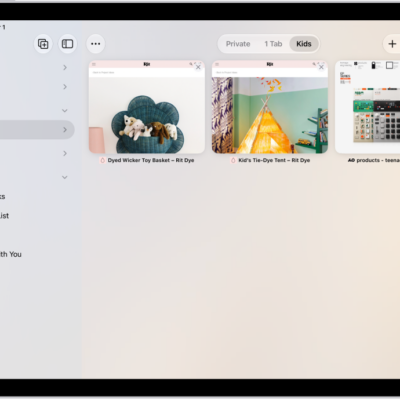
Tap the Show Sidebar button, then tap History.
If you don’t see History, tap the Back button at the top of the sidebar.
- Tap the More button and then tap Clear.
-
Below Clear Timeframe, choose how much of your browsing history to clear.
Note: If you have Safari profiles set up, select a profile to clear only the history of that profile, or select All Profiles.
- Tap Clear History.
See also
- Protect your web browsing with iCloud Private Relay on iPad
- Browse the web privately in Safari on iPad