Got a tip for us?

Safari

You can import data into Safari that you exported from another browser. Browser data can include bookmarks, history, extensions, credit cards, and passwords.

The data can come as a ZIP file, and there might be individual files for each piece of browsing data, like bookmarks or history. After you import it, a description of the browser data appears, and any passwords go into the Passwords app. For security, you’ll want to delete the file or folder you imported, since it may include unencrypted data.

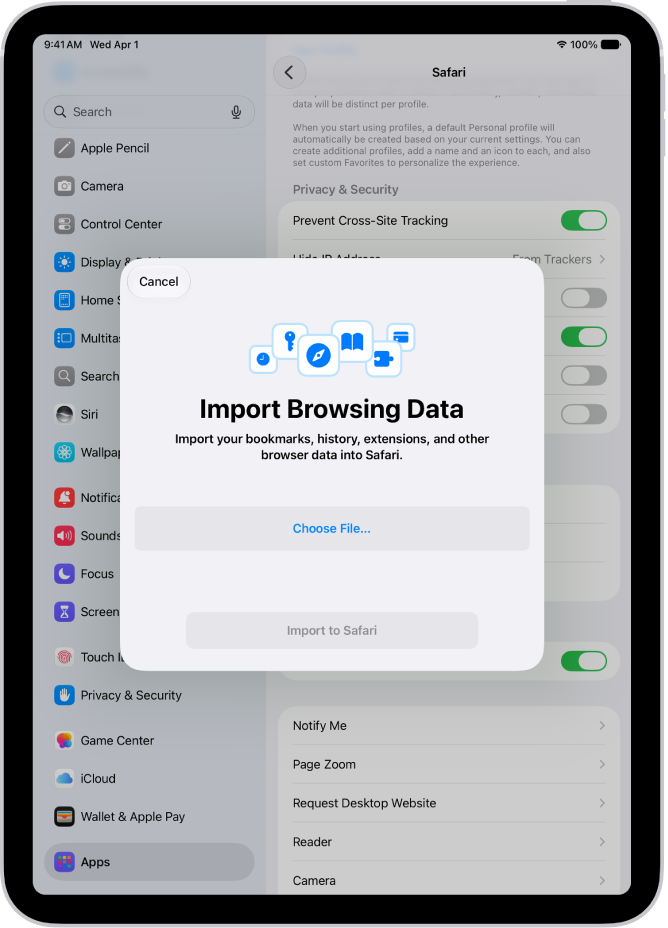
The Import Browsing Data screen, showing the data from another browser to be imported into Safari.

  1. Open the Settings app on your iPad.
  2. Tap Apps, then tap Safari.
  3. Below History and Website Data, tap Import.
  4. Tap Choose File and then choose a file (or a ZIP file of files) to import.

    Individual files might be available for each piece of browsing data, such as bookmarks or history.

  5. Tap Import to Safari.

    A description of the browser data you imported appears.

    Note: Any passwords you import go into the Passwords app.

  6. Tap Done.

    WARNING: For security, delete the file or folder you imported. It may include unencrypted data and could be visible to anyone who can access it.

See also

Tag: Safari

Safari lets you mute audio in any open tabs—helpful when you’re listening to audio from one website, and unwanted audio starts playing from another.

You can mute audio in the tab you’re viewing, mute audio in other tabs, mute all audio, or mute any tab in the tab bar. You can also see which websites are playing audio, and unmute a tab later.

Here’s how to mute audio in tabs in Safari on iPad.

Mute audio

  1. Go to the Safari app on your iPad.
  2. Do any of the following:
    • Mute audio in the tab you’re viewing: Tap the Mute button in the search field.
    • Mute audio in other tabs: If you’re viewing several websites that are playing audio, touch and hold the Mute button in the search field and tap Mute Other Tabs to let audio play in the tab you’re currently viewing and to mute the audio in other tabs.
    • Mute all audio: If you’re viewing a website that’s not playing audio and other tabs are playing audio, tap the Mute button in the search field to quickly mute all audio in other tabs.
    • Mute any tab: Tap the Mute button on the right side of the tab in the tab bar.

See websites that are playing audio

  1. Open the Safari app on your iPad.
  2. Touch and hold the Mute button in the search field to see a list of websites that are playing audio.
  3. Choose a website to go to the tab where the audio is playing.

    If you’re viewing a website that’s not playing audio, the list of open websites also includes the Mute All Tabs option. If the website you’re viewing is playing audio, it includes the Mute This Tab or Mute Other Tabs option.

Unmute audio

  1. Open the Safari app on your iPad.
  2. Tap the Mute button in the search field, or on the right side of the tab in the tab bar.

Note: You can mute and unmute audio in tabs in the active Safari window, and also in tabs in other Safari windows behind it.

See also

Tag: Safari

You can mark up a webpage, highlight your favorite parts, draw and write notes, and share your document as a PDF with others. Markup works right inside Safari. When you’re done, your marked-up webpage is saved as a PDF in the location you choose.

  1. Go to the Safari app on your iPad.
  2. Go to a webpage, then tap the Share button.
  3. Tap View More, then tap Markup.
  4. Use the tools to annotate the webpage.
  5. Tap the Done button, then tap Save File To.
  6. Enter a name for the file, then tap Save.

See also

Tag: Safari

With your personal information saved on iPad, you can automatically fill in contact information, user names, and passwords.

Saving your details on your iPad speeds up filling in online forms, and you can even use AutoFill to enter another person’s information from your contact list, like a friend’s address when you ship a gift. You set up AutoFill first, and you can fill in your passwords the same way.

Here’s how to fill in personal information in Safari on iPad.

You can also automatically fill in payment information.

Set up AutoFill

You can save your personal information on your iPad to speed up filling in online forms.

  1. Open the Settings app on your iPad.
  2. Tap Apps, then tap Safari.
  3. Tap AutoFill, then turn on Use Contact Info.
  4. Tap My Info and then choose your contact card.

    The contact information from your card is entered when you tap AutoFill on webpages in Safari.

Fill in your contact information automatically

You can quickly add your personal information to online forms using AutoFill.

  1. Go to the Safari app on your iPad.
  2. In a form on a website that supports AutoFill, tap a blank field.
  3. Tap AutoFill Contact above the keyboard, then select a contact.
  4. Tap any field to make changes.

Note: AutoFill can enter another person’s information from your contact list, too. If you’re purchasing a gift and shipping it to a friend, for example, you can use it to enter their address. To do that, tap AutoFill Contact, tap Other Contact, then choose their contact card.

Fill in your passwords automatically

When you sign up for services on websites and in apps, iPad can create and save strong passwords for many of your accounts. To learn how, see our guide, Automatically fill in strong passwords.

Important: Never enter a password on sites with a “Not Secure” warning.

Turn off AutoFill

If you share a device with others, for example, you might not want your contact information readily available. In that case, you can turn off AutoFill for passwords and your contact information.

  • Turn off AutoFill for your contact information: Go to Settings > Apps > Safari > AutoFill, then turn off Use Contact Info.
  • Turn off AutoFill for passwords: Go to Settings > General > AutoFill & Passwords, then turn off AutoFill Passwords and Passkeys.

See also

Tag: Safari

You can create multiple Safari profiles—like Work and Personal—and use them to separate your internet browsing into different themes. Each profile has separate favorites, histories, tabs, and Tab Groups, and you can add, edit, or remove a profile at any time.

Profiles you make on iPad show up on your other iPhone, iPad, and Mac devices signed in to the same Apple Account.

Here’s how to create multiple Safari profiles on iPad.

Create a profile

Profiles you create on iPad show up in Safari settings on any iPhone, iPad, or Mac signed in to the same Apple Account.

  1. Start the Settings app on your iPad.
  2. Tap Apps, then tap Safari.
  3. Tap New Profile and tap Name.
  4. Enter a name for this profile, then choose an icon and color.
  5. Below Settings, tap Favorites to choose a bookmarks folder.

    If you have multiple folders of bookmarks, this option selects the folder of bookmarked websites that are recommended as you enter an address, search, or create a new tab. For example, if you have a folder of bookmarks related to work, you can create a work profile and use this field to ensure that those websites are suggested as you type in the address field.

  6. Tap Open New Tabs and choose the page you want new tabs to open to.
  7. Tap the Done button.

Use profiles in Safari

You can easily browse the internet with a profile, or move between profiles.

  1. Go to the Safari app on your iPad.
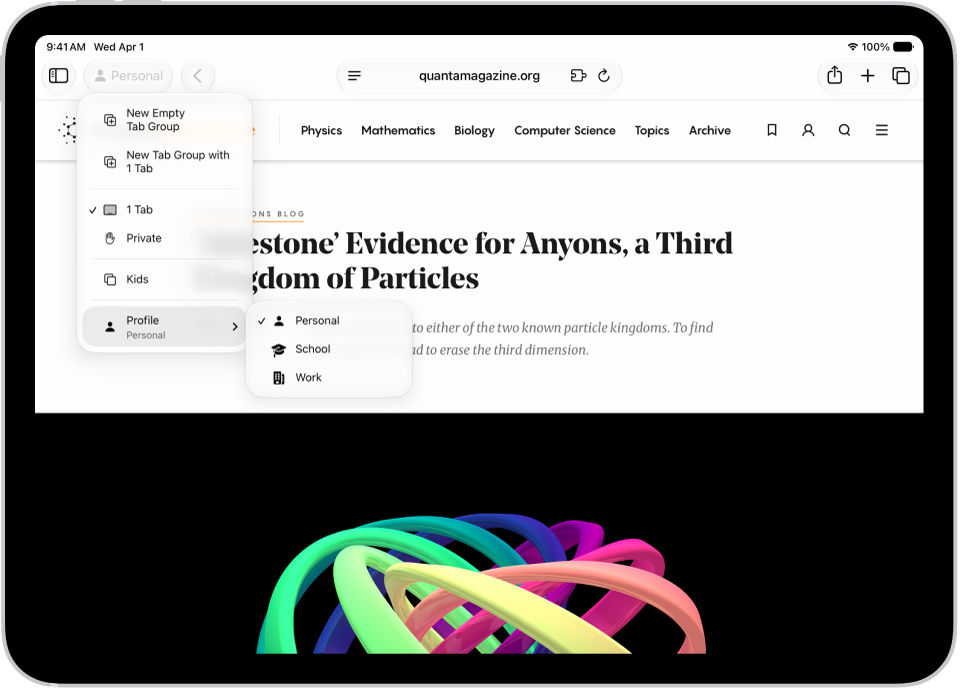
  2. Tap the name of the current profile in the upper left of the window.
  3. Tap Profile at the bottom of the menu. Choose the profile you want to use.

In Safari, the Tab Group menu is open. At the bottom of the menu, Profile is selected, and a menu shows the options Personal, School, and Work.

Edit a profile

  1. Start the Settings app on your iPad.
  2. Tap Apps, then tap Safari.
  3. Tap the profile you want to edit.

Choose which extensions to use with a profile

Extensions let you customize the way your browser works on iPad. To learn how to install them, read our article, Get extensions to customize Safari.

With extensions installed on your iPad, you choose which ones to use with each profile.

  1. Start the Settings app on your iPad.
  2. Tap Apps, then tap Safari.
  3. Tap a profile. Then select each extension you want to use with that profile.

Remove a profile

At any time, you can delete a profile. Doing so also erases the favorites and history associated with it and closes all websites open in it.

Important: This action can’t be undone.

  1. Start the Settings app on your iPad.
  2. Tap Apps, then tap Safari.
  3. Tap a profile.
  4. Tap Delete Profile, then tap Delete to confirm.

See also

Tag: Safari

Use tabs to help you navigate between multiple open webpages.

You can open a link in a new tab, view a tab’s history, close tabs, and open a recently closed tab. You can see which webpages you previously visited in a tab, and close all tabs in a Tab Group at the same time. You can also organize your tabs, and view your Safari tabs from another Apple device. With the Compact Tab Bar layout, some menus look a little different.

Note: If you use the Compact Tab Bar layout, the menus and other items might look different from what’s described in this guide. To change the layout, see our article, Change the layout of Safari.

Open a link in a new tab

  1. Go to the Safari app on your iPad.
  2. Touch and hold the link. Tap Open in Background.

View a tab’s history

This tab shows which webpages you’ve previously visited.

  1. Open the Safari app on your iPad.
  2. Touch and hold the Back button or the Forward button.

Close tabs

  1. Open the Safari app on your iPad.
  2. Tap the Tabs button. Then tap the Close button in the upper-right corner of a tab to close it.

Quick tip: To close all the tabs in this Tab Group at once, touch and hold the Done button and then tap Close All [number of] Tabs.

Open a recently closed tab

  1. Open the Safari app on your iPad.
  2. Touch and hold the New Tab button. Choose from the list of recently closed tabs.

    In Safari, a webpage is open. At the top right of the screen, the New Tab button is selected, and a list of two recently closed tabs is visible.

See also

Tag: Safari

You can view the tabs that are open on your other Apple devices and keep tabs and Tab Groups updated across them. You must be signed in to iCloud with the same Apple Account on all your devices to manage Safari tabs on those devices.

You can even close a tab on another Apple device. To see tabs open on your Mac, too, Safari needs to be on in iCloud on your Mac, with two-factor authentication.

View tabs that are open on your other Apple devices

  1. Go to the Safari app on your iPad.
  2. Tap the Show Sidebar button, then tap iCloud Tabs.

    To close a tab on another Apple device, touch and hold the link, then choose Close.

Keep tabs and Tab Groups updated across your devices

  1. Open the Settings app on your iPad.
  2. Tap your name, then tap iCloud.
  3. Tap See All and then make sure Safari is turned on.

Note: Seeing tabs open on your Mac, too, requires Safari turned on in iCloud settings on your Mac, the same Apple Account on both, and two-factor authentication.

See also

Tags: iCloud, Safari

You can share a Tab Group and collaborate with people who use iCloud. You can add and remove people at any time, and even start a message conversation, phone call, or FaceTime call without leaving Safari.

Collaborators can add and remove tabs from the Tab Group, and everyone sees updates in real time. You also get activity updates in the Messages conversation when someone makes a change, and you can remove someone with Remove Access.

Everyone you collaborate with must be signed in to their Apple Account, have Safari turned on in iCloud settings, and have two-factor authentication turned on.

Share a Tab Group

  1. Go to the Safari app on your iPad.
  2. Tap the Show Sidebar button, touch and hold a Tab Group, and then tap Share.
  3. Tap Messages and enter the person or group you want to share it with.

    You get activity updates in the Messages conversation when someone makes changes in the Shared Tab Group.

Add and remove people from a Shared Tab Group

  1. Start the Safari app on your iPad.
  2. Tap the Collaborate button.
  3. Tap Manage Shared Tab Group and then do any of the following:
    • Remove someone: Tap a name, then tap Remove Access.
    • Add someone: Tap Share With More People and tap Messages to invite them.
    • Stop Sharing with everyone: Tap Stop Sharing.

Start a Messages, audio, or video conversation from Safari

Without leaving Safari, you can start a conversation with everyone that shares the Tab Group over Messages, FaceTime audio, or FaceTime video.

  1. Start the Safari app on your iPad.
  2. In Safari, tap the Collaborate button. Tap message, audio, or video to start the conversation.

See also

Tag: Safari

To keep tabs organized and make them easier to find again later, you can have Safari organize tabs into related topics, or create your own Tab Groups.

With Apple Intelligence, your tabs are organized into suggested topics based on your browsing history. You can also rename a Tab Group, reorder tabs, pin a tab at the front of a group, and move a tab to another Tab Group whenever you like.
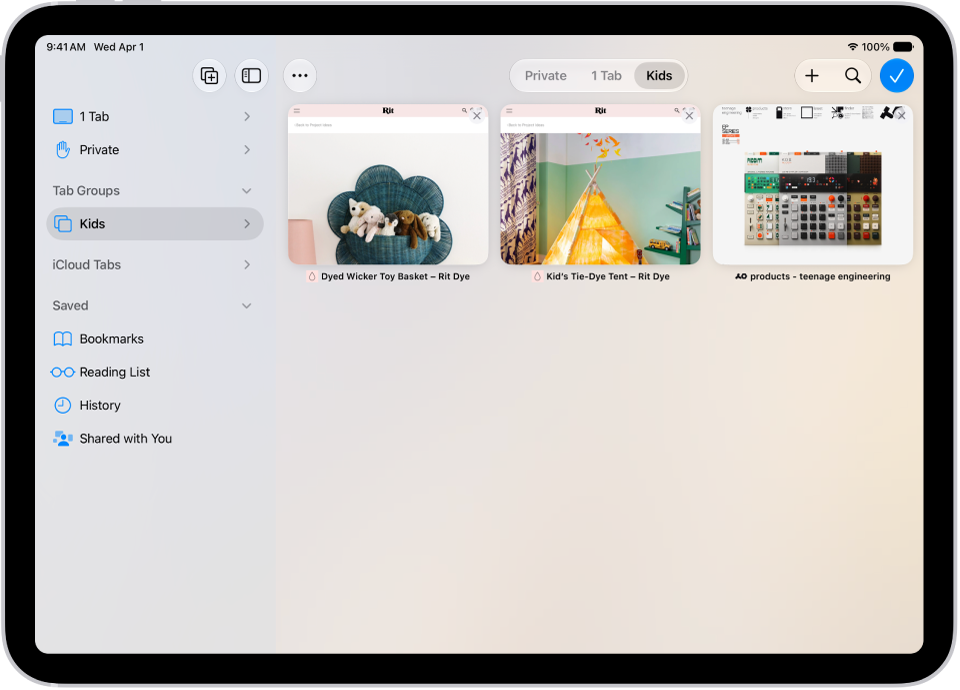
In Safari, a Tab Group is selected, with previews of its three open tabs visible.

Use Apple Intelligence to organize tabs into topics

Apple Intelligence can automatically organize your tabs into suggested topics based on your browsing history.

Note: Apple Intelligence on iPadOS 27 or later is available on an Apple Intelligence-enabled iPad mini (A17 Pro) and iPad models with M1 or later. Apple Intelligence is not available in all languages or regions. Usage limits may apply.*

  1. Go to the Safari app on your iPad.
  2. To set whether Safari automatically organizes tabs, tap the Tabs button, tap the More button, tap Organize Tabs, and choose either of the following:

    • Automatically Create Topics: Safari groups related tabs into topics.
    • Show Related Tabs: Manually group related tabs into topics that Safari recommends.
  3. Tap the Tabs button. Then tap the New Tab button to open new tabs as you browse multiple websites.

    When you have two or more tabs that can be organized together by topic (for example, news), a suggested topic appears in the tab row showing the number of related tabs.

  4. To manage topics in the tab row, do any of the following:

    • Preview tabs in a topic: Tap a topic to see thumbnails of each tab. Tap a thumbnail to open it.
    • Open or close all tabs in a topic: Tap a topic to open all tabs within the topic. Tap the topic again to collapse the tabs back into the topic.
  5. To manage topics on the Tab screen, tap the Tabs button. Do any of the following:

    • Preview tabs in a topic: Tap a topic to see thumbnails of each tab. Tap a thumbnail to open it.
    • Open or close all tabs in a topic: Tap a topic to view all tabs within the topic. Tap the Back button to close the topic.
    • See more options: Tap a topic to view all its tabs and tap the More button. Do any of the following:
      • Copy links: Tap Copy Links.
      • Move tabs to a Tab Group: Tap Move Tabs, then select a Tab Group to move them to.
      • Close all tabs in this topic: Tap Close Tabs.
      • Provide feedback on the suggested topic: Tap Looks Good or Something Isn’t Right.

To turn this feature off, tap the More button, tap Organize Tabs, then choose Never.

Create a new Tab Group

  1. Open the Safari app on your iPad.
  2. Tap the Show Sidebar button to open the sidebar and tap the New Tab Group button in the top-right corner of the sidebar.
  3. Tap New Empty Tab Group and enter a name. Tap Save.

Rename a Tab Group

  1. Open the Safari app on your iPad.
  2. Tap the Show Sidebar button to open the sidebar. Touch and hold any Tab Group.
  3. Tap Rename.

Reorder tabs

  1. Open the Safari app on your iPad.
  2. Tap the Show Sidebar button to open the sidebar and touch and hold any tab in the Tab Group.
  3. In the menu that appears, tap Arrange Tabs By and then choose an option.

    Or touch and hold the tab, then drag it where you want it.

Pin a tab at the front of a Tab Group

You can customize each of your Tab Groups with its own pinned tabs, and a pinned tab stays on the left side of the tab bar.

  1. Open the Safari app on your iPad.
  2. Touch and hold the tab you want to pin.
  3. In the menu that appears, tap Pin Tab.

    To unpin the tab, touch and hold it, then tap Unpin Tab.

Move a tab to another Tab Group

  1. Open the Safari app on your iPad.
  2. Touch and hold the tab in the tab bar and tap Move to Tab Group.
  3. Choose one of the Tab Groups you created previously, or tap New Tab Group to create a new one.

*Apple Intelligence is available with Siri and device language set to Chinese (Simplified), Chinese (Traditional), Danish, Dutch, English, French, German, Italian, Japanese, Korean, Norwegian, Portuguese, Spanish, Swedish, Turkish, or Vietnamese. Some features may not be available in all regions or languages. Some devices may not be available in all regions. Siri AI is available in beta in iOS 27, iPadOS 27, macOS 27, watchOS 27, and visionOS 27 and requires an Apple Intelligence–enabled device set to a supported language. Available in English to start. Siri AI will not be initially available in the EU on iOS, iPadOS, and watchOS. Certain Apple Intelligence features that rely on server-side models are subject to daily usage limits, including but not limited to Siri AI, Intelligent Photo Editing Tools, Image Playground, and AFM 3 Cloud models in Shortcuts. Daily limits may vary by feature, request complexity, system demand, system policies, and other factors. Expanded access to such features will be available for a fee in the future. Use of these features is subject to the Apple Intelligence Terms and Conditions.

See also

Tag: Safari