You can create multiple Safari profiles—like Work and Personal—and use them to separate your internet browsing into different themes. Each profile has separate favorites, histories, tabs, and Tab Groups, and you can add, edit, or remove a profile at any time.
Profiles you make on iPad show up on your other iPhone, iPad, and Mac devices signed in to the same Apple Account.
Here’s how to create multiple Safari profiles on iPad.
Create a profile
Profiles you create on iPad show up in Safari settings on any iPhone, iPad, or Mac signed in to the same Apple Account.
- Start the Settings app on your iPad.
- Tap Apps, then tap Safari.
- Tap New Profile and tap Name.
- Enter a name for this profile, then choose an icon and color.
-
Below Settings, tap Favorites to choose a bookmarks folder.
If you have multiple folders of bookmarks, this option selects the folder of bookmarked websites that are recommended as you enter an address, search, or create a new tab. For example, if you have a folder of bookmarks related to work, you can create a work profile and use this field to ensure that those websites are suggested as you type in the address field.
- Tap Open New Tabs and choose the page you want new tabs to open to.
- Tap the Done button.
Use profiles in Safari
You can easily browse the internet with a profile, or move between profiles.
- Go to the Safari app on your iPad.
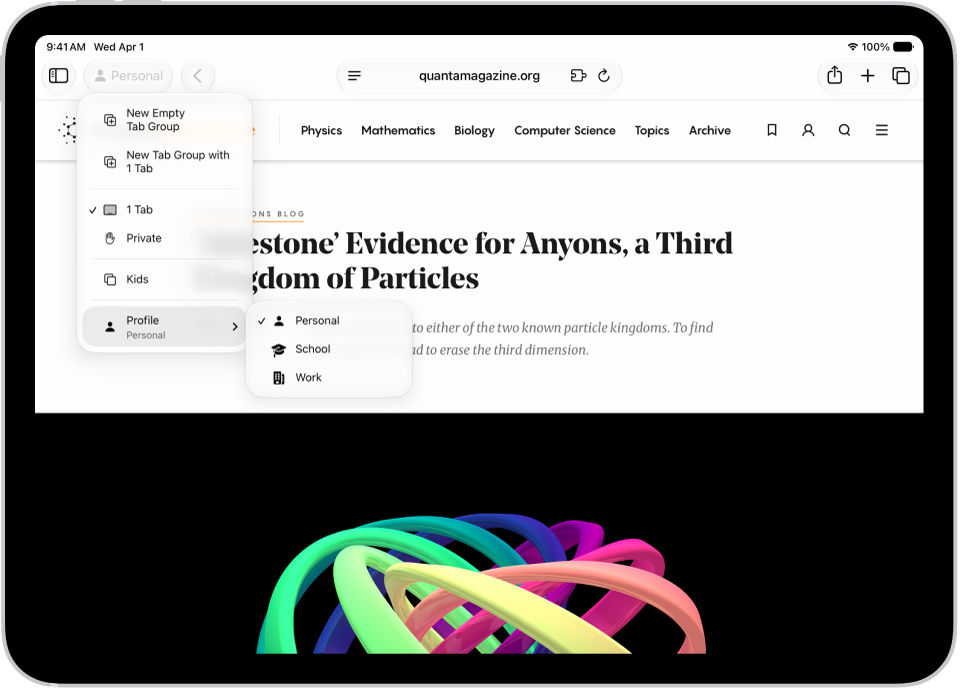
- Tap the name of the current profile in the upper left of the window.
- Tap Profile at the bottom of the menu. Choose the profile you want to use.
Edit a profile
- Start the Settings app on your iPad.
- Tap Apps, then tap Safari.
- Tap the profile you want to edit.
Choose which extensions to use with a profile
Extensions let you customize the way your browser works on iPad. To learn how to install them, read our article, Get extensions to customize Safari.
With extensions installed on your iPad, you choose which ones to use with each profile.
- Start the Settings app on your iPad.
- Tap Apps, then tap Safari.
- Tap a profile. Then select each extension you want to use with that profile.
Remove a profile
At any time, you can delete a profile. Doing so also erases the favorites and history associated with it and closes all websites open in it.
Important: This action can’t be undone.
- Start the Settings app on your iPad.
- Tap Apps, then tap Safari.
- Tap a profile.
- Tap Delete Profile, then tap Delete to confirm.
See also