Safari lets you mute audio in any open tabs—helpful when you’re listening to audio from one website, and unwanted audio starts playing from another.
You can mute audio in the tab you’re viewing, mute audio in other tabs, mute all audio, or mute any tab in the tab bar. You can also see which websites are playing audio, and unmute a tab later.
Here’s how to mute audio in tabs in Safari on iPad.
Mute audio
- Go to the Safari app on your iPad.
- Do any of the following:
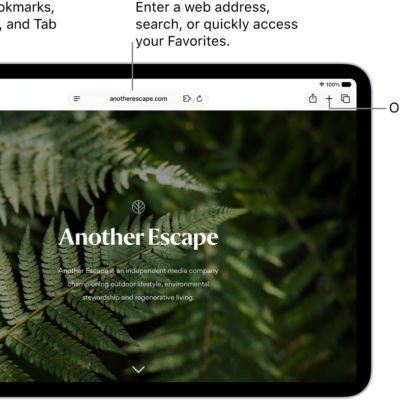
- Mute audio in the tab you’re viewing: Tap the Mute button in the search field.
- Mute audio in other tabs: If you’re viewing several websites that are playing audio, touch and hold the Mute button in the search field and tap Mute Other Tabs to let audio play in the tab you’re currently viewing and to mute the audio in other tabs.
- Mute all audio: If you’re viewing a website that’s not playing audio and other tabs are playing audio, tap the Mute button in the search field to quickly mute all audio in other tabs.
- Mute any tab: Tap the Mute button on the right side of the tab in the tab bar.
See websites that are playing audio
- Open the Safari app on your iPad.
- Touch and hold the Mute button in the search field to see a list of websites that are playing audio.
-
Choose a website to go to the tab where the audio is playing.
If you’re viewing a website that’s not playing audio, the list of open websites also includes the Mute All Tabs option. If the website you’re viewing is playing audio, it includes the Mute This Tab or Mute Other Tabs option.
Unmute audio
- Open the Safari app on your iPad.
- Tap the Mute button in the search field, or on the right side of the tab in the tab bar.
Note: You can mute and unmute audio in tabs in the active Safari window, and also in tabs in other Safari windows behind it.
See also