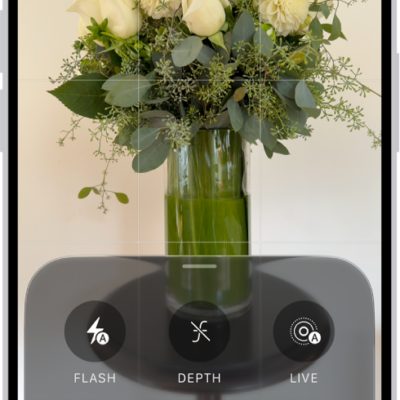
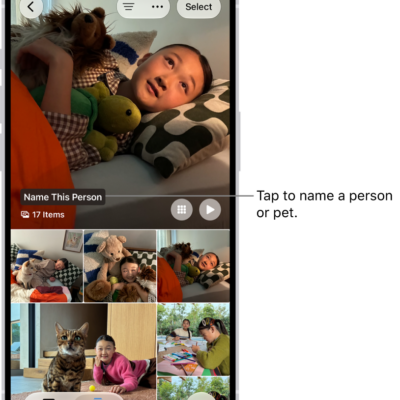
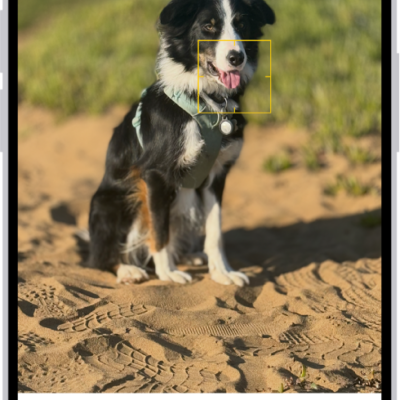
Apple Reference Image lets you capture, view, and share reference images, which are like digital negatives, so you can verify exactly what the camera originally captured. On iPhone 18 Pro models, photos taken in Reference mode include reference data.
If a photo includes a reference image, you can develop, view, and share it in Photos to verify whether the photo has been altered or edited. You need an internet connection to develop a reference image, and you can include it when you share a photo or transfer photos to a Mac or PC.
Note: Apple Reference Image is not available in all countries or regions.
Develop a reference image
You need to develop a reference image from a photo taken in Reference mode before you can view or share it.
Note: You need an internet connection to develop reference images. If you’re not connected, it happens the next time you’re online.
- Start the Photos app on your iPhone.
- Open a photo taken in Reference mode. Tip: You can find all photos captured with reference images in the Reference album: tap Collections, tap Media Types, then tap Reference.
- Tap Reference at the top of the photo.
The reference image is developed automatically.
View the reference information
With a reference image developed, you can do either of the following:
- Tap Reference to view the unedited image, then compare it with the photo to verify whether the photo has been altered or edited.
- Tap Reference, then tap the View Reference Image Data button to view the Reference Image Data.
To view a reference image, you need a Mac, iPad, or iPhone with macOS 27, iPadOS 27, iOS 27, or later.
Share a reference image
You can choose whether to include a photo’s reference image when you share or export it. If you want it included every time you share, turn on Share Reference Image:
- On iPhone 18 Pro models: Go to the Settings app , tap Camera, tap Reference Image, then turn on Share Reference Image.
- On other iPhone models: Go to the Settings app , tap Apps, tap Photos, then turn on Share Reference Image.
To include or leave out the reference image for a single share, select the photo you want to share, then tap the Share button. Tap Options in the Share window, then turn Reference Image on or off. Then share the photo—for example, with AirDrop or Messages—or export it to an external device.
Note: Reference images can only be viewed on iOS 27, iPadOS 27, macOS 27, or later, on an iPhone, iPad, or Mac.
Share a reference image when you transfer photos
Turn on Transfer Reference Image if you want the reference image included when you transfer photos to a Mac or PC:
- On iPhone 18 Pro models: Go to the Settings app , tap Camera, tap Reference Image, then turn on Transfer Reference Image.
- On other iPhone models: Go to the Settings app , tap Apps, tap Photos, tap Transfer to Mac or PC, then turn on Transfer Reference Image.
Transferring photos includes the reference image data, but you can view a reference image only on an iPad, Mac, or iPhone with iPadOS 27, macOS 27, iOS 27, or later.