You can add keyboards for writing or using Dictation in different languages on your iPhone. You can also change the layout of your onscreen or external keyboard. Adding a keyboard for a different language also adds that language to your Preferred Languages list automatically.
For some supported languages, you can type in two languages without having to switch between keyboards. Your keyboard automatically switches between the two languages you use most often. Here’s how to add or change keyboards on iPhone.
Add or remove a keyboard for another language
- Start the Settings app on your iPhone.
- Tap General, then tap Keyboard.
- Tap Keyboards and then do any of the following:
- Add a keyboard: Tap Add New Keyboard and choose a keyboard from the list. Repeat to add more keyboards.
- Use a bilingual keyboard: For languages such as English (U.S.) and Spanish (Latin America), tap Add New Keyboard. Tap Add to [language] Keyboard. (Available for select language pairs.)
- Remove a keyboard: Swipe left on the keyboard and tap Delete.
- Reorder your keyboard list: Tap Edit, drag the Reorder button next to a keyboard to a new place in the list, and then tap the Done button.
If you add a keyboard for a different language, the corresponding language is automatically added to the Preferred Languages list. To view this list and add languages to it directly, go to the Settings app, tap General, then tap Language & Region. To change how apps and websites display text, reorder the Preferred Languages list.
Switch to another keyboard
-
While typing text, touch and hold the Emoji button or the Switch Keyboard key.
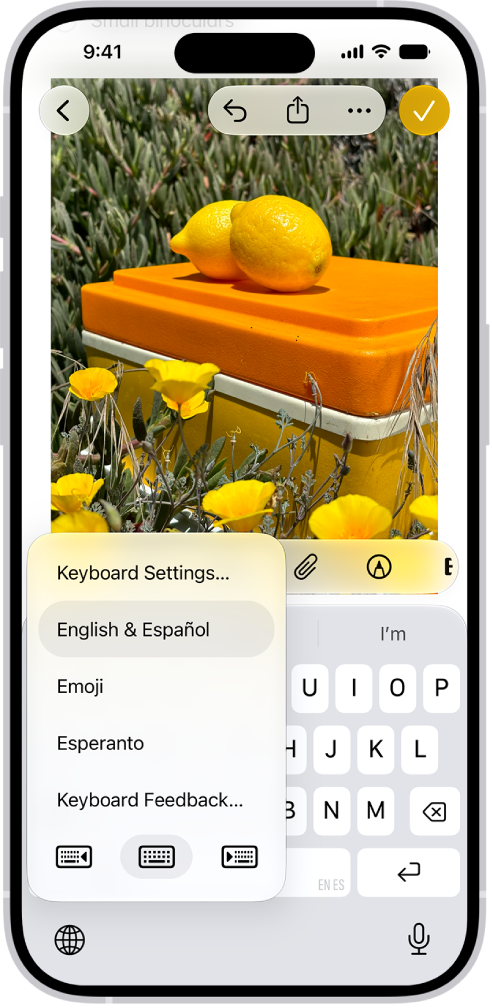
- Tap the keyboard you want to switch to.
You can also switch between Magic Keyboard and other keyboards.
Assign an alternative layout to a keyboard
- Start the Settings app on your iPhone.
- Tap General, tap Keyboard, and tap Keyboards.
- Tap a language. Then select an alternative layout from the list.