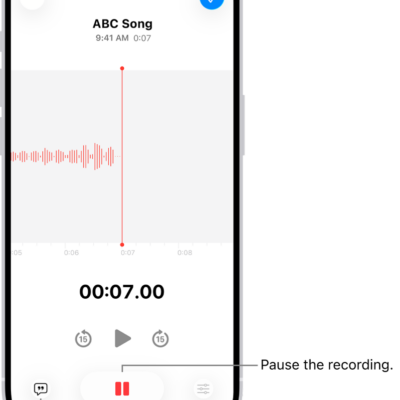
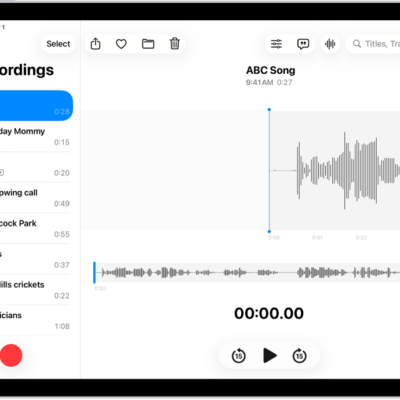
On supported models, you can record a vocal layer on top of an instrumental recording without using headphones. This allows you to capture a musical inspiration: add vocals or a voiceover to an existing instrumental recording, try out lyrics, harmonize with instrumental music, and more.
After recording the second layer, you can mix the two layers or separate them to edit and play each one on its own. You can only create a layered recording on supported models, but you can play one on any device.
Here’s how to add a second layer to a Voice Memos recording on iPhone.
Add a second layer
- Start the Voice Memos app (in the Utilities folder) on your iPhone.
- In the list of recordings, tap the recording you want to add a vocal layer to and then tap the Edit Recording button to view the waveform.
-
Tap the Add a Vocal Layer button.
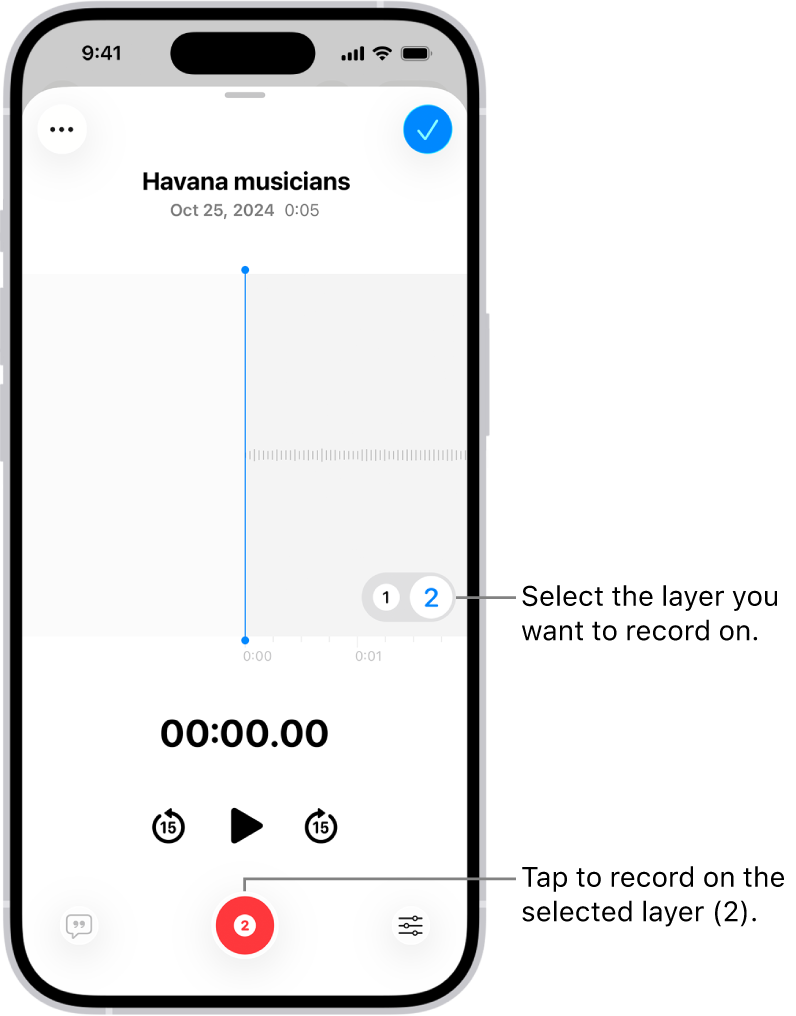
- Tap the Record button and then record your second layer.
Layered recordings show the Layers button in the list of recordings.
A layered recording can play on any device, although you can only create one on supported models.
Note: Layered recordings use QTA (QuickTime Audio) format, so they won’t appear on devices running iOS 18.1, iPadOS 18.1, macOS Sequoia 15.1, and earlier. Separate the layers, though, and you get each layer in .m4a format, which shows up on devices with iOS 18.1, iPadOS 18.1, or macOS Sequoia 15.1 and earlier.
Transcription and recording in stereo or Spatial Audio work only on the first layer. Unless you separate them, you edit both layers of a layered recording together.
Mix the layers
When you’ve recorded the second layer, you can mix the two layers.
- Start the Voice Memos app (in the Utilities folder) on your iPhone.
- Tap the layered recording you want to mix.
- Tap the Edit Recording button to view the waveform and then tap the playback options button.
- Drag the Layer Mix slider to mix the layers.
Separate the layers
With the second layer recorded, you can separate the two layers to edit them or play them separately.
- Start the Voice Memos app (in the Utilities folder) on your iPhone.
- While viewing the waveform, tap the More button, then tap Separate Layers.
- Tap Done to return to the list of recordings.
In the list, the two layers then appear as separate recordings that you can select, edit, and play separately.
Import layered recordings into Logic Pro
If Voice Memos is on in iCloud settings, an iPad that’s signed in to the same Apple Account can open a layered recording from your iPhone. Export the recording to Files there, and you can import it into Logic Pro for iPad for editing. In Logic Pro 11.1.1 or later, the two layers open automatically as two distinct tracks.