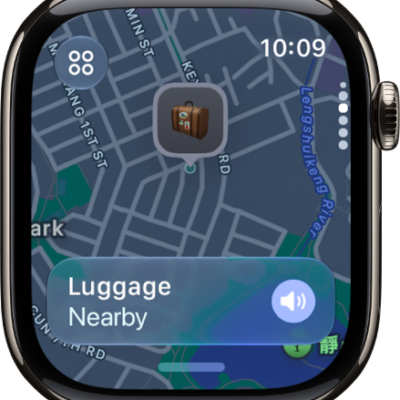
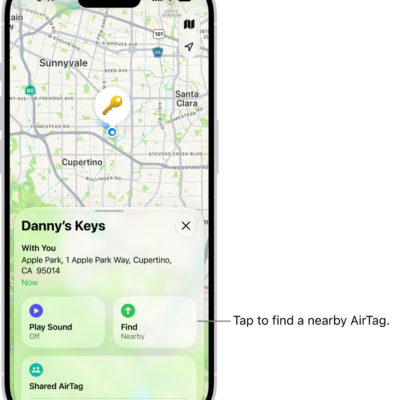
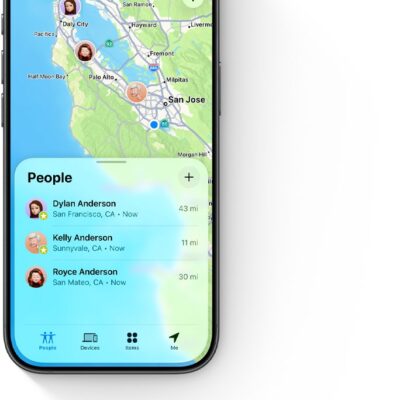
Use Find My to share your location with friends and family, view the location of your Apple devices, locate items you’ve attached an AirTag to, and keep track of Find My network accessories.
Before you can see the locations of people, devices, and items, you need to add them to Find My. If your Apple Watch is paired with your iPhone, it’s set up automatically once Find My iPhone is on.
Add people to Find My
(You see the same people in Find My on Apple Watch as on iPhone.)
To share your location with someone new, do the following:
- Open the Find My app on your Apple Watch.
- Tap the button at the top left and tap People.
- Swipe up from the bottom of the screen, then tap Share Location.
- Choose a recipient and a sharing duration and tap OK.
The recipient gets a notification that you’ve shared your location and can choose to share their location with you too. If they agree, their location shows in Find My.
Turn on Find My for your Apple Watch
If your Apple Watch is paired with your iPhone, turning on Find My iPhone gets it set up automatically. Finding your watch also requires the Find My network.
- Open the Settings app on your Apple Watch.
- Tap your name and scroll down until you see your Apple Watch.
- Tap your watch name, then tap Find My Watch.
- Turn on Find My network if it isn’t on.
Add your other devices to Find My
Before an Apple device such as iPhone, iPad, Mac, or AirPods is lost, set up Find My on it and turn on location sharing for the device.
Add your AirTag and other items to Find My
When you register an AirTag or Find My network accessory to your Apple Account, the item is added to Find My. (You do this on iPhone or iPad.)
See also
- Locate people in Find My on Apple Watch
- Locate devices in Find My on Apple Watch
- Locate items in Find My on Apple Watch