The Noise app measures the ambient sound levels in your environment using the microphone and duration of exposure. When Apple Watch detects that the decibel level has risen to a point where hearing could be affected, it can notify you with a tap on the wrist.
You can choose a threshold for those notifications and monitor your exposure to noise over time in the Health app. You can see noise levels on the watch face, too.
Note: The Noise app uses the microphone to sample and measure the sound levels in your environment. Your Apple Watch doesn’t record or save any sounds to measure these levels.
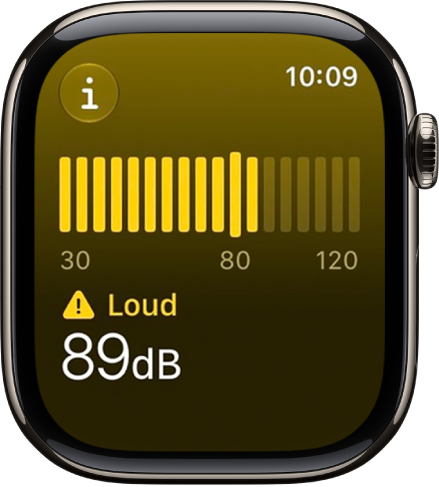
Monitor the noise level
- Open the Noise app on your Apple Watch.
- Tap the More Info button for details about sound levels.
Quick tip: For environmental noise levels on the watch face, add the noise complication.
Choose a threshold for noise notifications
- Open the Settings app on your Apple Watch.
- Tap Noise, tap Noise Threshold, and then choose a threshold.
You can also go to the Apple Watch app on your iPhone, tap My Watch, tap Apps, tap Noise, then tap Noise Threshold.
Monitor your exposure to noise over time
The Health app shows your high, low, and average sound levels over different periods of time.
- Go to the Health app on your iPhone or iPad.
- In the Hearing category, tap Environmental Sound Levels.
Turn off noise measuring
- Open the Settings app on your Apple Watch.
- Tap Noise, then tap Environmental Sound Measurements.
- Turn off Measure Sounds.
You can also go to the Apple Watch app on your iPhone, tap My Watch, tap Apps, tap Noise, then turn off Environmental Sound Measurements.
See also