Set up CarPlay by connecting your iPhone and your vehicle using your vehicle’s USB port or its wireless capability. How you connect depends on your car. If it supports CarPlay both wirelessly and with a USB cable, you’ll be able to connect wirelessly after the first time, and you’ll want to use an Apple USB Cable.
- Start your car, then make sure Siri is on.
- Connect your iPhone to your car:
- If your car supports CarPlay with a USB cable: Plug your iPhone into the USB port in your car. The USB port might be labeled with a CarPlay icon or a smartphone icon. Be sure to use an Apple USB Cable.
- If your car supports CarPlay both wirelessly and with a USB cable: Plug your iPhone into the USB port in your car. The next time you attempt to connect your iPhone to CarPlay, an alert on your iPhone allows you to connect wirelessly.
- If your car supports only wireless CarPlay: Press and hold the voice command button on your steering wheel. Make sure that your stereo is in wireless or Bluetooth mode. Then on your iPhone, open Settings, tap Wi-Fi, and make sure that Wi-Fi is also turned on. Tap the CarPlay network, and check that Auto-Join is turned on. Then, open Settings, tap General, tap CarPlay, and select your car. Check your car manual for more information.
Note: On some electric vehicles, there is one more step after connecting to CarPlay: Use the Maps app to identify the vehicle for EV routing.
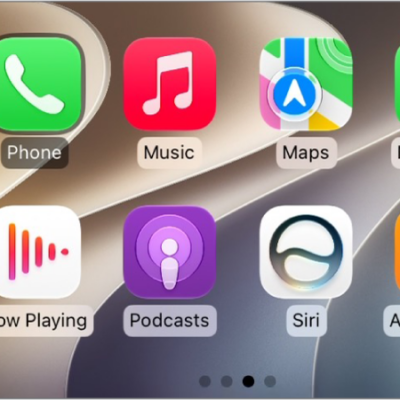
When you connect iPhone, some vehicle models show CarPlay Home automatically.
If CarPlay Home doesn’t appear, select the CarPlay logo on your vehicle’s display.
Tag: carplay