Got a tip for us?

carplay

When you’re not driving, you can play videos from your iPhone on your CarPlay display. CarPlay video apps work in vehicles that support the video-in-car feature.

You can also use AirPlay to play video or audio from your iPhone on your CarPlay display, then disconnect AirPlay when you’re done.

WARNING: For important information about avoiding distractions that could lead to dangerous situations, see Important safety information for iPhone.

Use AirPlay to play video or audio on your CarPlay display

  1. Connect iPhone to CarPlay.
  2. When you’re not driving, play a video on your iPhone from a supported CarPlay video app or any app that supports AirPlay.
  3. Tap the AirPlay button, then select your CarPlay display.

Note: If your vehicle indicates that video playback is not available, you’ll hear audio only instead.

Disconnect AirPlay from your CarPlay display

  1. When you’re not driving, open the app on your iPhone that’s playing the video you’re viewing on your CarPlay display.
  2. Tap the AirPlay button and then deselect your CarPlay display.
Tag: carplay

Set up CarPlay by connecting your iPhone and your vehicle using your vehicle’s USB port or its wireless capability. How you connect depends on your car. If it supports CarPlay both wirelessly and with a USB cable, you’ll be able to connect wirelessly after the first time, and you’ll want to use an Apple USB Cable.

  1. Start your car, then make sure Siri is on.
  2. Connect your iPhone to your car:
    • If your car supports CarPlay with a USB cable: Plug your iPhone into the USB port in your car. The USB port might be labeled with a CarPlay icon or a smartphone icon. Be sure to use an Apple USB Cable.
    • If your car supports CarPlay both wirelessly and with a USB cable: Plug your iPhone into the USB port in your car. The next time you attempt to connect your iPhone to CarPlay, an alert on your iPhone allows you to connect wirelessly.
    • If your car supports only wireless CarPlay: Press and hold the voice command button on your steering wheel. Make sure that your stereo is in wireless or Bluetooth mode. Then on your iPhone, open Settings, tap Wi-Fi, and make sure that Wi-Fi is also turned on. Tap the CarPlay network, and check that Auto-Join is turned on. Then, open Settings, tap General, tap CarPlay, and select your car. Check your car manual for more information.

Note: On some electric vehicles, there is one more step after connecting to CarPlay: Use the Maps app to identify the vehicle for EV routing.

When you connect iPhone, some vehicle models show CarPlay Home automatically.

If CarPlay Home doesn’t appear, select the CarPlay logo on your vehicle’s display.

Tag: carplay

Use CarPlay to have Siri automatically read your incoming text messages. It’s one setting on your iPhone, Announce Notifications, and you can also enable or disable Announce Messages directly in CarPlay when Siri reads an incoming text message out loud.

  • On your iPhone, go to Settings > Announce Messages, then turn on Announce Notifications.

Note: When Siri reads an incoming text message in CarPlay, tapping Announce enables or disables Announce Messages right there.

Tag: carplay

Use CarPlay to play the audiobooks that are on your iPhone. You can use your vehicle’s built-in controls to open Audiobooks and select a book to play, and control audiobook playback with your steering wheel controls, buttons on the Now Playing screen, and CarPlay Dashboard.

Note: From CarPlay Dashboard, tap the Home button, and you can see pages of all of your CarPlay apps, including Audiobooks.

Tag: carplay

Use CarPlay to listen to Apple News Today audio briefings and, if you’re an Apple News+ subscriber, audio versions of select news stories. If you aren’t a subscriber, you can listen to story previews.

Getting started is simple. You can use your vehicle’s built-in controls to open News and select a story to play.

Note: News doesn’t always appear in the recent apps list on the left of CarPlay Dashboard. In that case, tap the Home button, and you’ll see pages of all of your CarPlay apps there, News among them.

To control playback, you can also use CarPlay Dashboard, the buttons on the Now Playing screen, or the controls on your vehicle’s steering wheel.

Note: CarPlay isn’t available in all countries or regions.

Button Description
Pause playback.
Play the current story.
Skip to the next story.
Jump back 15 seconds.
Choose a faster or slower playback speed.
Tag: carplay

You can use Siri with CarPlay to access many of the apps on iPhone, including Reminders, Clock, Weather, and more.

CarPlay works with select third-party apps that you download to your iPhone, too. Compatible apps, including audio, navigation, messaging, and voice-calling apps, and apps made by your vehicle manufacturer, appear automatically on CarPlay Home and can be controlled with Siri. There are apps for fueling, parking, EV charging, and quick food ordering, too. Third-party navigation apps show up on CarPlay Dashboard while you’re using them.

Note: While you’re using them, compatible third-party navigation apps appear on CarPlay Dashboard. If you aren’t actively navigating, or you’re navigating with more than one app, Dashboard shows the last compatible navigation app you used.

Tag: carplay

Use CarPlay to make phone calls and listen to voicemail from your iPhone. You can also use your vehicle’s built-in controls to help make a call, and everything you need is in the Phone app in CarPlay, including your voicemail.

Note: Phone doesn’t always appear in the recent apps list on the left of CarPlay Dashboard. Tap the Home button, and you’ll find it among the pages of all of your CarPlay apps.

Tag: carplay

Find your location on a map, zoom in and out, and move the map to see the detail you need. While you’re following turn-by-turn directions, you can switch between a detailed 3D map and a 2D route overview, and when you’re not, you can show your current location.

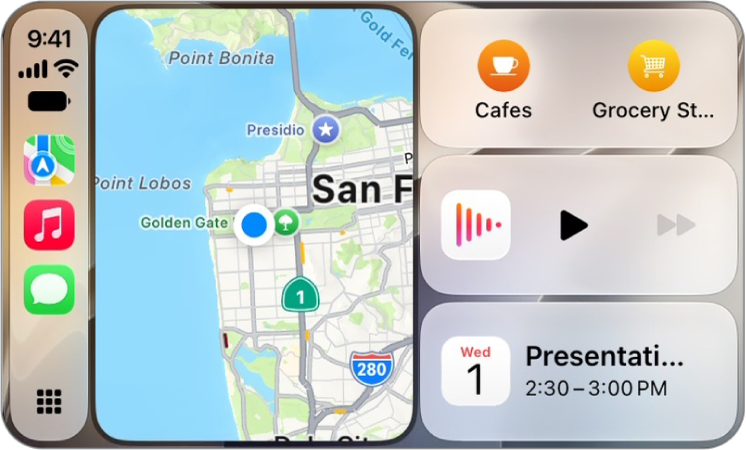
A CarPlay screen showing a map of San Francisco.

When you follow turn-by-turn directions, you can tap the touchscreen or turn the rotary knob, then do one of the following:

  • Switch between detailed and high-level views: To see a detailed 3D map with your heading at the top of the screen, select the Detail button. To see the route overview in 2D with north at the top of the screen, select the Overview button.
  • Zoom in or out: Select the Zoom In button or the Zoom Out button.
  • Scroll the map: Select the Scroll button, then select a direction arrow on one of the edges of the screen. To return to turn-by-turn directions, tap Resume.

On some touchscreens, you can also drag the map to scroll it.

You can also change the map view when not following directions. Tap the touchscreen or turn the rotary knob, then do one of the following:

  • Show your current location: Tap the Tracking Off button. Your position is marked in the middle of the map.
  • View a 3D map: Tap 3D. To return to a 2D map, tap 2D.
  • Show your heading at the top of the screen: Tap the Tracking On button. To resume showing north at the top, tap the Tracking On Heading button.
  • Zoom in or out: Select the Zoom In button or the Zoom Out button.
  • Scroll the map: Select the Scroll button, then select a direction arrow at the edges of the screen. When finished, tap Done.
  • Switch between detailed and high-level views: To see a detailed 3D map with your heading at the top of the screen, select the Detail button. To see the route overview in 2D with north at the top of the screen, select the Overview button.
Tag: carplay

In Settings in CarPlay, you can change the wallpaper, turn on Driving Focus, change how CarPlay looks on the display, turn suggestions in CarPlay Dashboard on or off, and show or hide album art.

Driving Focus is the one to know about. With Driving Focus on while your iPhone is connected to CarPlay, notifications and text messages are silenced or limited, so you can stay focused on the road while you drive.

Use the Driving Focus with CarPlay

To help you stay focused on the road, Driving Focus silences or limits notifications and text messages while it’s on and your iPhone is connected to CarPlay.

  1. Open Settings in CarPlay using your vehicle’s built-in controls.

    Note: If you’re viewing CarPlay Dashboard and Settings doesn’t appear in the recent apps list on the left, tap the Home button to see pages of all of your CarPlay apps, including Settings.

  2. Go to Driving Focus, then select Activate With CarPlay.

If you receive a Driving Focus notification when you’re not driving (for example, when you’re a passenger) you can turn it off—tap the notification, then tap “I’m not driving.”

Switch the appearance of CarPlay

CarPlay is set to dark appearance by default in most vehicles. If you prefer to have CarPlay automatically switch between dark and light appearance, do the following:

  1. Open Settings in CarPlay using your vehicle’s built-in controls.
  2. Select Appearance.
  3. Select Always Dark.

At night and in other low-light environments, the dark appearance is optimized for viewing.

Change the wallpaper in CarPlay

Open Settings in CarPlay using your vehicle’s built-in controls, select Wallpaper, then choose one of the available options.

Hide or show suggestions on CarPlay Dashboard

Open Settings in CarPlay using your vehicle’s built-in controls, then turn Suggestions in CarPlay off or on.

Hide or show album art

Open Settings in CarPlay using your vehicle’s built-in controls, then turn Show Album Art off or on.

Capture screenshots from CarPlay

  1. Open the Settings app on your iPhone.
  2. Tap General, then tap Screen Capture.
  3. Turn on CarPlay Screenshots.
  4. While connected to CarPlay, take a screenshot with iPhone to also capture a screenshot of CarPlay.
Tag: carplay

Use CarPlay to send, hear, and reply to text messages from your iPhone. You can hear unread messages, respond to a thread, or react with Tapbacks, and your vehicle’s built-in controls can help. Pinned conversations from Messages on iPhone show up in CarPlay, too.

Send and receive text messages

Your vehicle’s built-in controls can help you send and receive messages, too. Open Messages in CarPlay and do one of the following:

  • Hear unread messages or respond to a thread: Select a conversation.
  • Start a new conversation: Select the Compose button.
  • Automatically send messages: Skip the confirmation step when sending messages with Siri to send messages automatically, unless you ask to change or cancel it.

    In CarPlay, go to Settings > Siri, then select Automatically Send Messages.

React with Tapbacks

A Tapback, such as a heart or thumbs-up, gives you a quick and easy way to respond to a message.

When a message arrives in CarPlay, respond with “like that message” to give it a thumbs-up.

Or select the Tapback button and choose a different emoji.

Pin important conversations

Your pinned conversations from Messages on iPhone are now in the Messages app in CarPlay.

Note: If Messages doesn’t show up in the recent apps list on the left of CarPlay Dashboard, tap the Home button. Its pages show all of your CarPlay apps, along with incoming text messages with CarPlay.

Tag: carplay