Got a tip for us?

carplay

You can view app activities on CarPlay Dashboard so you can easily follow their progress, for example, directions in the Maps app, live sports updates, food delivery estimates, and more. These are the same Live Activity settings you see on iPhone, but you can adjust them app by app. That way, you can keep the updates you want in view while you drive, and turn off the ones you don’t need.

  1. Go to the Settings app on iPhone.
  2. Tap Apps and tap the app whose settings you want to change. Tap Live Activities.
Tag: carplay

You can use suggestions from Siri that appear on CarPlay Dashboard, or use Siri directly, to control your Apple Home-enabled accessories, such as garage doors, lights, and door locks, from your car. Siri’s suggestions show up right on the Dashboard.

Tag: carplay

With CarPlay accessibility features for vision, you can make it easier to read text and differentiate colors on the CarPlay touchscreen in your car.

You can apply filters for color vision deficiencies, change the text size, or view the entire screen in grayscale. You can also make the text bold so it’s easier to read. And with Voice Control, the microphone of your iPhone lets you control CarPlay with voice commands.

Note: CarPlay isn’t available in all countries or regions.

Filter display colors

Colors on the CarPlay touchscreen are easier to differentiate when you view the entire screen in grayscale or apply filters for color vision deficiencies.

  1. In CarPlay, open the Settings app.
  2. Tap Accessibility, then tap Color Filters.
  3. Turn on Color Filters.
  4. Tap a filter. To change the intensity of the filter, tap Low, Medium, or High.

Change the text size

  1. In CarPlay, open the Settings app.
  2. Tap Accessibility, then tap Text Size.
  3. Tap a text size. You can see a preview of the text size below each number.

Make text bold

To make what’s on the CarPlay touchscreen easier to read, turn on bold text.

  1. In CarPlay, open the Settings app.
  2. Tap Accessibility and turn on Bold Text.

Control CarPlay with voice commands

With the microphone of your iPhone, you can control CarPlay with voice commands.

  1. In CarPlay, open the Settings app.
  2. Tap Accessibility and turn on Voice Control.
Tag: carplay

With Sound Recognition in CarPlay, you can have iPhone continuously listen for car horns, sirens, or baby crying, and recognize them using on-device intelligence. When these sounds are detected, a notification appears on the CarPlay touchscreen. It’s available with supported iPhone models, though you shouldn’t rely on it in high-risk or emergency situations.

Note: Sound Recognition in CarPlay is available with supported iPhone models. Don’t rely on Sound Recognition in circumstances where you may be harmed or injured, in high-risk or emergency situations, or for navigation. CarPlay isn’t available in all countries or regions.

  1. In CarPlay, open Settings and then tap Accessibility.
  2. Select Sound Recognition and turn on Sound Recognition.
  3. Turn on the sounds you want to be notified about.
Tag: carplay

Use Siri or open Music in CarPlay, either on CarPlay Dashboard or from the Home button, to play music that’s available on your iPhone, including songs, artists, albums, playlists, and Radio.

Once it’s playing, you’re not limited to the screen. You can also use the controls on your vehicle’s steering wheel, buttons on the Now Playing screen, and CarPlay Dashboard to control music playback. And you can even play music together using SharePlay.

Note: Viewing CarPlay Dashboard? Tap the Home button, and Music is on the pages of all of your CarPlay apps.

Button Description
the Pause button Pause playback.
the Play button Play the current song.
the Next button Skip to the next song. When pressed and held, fast forward through the current song.
the Previous button Return to the song’s beginning. When pressed again, return to the previous song. When pressed and held, rewind through the current song.
the Shuffle button Play songs in random order.
the Repeat button Continually repeat the current song.
the More button Display controls to create a custom station based on the current song and to rate the current song.
Up Next Display a list of songs queued for playback. (You can select a song from the list to skip the songs that proceed it.)

On some systems, Now Playing displays only a partial list of choices while you’re driving. To choose among options not in the list, select More at the bottom of the screen, or use Siri by pressing and holding the voice command button on your steering wheel.

Tag: carplay

In select regions and countries, you can report traffic incidents like accidents, hazards, speed checks, and road work, though features vary by region and country. Apple evaluates incoming incident reports, and when there’s high confidence in them, markers appear in Maps for other users. You can also report on the status of a hazard or accident.

Report an incident

With turn-by-turn directions showing, select the Report button, then choose from one of the available options.

Apple evaluates incoming incident reports, and when it has a high level of confidence in them, Accident, Hazard, and Road Work incident markers appear in Maps for other users.

Note: You won’t see speed checks with incident markers. Notifications for them appear when you follow turn-by-turn directions instead.

Report on the status of a hazard or accident

Incident markers show information about hazards and accidents, and you can report their status when you’re near their locations.

  1. Select the incident marker.
  2. Select Cleared or Still Here.

Note: You can’t clear reports of speed checks.

After evaluating incoming incident reports, Apple removes an incident’s marker from Maps when there’s high confidence in reports that it has been cleared.

Note: Apple is committed to keeping personal information safe and private. To learn more, go to Settings > Apps > Maps, then tap “See how your data is managed.”

Tag: carplay

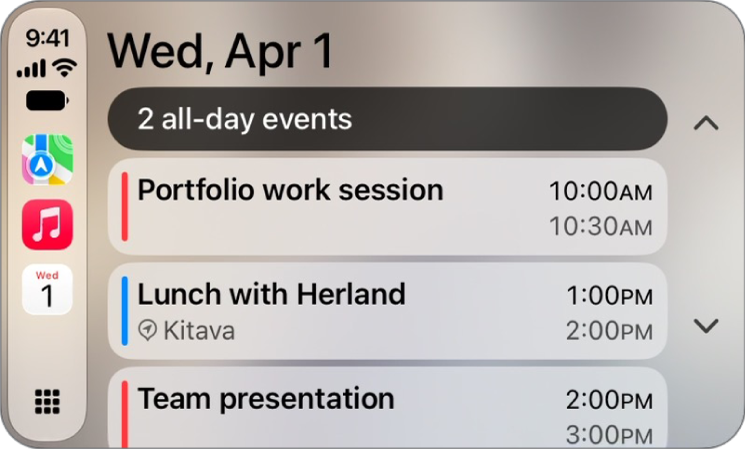
Upcoming events appear in CarPlay Dashboard. You can also use your vehicle’s built-in controls to open Calendar in CarPlay to view upcoming events. Calendar is with the rest of your apps, on the pages of all of your CarPlay apps in CarPlay Home. When you select an event, you can see more information about it. Some events give you options to get directions to the event or phone into it.

CarPlay showing Maps, Music, and Calendar in the Sidebar. To the right are events for the current day.

Note: If you’re on CarPlay Dashboard, tap the Home button to see pages of all your CarPlay apps, Calendar included.

To see more information about an event, select it. Options may allow you to get directions to the event or phone into it.

Tag: carplay

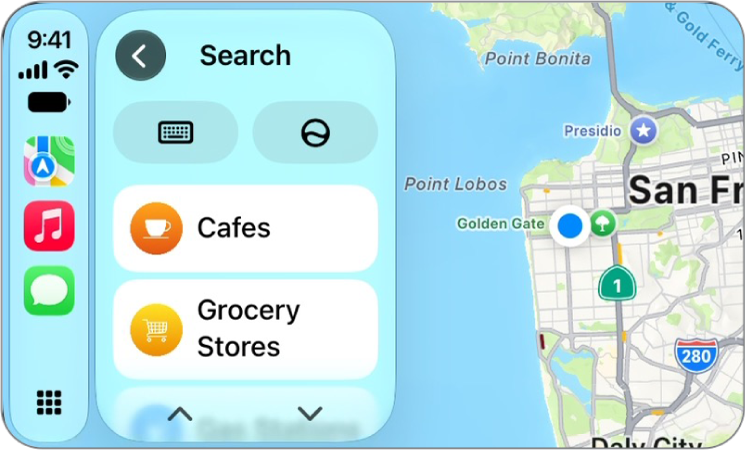
With Voice Control, you can use your voice to navigate CarPlay and apps, and interact with what’s on the CarPlay touchscreen. While it’s listening, the Voice Control icon appears in the sidebar, and you can pause or resume Voice Control and use it in Maps and Music.

Note: Voice Control is available only in supported languages. CarPlay is available only in supported countries and regions.

Turn Voice Control on or off

  1. In CarPlay, open Settings and then tap Accessibility.
  2. Turn Voice Control on or off.

When Voice Control is on, the Voice Control icon appears in the sidebar to show that Voice Control is listening for commands.

Start using commands

To use Voice Control in CarPlay, just say a command.

Voice Control: Say, for example, “Open Maps,” “Pan left,” or “Go back.”

Pause about half a second between commands when you say multiple commands in quick succession.

Pause or resume Voice Control

If you don’t want the words you say interpreted as commands, pause Voice Control. Once you’re ready for Voice Control to listen for commands again, resume it.

Voice Control: Say “Stop listening” or “Start listening.”

Commands for navigation and interaction

Command Description
“Open [app]” Open an app.
“Go Home” Return to the Home Screen.
“Go back” Return to the previous screen (in apps with a Back button).
“Tap [item]” Tap an item on the touchscreen. In some apps, if you’re not sure what to call an unlabeled item, you can refer to it based on its position relative to other items. For example, if you see a row of icons with no text labels, you can try saying “Tap first” or “Tap second” to tap the first or second icon in the row, respectively.
“Single tap” Tap the touchscreen. This can be useful in an app like Maps where some items are hidden after a period of inactivity. Tapping the screen causes hidden items to reappear.
“Double-tap” Double-tap the touchscreen. This can be used in an app like Maps to zoom in on the map.
“Double-tap [item]” Double-tap an item on the touchscreen.
“Swipe left” or “Swipe right” Swipe between pages in CarPlay Home or CarPlay Dashboard.
“Swipe up” or “Swipe down” Navigate up or down in a list.
“Pan left,” “Pan right,” “Pan up,” or “Pan down” In an app like Maps, move around the map.
“Open Siri” Activate Siri (instead of pressing the voice command button on the steering wheel).

Use Voice Control in Maps

If you use Voice Control in the Maps app in CarPlay and don’t know what to call a button, you can use the button names in the table below.

If a button has a text label, use the text shown as the name of the button. For example, to tap a button labeled Go, just say “Tap Go.”

Button Name
Zoom In
The Zoom Out button. Zoom Out
The Pan button. Pan
The Tracking button. Tracking
The Overview button. Overview or Route Overview
The Expand button. Expand or Up
The Collapse button. Collapse or Down
Close or Dismiss
The Report button. Report
The Speaker button. All Guidance or Speaker
The Alerts Only button. Alerts Only
The Mute button. No Guidance or Mute
The Siri button. Siri or Dictation
The Keyboard button. Keyboard

Use Voice Control in Music

If you use Voice Control in the Music app in CarPlay and don’t know what to call a button, you can use the button names in the table below.

If a button has a text label, use the text shown as the name of the button. For example, to tap a button labeled Cancel, just say “Tap Cancel.”

Button Name
The Play button. Play
The Pause button. Pause
The Fast Forward button. Fast Forward
The Rewind button. Rewind
Shuffle
The Repeat button. Repeat
The Autoplay button. Autoplay
The Favorite button. Favorite
The More button. More
The Go Back button. Go back
The List button. List
Tag: carplay

View and customize widgets in CarPlay to allow quick access to your most important information at a glance.

You do it when you’re not driving, from the Settings app on your iPhone. You can add widgets, rearrange them in the order you want, remove them, or turn on Smart Rotate or Widget Suggestions. How many widget stacks you see depends on your vehicle’s CarPlay screen.

Here’s how to customize widgets in CarPlay.

Add a widget for CarPlay

  1. When you’re not driving, open the Settings app on your iPhone.
  2. Tap General and tap CarPlay. Tap your car.
  3. Tap Widgets and tap Add Widgets.
  4. Follow the onscreen instructions to add a widget.

Note: Your vehicle’s CarPlay screen decides the number of widget stacks you see.

Rearrange or remove CarPlay widgets

  1. When you’re not driving, open the Settings app on your iPhone.
  2. Tap CarPlay and then tap your car.
  3. Tap Widgets and drag the Reorder button to rearrange a widget, or tap the Remove button to remove it.

Turn on Smart Rotate or Widget Suggestions

  1. When you’re not driving, open the Settings app on your iPhone.
  2. Tap CarPlay and then tap your car.
  3. Tap Widgets and turn on Smart Rotate or Widget Suggestions.
Tag: carplay

When you’re not driving, you can rearrange the icons on CarPlay Home from the Settings app on your iPhone. You can move an icon, remove one, or add an icon back, and your changes appear the next time you connect to CarPlay.

  1. When you’re not driving, open the Settings app on your iPhone.
  2. Tap General and then tap CarPlay.
  3. Select your vehicle, then tap Customize.
  4. Do one of the following:

    • Move an icon: Drag the Reorder button up or down in the list.
    • Remove an icon: Tap the Delete button next to the icon and then tap Remove.

      Only icons that have the Delete button next to them can be removed.

    • Add an icon back to CarPlay: Below More Apps at the bottom of the page, tap the Insert button next to the icon.

    The CarPlay Home Screen showing Maps, Music, and Messages in the sidebar. To the right is a collection of other app icons.

The next time you connect to CarPlay, you’ll see your icon changes on CarPlay Home.

Tag: carplay