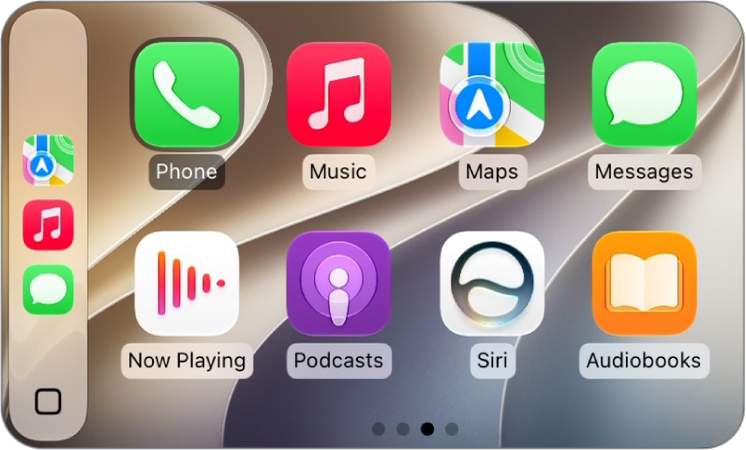
CarPlay has been updated with the same Liquid Glass design that Apple added to iOS 26. The look includes layered glass-like app icons and translucent user interface elements. However, multiple iPhone users have reported problems with CarPlay after iOS 26 update, based on complaints on Reddit and elsewhere.
The most widespread iOS 26 CarPlay issues appears to be related to connectivity. Multiple users have said that they are not able to connect their iPhone to CarPlay after updating to iOS 26. Other users have said that CarPlay keeps disconnecting after it is connected. Other people have stated that their iPhone is not being detected by CarPlay after iOS 26 update.
These CarPlay problems have been reported across numerous vehicle models including the 2025 Honda Civic Hybrid, 2025 Mazda CX-30, various 2024 Honda models, multiple Volkswagen vehicles, the 2023 Audi S3, and the 2023 Nissan Frontier.
Meanwhile, several iPhone users have complained that CarPlay completely fails to launch, requiring multiple reconnection attempts – sometimes up to five tries – before the system will work. Others report broken Siri audio functionality that persists despite restarting both their iPhones and vehicles.
In addition, some iPhone users have said that CarPlay freezes and shows a black screen. When this happens, CarPlay doesn’t display the currently playing song information on their car’s instrument panel. Lastly, several users have reported CarPlay sound problem.
Whatever the issue — can’t connect your iPhone to a car with CarPlay, your CarPlay apps aren’t opening, or your phone is charging but CarPlay isn’t working—we can help.
Here’s what to do when Apple CarPlay isn’t working with iOS 26.
Warning: Don’t try fixing CarPlay while driving. Pull over so that you can safely solve the issue without being distracted while driving.
Make Sure CarPlay Is Enabled on your iPhone
If you can’t get Apple CarPlay started in your vehicle, it might be because the feature has not yet been enabled on your iPhone. It’s possible CarPlay feature was disabled during iOS 26th update. To check if CarPlay is enabled on your iPhone, choose Settings ⇒ General ⇒ CarPlay and select your vehicle, then make sure “Allow CarPlay While Locked” is enabled. This will prevent CarPlay from disengaging when your iPhone locks.
If your iPhone isn’t detected by CarPlay on iOS 26, make sure that CarPlay isn’t restricted. Choose Settings ⇒ Screen Time ⇒ Content & Privacy Restrictions. If Content & Privacy Restrictions is on, tap Allowed Apps & Features, and make sure that CarPlay is enabled.
Make sure Siri is on
CarPlay depends on Siri to work, so you must make sure Siri is enabled on your iPhone. To do this, press and hold the “Side” button (the same one you use to lock or wake your device) until you see the Siri symbol appear at the bottom of the screen.
If you’re asked to enable or set up Siri, follow the instructions. Alternatively, Choose Settings ⇒ Siri, or Apple Intelligence & Siri ⇒ Talk & Type to Siri and tap “Siri” or “Hey Siri.” On top of this, make sure that Siri can be accessed when your device is locked. To do this, enable the “Allow Siri When Locked” toggle.
Check Airplane Mode, Bluetooth and VPNs
This mostly apply if wireless CarPlay is not working with iOS 26, but it’s worth a shot even if wired CarPlay is not working.
On your iPhone, choose Settings and make sure that Airplane Mode is turned off. Still in Settings, tap Wi-Fi and make sure that Wi-Fi is turned on. Tap the CarPlay network, and check that Auto-Join is turned on. Finally, tap Bluetooth and make sure that Bluetooth is also turned on.
If your iPhone can’t connect to your car with CarPlay and shows an error that says, “connection failed. Please check the bluetooth and wifi settings on your mobile device,“ toggle Bluetooth and Wi-Fi off and on.
Lastly, a VPN connection can interfere with CarPlay, so consider disabling your VPN using your VPN provider’s app if you’re having trouble (a VPN can even interfere with wired connections).
Wired CarPlay? Disconnect and Reconnect
Some iPhone users have reported that CarPlay disappears for no reason. Other users have reported that CarPlay doesn’t initialize. One way to solve these problems is to force your car to start CarPlay again. Simply disconnect the USB cable from your iPhone and reconnect it. It’s also worth trying connecting to a different USB port if you have one.
This only works for wired CarPlay setups. It’s also worth checking both ends of the wire to make sure that the cable hasn’t slipped out of your car’s USB port.
Wireless CarPlay? Reset Your Connection
Wireless CarPlay is slightly different in that it should “just work” when it detects your phone is nearby. If wireless CarPlay doesn’t work on your iPhone, you can try resetting your connection between your car and iPhone by toggling Airplane Mode on and off.
You can also go to Settings ⇒ Wi-Fi and turn Wi-Fi off and back on, then tap on the CarPlay network and make sure that “Auto-Join” is enabled. Next, tap Bluetooth and turn Bluetooth off and back on.
Restart Your iPhone and CarPlay Stereo
CarPlay is an extension of your iPhone’s operating system, presented in a car-friendly skin. If there’s a problem with iOS 26, there might be a problem with CarPlay. You can rule out crashes and bugs by restarting your iPhone.
To restart your iPhone, choose Settings ⇒ General ⇒ Shut Down. Drag the Slide to Power Off slider to the right. Then press and hold the power button until your device starts.
I also recommend that you restart your CarPlay stereo. The process is different for different cars and models. For example, you may need to press and hold down the audio system power knob for at least 10 seconds. Again this may be different for your car. Simply check your car’s manual.
If CarPlay doesn’t activate automatically, look for the CarPlay logo on your car’s display and select it.
Replace Your USB Cable
If your iPhone does not connect to your car with CarPlay after iOS 26 update, you should inspect your cable for damage. Connecting and disconnecting your iPhone every day can take a toll on the cable, so it’s worth switching your cable out with a spare if you’re having trouble to rule it out as the cause.
Apple recommends using an Apple-branded cable, but I’ve had success with a very short Beats-branded cable that I got with a pair of old headphones with no issues. That said, the type of cable can make a difference, so avoid the cheapest flimsy cables.
Upgrade From Lightning to USB-C
When I installed iOS 26 on my iPhone 15 Pro, my phone would not connect to my Mazda CX-5 with CarPlay. When I plugged it in, it would charge but couldn’t connect. When I replaced the cable, the problem was fixed.
If you’ve just upgraded to an iPhone from an iPhone model with a lightening connector, you’re also going to need to upgrade the cable you use with a wired CarPlay connection. All iPhone models use USB-C cable.
You can use the USB-C to Lightning Adapter with wired CarPlay in most vehicles. However, some combinations of adapters, cables, and vehicle entertainment systems might disrupt the wired CarPlay connection. In this situation or for cars that support only wired CarPlay, use a direct connection with a USB cable.
Audio Problems? Switch Source and Back Again
One problem I have on a semi-regular basis with my CarPlay-enabled Volkswagen Golf is a lack of audio after connecting to CarPlay. I’m not sure what causes the issue since it seems to happen randomly, but it appears that the car becomes confused between “Voice Control” and “CarPlay”, effectively muting any audio coming out of the iPhone.
The fix is a simple one: switch to a different audio source using your entertainment unit (like the radio) and then head back to the CarPlay interface and tap “Play” to start playing music or a podcast again. This seems to signal to the car to switch to CarPlay as a source, fixing the issue until the next time it appears.
Another reason you might not be able to hear music or podcasts is because your car audio is muted, so make sure you crank the volume just to make sure.
Kill Any Problem Apps
Since CarPlay is an extension of your iPhone, the apps that appear on your display when using CarPlay also happen to be extensions of the apps installed on your iPhone. So if you’re using Google Maps to navigate, the Google Maps app on your iPhone is putting in the work.
This can result in issues if that app in question crashes or bugs out. The easiest way to solve this issue is to kill the app as you normally would. On your iPhone, swipe up from the bottom of the screen with one finger and hold in the middle until you see a list of apps appear. Swipe through the list until you find the app in question, and then flick up again to “throw it away” and terminate to process.
You can now launch the app and try again. Crashed apps can cause all sorts of issues, from wonky behavior to black unresponsive screens.
Update iOS (and Maybe Your Car)
Updating your iPhone to the latest iOS 26 version can help in a myriad of ways, from adding new features to fixing pesky bugs. If you’re experiencing regular problems with CarPlay on your iPhone, make sure that your phone has been updated to the latest version of iOS 26 for the best results. You can do this under Settings ⇒ General ⇒ Software Update.
On top of this, many cars now receive over-the-air software updates. These updates add new features and fix old issues, even those associated with CarPlay. If you have a modern vehicle, try updating it using the relevant menu to see if it fixes your CarPlay problems.
“Forget” Your Car in CarPlay Settings
If your CarPlay is still not working with iOS 26, you should forget your car and CarPlay settings, then set it up from scratch. This worked for me, so give it a try. Follow these steps:
- On your car stereo, go to Settings and delete ALL phones listed in Bluetooth settings.
- On your iPhone, Go to Settings ⇒ Bluetooth and forget any car stereos listed under My Devices.
- On your iPhone, go to Settings ⇒ General ⇒ CarPlay and forget any car listed there.
- Restart your iPhone AND your car stereo by turning them off and back on.
- Set up CarPlay again:
- If your car supports CarPlay using the USB port, plug your iPhone into the USB port of your car or stereo. The USB port might be labeled with a CarPlay icon or a smartphone icon.
- If your car supports wireless CarPlay, press and hold the voice command button on your steering wheel to set up CarPlay. Or make sure that your car is in wireless or Bluetooth pairing mode. Then on your iPhone, go to Settings ⇒ General ⇒ CarPlay ⇒ Available Cars and choose your car. Check the manual that came with your car for more information.
Fix iOS 26 CarPlay Issues With Minimal Fuss
It’s frustrating if your CarPlay is not working with iOS 26, as being unable to use your phone responsibly on the road can be very limiting. But with the troubleshooting tips above, you can get rid of the issues preventing your CarPlay from working with iOS 26 and get back to listening to tunes, navigating your journey, or getting in touch with loved ones safely and conveniently.