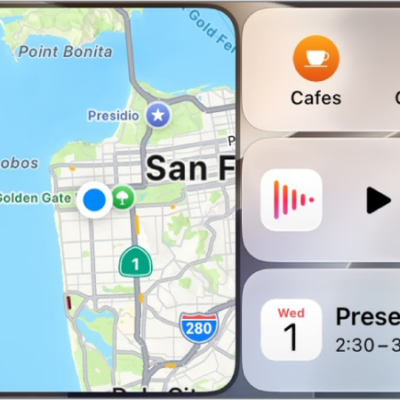
CarPlay works with your vehicle’s built-in controls, for example, a touchscreen, a rotary knob, or a touchpad. To learn how to operate your display, see the owner’s guide that came with your vehicle.
With those controls, you can open apps, move between CarPlay Dashboard and CarPlay Home, get back to your vehicle’s own Home Screen, and scroll quickly through long lists. You can also use Siri to control CarPlay with your voice instead.
- Open an app: Tap the app on the touchscreen, or turn the rotary knob to select the app, then press the knob.
-
Switch between CarPlay Dashboard and CarPlay Home: CarPlay Dashboard displays several items you likely want to view or control, such as driving directions, audio playback, and suggestions from Siri. CarPlay Home shows all your CarPlay apps organized into pages.
To go to CarPlay Home, tap the Home button on the touchscreen, or turn the rotary knob to select the Home button, then press the knob.
To go to CarPlay Dashboard, tap the Dashboard button, or turn the rotary knob to select the Dashboard button, then press the knob.
- Return to your vehicle’s Home Screen: Select the icon with your vehicle’s logo if it appears on CarPlay Home or, if available, the physical Home button on your radio.
- Return to a recently used app: Tap its icon on the edge of the touchscreen, or turn the rotary knob to the icon, then press the knob.
- View additional apps: If you have more than eight apps, some may appear on another page of CarPlay Home. To view them, swipe left on the touchscreen, or turn the rotary knob.
- Scroll quickly through a list: Tap the letters in the list on the right side of the touchscreen, or turn the rotary knob.
- Control audio playback: Use the audio playback controls on CarPlay Dashboard. Or from CarPlay Home, select Now Playing to view and control the current audio app.
Use Siri to control CarPlay
Siri allows you to control CarPlay using your voice instead of your vehicle’s built-in controls.
Use Siri AI (Beta) with CarPlay
Siri AI (Beta)* is your conversational AI assistant with entirely new capabilities that you can use in CarPlay. Use the Siri AI CarPlay app to get information, resume your prior conversations, and more.
Siri AI is available in beta on iOS 27 or later on an Apple Intelligence-enabled iPhone 15 Pro, iPhone 15 Pro Max, or iPhone 16 model or later with Siri and device language set to a supported language. Available in English to start. Siri AI will not initially be available in the EU on iOS. Usage limits may apply.
Siri is designed to protect your information, and you can choose what you share.
*Apple Intelligence is available with Siri and device language set to Chinese (Simplified), Chinese (Traditional), Danish, Dutch, English, French, German, Italian, Japanese, Korean, Norwegian, Portuguese, Spanish, Swedish, Turkish, or Vietnamese. Some features may not be available in all regions or languages. Some devices may not be available in all regions.
Siri AI is available in beta in iOS 27, iPadOS 27, macOS 27, watchOS 27, and visionOS 27 and requires an Apple Intelligence–enabled device set to a supported language. Available in English to start. Siri AI will not be initially available in the EU on iOS, iPadOS, and watchOS. Certain Apple Intelligence features that rely on server-side models are subject to daily usage limits, including but not limited to Siri AI, Intelligent Photo Editing Tools, Image Playground, and AFM 3 Cloud models in Shortcuts.
Daily limits may vary by feature, request complexity, system demand, system policies, and other factors. Expanded access to such features will be available for a fee in the future. Use of these features is subject to the Apple Intelligence Terms and Conditions.