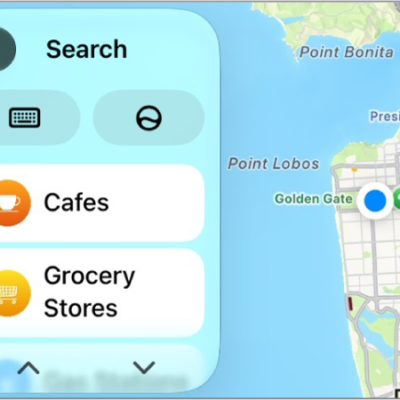
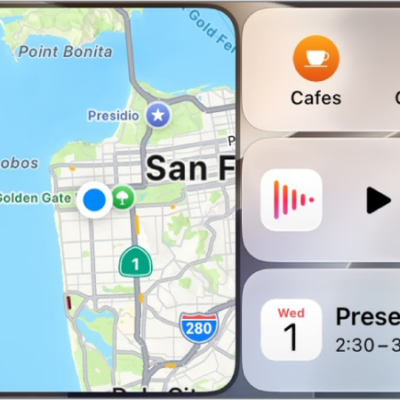
Use Siri or open Maps to get turn-by-turn directions, traffic conditions, and estimated travel time (not available in all regions). CarPlay can suggest likely destinations from your email, text messages, contacts, and calendars, and you can also search for a location or use your saved favorites.
Note: To get directions, make sure iPhone is connected to the internet and Location Services is on.
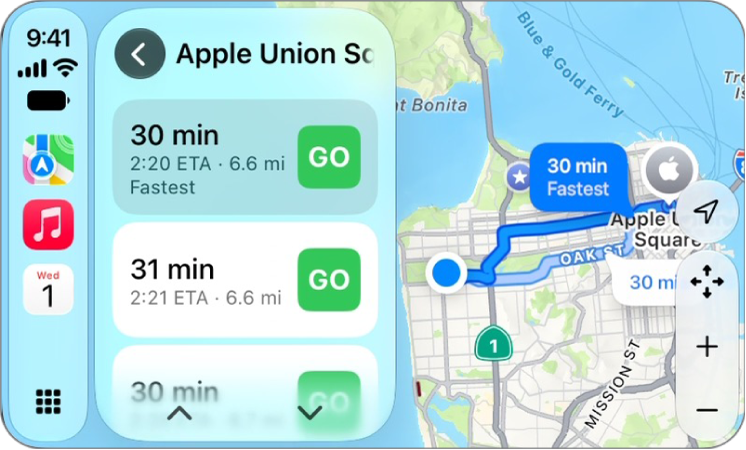
Find a route
Using addresses from your contacts, calendars, email, and text messages, as well as places you frequent, CarPlay generates likely destinations. You can also search for a location, find nearby attractions and services, and use locations you saved as favorites and in collections.
Or you can use your vehicle’s built-in controls to open Maps in CarPlay and select a route.
Note: Maps won’t always appear in the recent apps list on the left of CarPlay Dashboard. When it’s missing, tap the Home button, and you’ll see pages of all your CarPlay apps, Maps included.
- With Maps open in CarPlay, do one of the following:
- Select a place you saved as a favorite.
- Select Destinations, then select a recent destination or scroll to select a destination you saved in a collection.
- Select Search, then select the Microphone button to speak a search phrase, or select the Keyboard button to use the onscreen keyboard (if available). You can also select a destination from a category of nearby services, such as Parking or Restaurants.
- If multiple routes appear, use your vehicle’s controls to select the route you prefer.
- To call your destination before you leave, select the Phone button.
- To start turn-by-turn directions, select Go.
Maps shows directions from your current location.
When you arrive at your destination and exit your vehicle, a parked car marker shows up in Maps on iPhone to help you find your way back to your vehicle easily.
Follow turn-by-turn directions
CarPlay follows your progress and speaks turn-by-turn directions to your destination.
At any time during your trip, you can do any of the following:
- Add a stop to your driving directions: Select the ETA display at the bottom left, select Add Stop, then choose a destination or use Siri to search for one.
- End directions at any time: Say something to Siri like “Stop navigating,” or select the estimated time of arrival (ETA) display at the bottom left, then choose End Route.
- Mute turn-by-turn directions: Tap the Volume button, then choose the Mute button to mute all directions.
- Mute turn-by-turn directions, except for alerts and hazards: Tap the Volume button, then choose the Alerts Only button.
- Make a quick detour: Say something to Siri like “Find a gas station.” Or select the ETA display, select Search, select a suggested service, then choose a destination.
- Share your ETA: Select the ETA display at the bottom left, select Share ETA, then choose one or more suggested contacts.
People using devices with iOS 13.1, iPadOS 13.1, or later receive a Maps notification with your ETA, and they can track your progress in Maps. People using devices with earlier versions receive the notification through iMessage. People using other mobile devices receive an SMS message. (Standard carrier data and text rates may apply.)
To stop sending ETA information, select Sharing ETA at the bottom of the CarPlay screen, then choose a contact.
Note: For navigation apps that support the CarPlay Dashboard, Dashboard shows one of three apps. With no apps navigating, it’s the last navigation app opened. With one, it’s the one that is actively navigating. With multiple apps navigating, it’s the last opened and actively navigating app.