You can pair more than one Apple Watch with your iPhone and easily switch from one watch to another.
You pair another Apple Watch the same way you paired your first one. After that, your iPhone detects the paired Apple Watch you’re wearing and connects to it automatically, though you can choose a watch manually, too.
Set up another Apple Watch
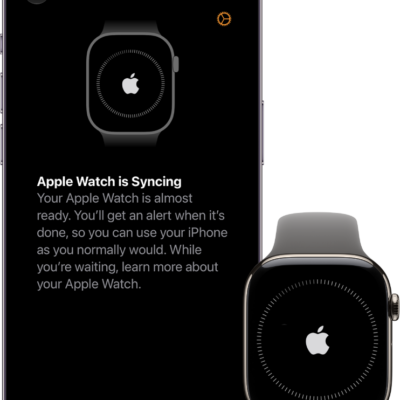
You can pair another Apple Watch in the same way you paired your first one. Bring your iPhone near your Apple Watch, wait for the Apple Watch pairing screen to appear on your iPhone, then tap Pair. Or follow these steps:
- Start the Apple Watch app on your iPhone.
- Tap My Watch, then tap All Watches at the top of the screen.
- Tap Add Watch, then follow the onscreen instructions.
Quickly switch to a different Apple Watch
Raise your wrist after you put on a different Apple Watch. Your iPhone picks up the paired Apple Watch you’re wearing and connects to it on its own.
You can also choose an Apple Watch manually:
- Start the Apple Watch app on your iPhone.
- Tap My Watch, then tap All Watches at the top of the screen.
- Turn off Auto Switch and choose a different watch.
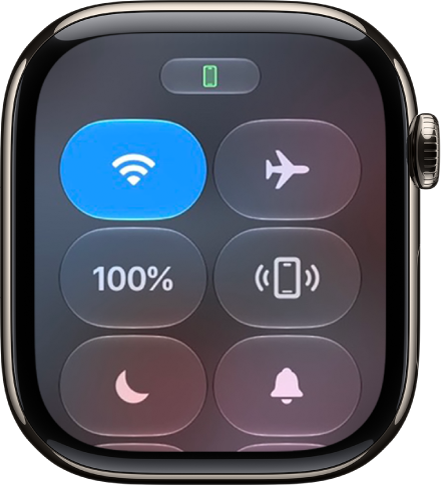
To see if your Apple Watch is connected to your iPhone, press the side button to open Control Center, then look for the Connected status icon at the top of the screen.
See also