When you travel with iPad, choose settings that comply with airline requirements. Some airlines let you keep your iPad turned on if you switch to Airplane Mode.
Turning on Airplane Mode switches off Wi-Fi, Bluetooth®, and cellular networks at first, but you can turn them back on even while it’s on. That way, you can make or receive FaceTime calls or use features and accessories that require wireless communication. When Airplane Mode is on, its icon shows up in the status bar at the top of your screen.
To choose settings that minimize cellular charges when you travel (Wi-Fi + Cellular models), see View or change cellular data settings on iPad (Wi-Fi + Cellular models).
When you travel abroad, you may be able to sign up for cellular service with a carrier in the region you’re visiting, right from your iPad (available on Wi-Fi + Cellular models with Touch ID or Face ID). See Connect to a cellular network if Wi-Fi isn’t available.
Turn on Airplane Mode
Open Control Center, then tap the Airplane Mode Switch button.
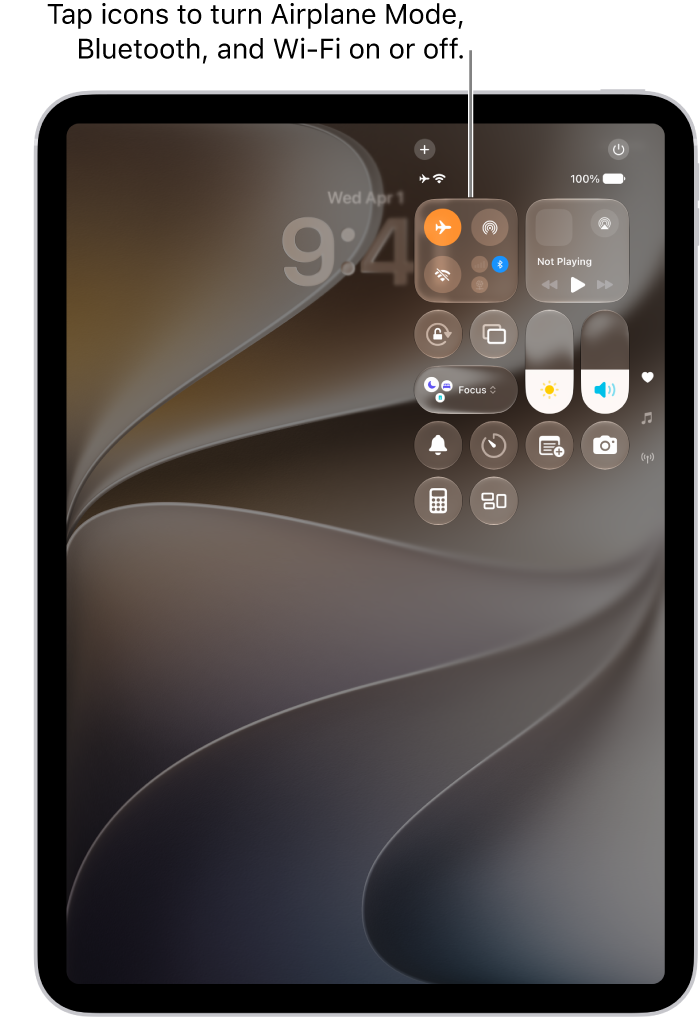
If you’d rather, turn Airplane Mode on or off in Settings. When it’s on, you’ll see its icon in the status bar at the top of the screen.
Turn on Wi-Fi or Bluetooth while in Airplane Mode
If your airline allows it, you can use Wi-Fi or Bluetooth while in Airplane Mode.
- Open Control Center, then turn on Airplane Mode.
-
Tap the Wi-Fi Switch button to turn on Wi-Fi or the Bluetooth Switch button to turn on Bluetooth.
If you turn on Wi-Fi or Bluetooth while in Airplane Mode, it may still be on the next time you return to Airplane Mode. To turn off Wi-Fi or Bluetooth while in Airplane Mode, open Control Center, then tap the Wi-Fi Switch button or the Bluetooth Switch button.
See also