Got a tip for us?

Control Center

On supported models, you can use the built-in flashlight to light your way or get a better view of something. It’s in Control Center. You can also turn it on or off with Siri, and change the brightness of the flashlight, too.

Use Control Center to turn the flashlight on or off

  1. Open Control Center.
  2. Tap the Flashlight button to turn the flashlight on; tap it again to turn it off.

    Note: If you don’t see the Flashlight button in Control Center (on a supported model), you can add it. See Customize controls.

Use Siri to turn the flashlight on or off

You can use Siri to turn the flashlight on or off.

Siri: Ask Siri something like, “Siri, turn on the flashlight.” Learn how to use Siri.

Change the brightness of the flashlight

  1. Open Control Center.
  2. Touch and hold the Flashlight button in Control Center. Slide your finger up or down on the control to adjust the brightness.

See also

You can control the settings for capturing audio and video in apps and websites—for example, during a videoconference—to maximize the quality of your recording.

An input source for recording audio can be set for a specific app or website, or for your device. Voice Isolation reduces background noise so your voice comes through clearly, while Wide Spectrum keeps all the surrounding sounds. After the call, your recording is saved in the Files app by default.

Here’s how to improve audio and record video calls on iPad.

Select an audio input source

You can choose an input source for recording audio in a specific app or website or for your device.

  1. Open the app or go to the website you want to record from.
  2. Open Control Center.
  3. Tap the button for your app or browser at the top of Control Center.
  4. Tap Input and then select an input device.

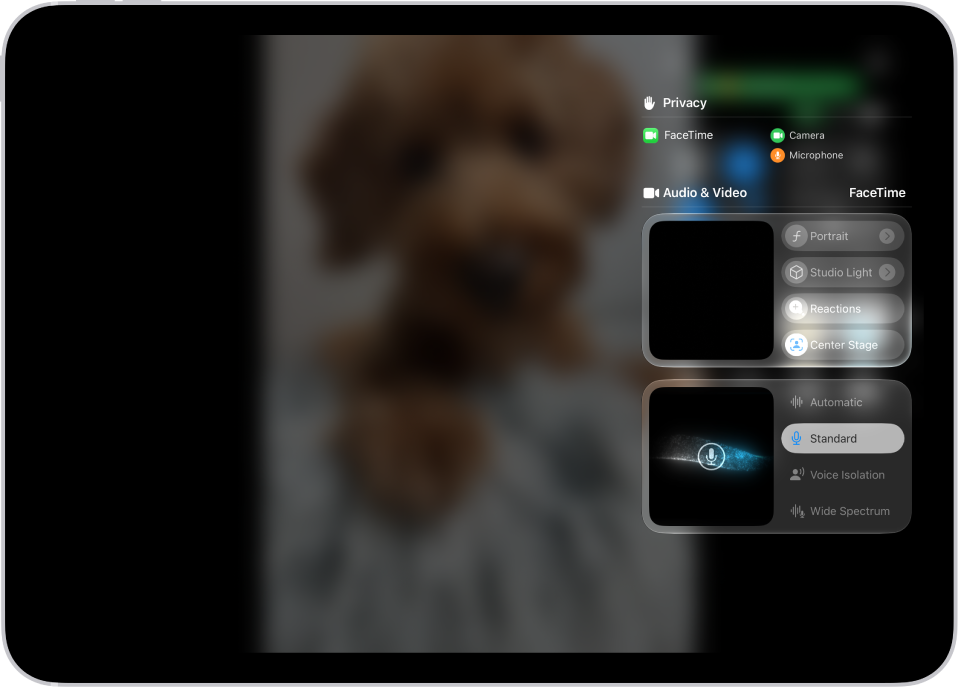
    A menu in Control Center shows input source options for recording your side of a videoconference.

Filter out background sounds with Voice Isolation

To make your voice come through clearly, Voice Isolation reduces background noise. Wide Spectrum keeps all surrounding sounds, which helps in music or group settings.

  1. Open the app or go to the website you want to record from.
  2. Open Control Center.
  3. Tap the button for your app or browser at the top of Control Center.
  4. Tap Voice Isolation.

To include the background sounds in your recording, tap Wide Spectrum, if it’s available. (Wide Spectrum isn’t available for all apps.)

After the call, your recording is saved by default in the Downloads folder in the Files app, unless you specify another location. Tap the Share button to share it with other call participants. It can be combined with other participants’ recordings in a post-production app such as Logic Pro or Final Cut Pro.

Record audio and video with Local Capture

Local Capture saves high-quality audio and video recordings directly to your iPad. Voice Isolation and Wide Spectrum don’t affect a Local Capture recording, but you can edit it afterward to adjust the sound.

Local Capture records audio and video by default, but if another app is using your camera, it records only audio.

  1. Open the videoconferencing app you want to record from.
  2. Open Control Center.
  3. Touch and hold the Local Capture button.

    Note: If you don’t see the Local Capture button, add it to Control Center first. See Use and customize Control Center.

  4. Tap Start Recording.

    Note: Depending on your audio input source, you can adjust the input gain by dragging the slider (if one appears onscreen). The input gain slider allows you to attenuate the incoming volume when you use an external USB microphone.

    To exclude video from your recording, select Audio Only in Control Center.

Note: While you’re recording with Local Capture, you can use Voice Isolation to filter out background noise during the live session, though not in the recording itself. However, you can fix this by editing the recording after the live session, filtering out background sounds.

After the call, your recording is automatically saved in the Downloads folder in the Files app, unless you specify a different location for saving Local Capture recordings. Tap the Share button to share the recording with other call participants. It can be combined with other participants’ recordings in a post-production app (such as Logic Pro or Final Cut Pro).

Choose where Local Capture recordings are saved

You can specify a location for saving Local Capture recordings other than the default Downloads folder in the Files app.

  1. Open the Settings app on your iPad.
  2. Tap General and then tap Local Capture.
  3. Tap Save Location and then go to the folder where you want to save your Local Capture recordings.
  4. Tap the folder where you want the recordings saved and then tap Open.

Use AirPods to record audio and capture video from a distance

With supported models of AirPods and AirPods Pro, you can use your AirPods to remotely record audio and video during a videoconference. To start and stop recording, press the AirPods stem.

See also

With Live Listen, you can stream sound from the microphone on iPhone to your MFi hearing devices or AirPods. This can help you hear better in some situations—for example, when having a conversation in a noisy environment.

And you don’t have to reach for your phone to control it. When you use Live Listen on your iPhone, you can remotely start, stop, or jump back in the session from your nearby paired Apple Watch. With Live Captions generated on your iPhone, you can also view the transcription of the conversation directly on your wrist, with the text appearing on your Apple Watch screen in real time as your iPhone picks up audio.

It’s especially helpful when you want to discreetly read conversations or need visual reinforcement of audio content, whether you’re in a noisy restaurant, attending a lecture, or simply prefer reading along, or when it’s hard to hear clearly.

Note: Live Captions isn’t available in all languages, countries, or regions. The accuracy of Live Captions may vary and shouldn’t be relied upon in high-risk or emergency situations.

Set up Apple Watch as a remote control for Live Listen

Starting Live Listen requires turning on Remote Control and adding the Hearing Controls to Control Center on Apple Watch first.

Note: You need your iPhone and Apple Watch signed in to the same Apple Account.

  1. Start the Settings app on your iPhone.
  2. Tap Accessibility, tap Audio & Visual and tap Live Listen. Turn on Remote Control.
  3. On your Apple Watch, press the side button to open Control Center.
  4. Scroll to the bottom and tap Edit. Tap the Add button.
  5. Tap Accessibility and then tap the Hearing Controls button to add the Hearing Controls to Control Center.

Use Apple Watch as a remote control for Live Listen

From Apple Watch, you can start a new session or control one that’s already in progress.

  1. Position your iPhone near the sound source.
  2. Press the side button to open Control Center and tap the Hearing Controls button.
  3. In the Hearing Devices window, scroll down to Live Listen.
  4. Do any of the following:
    • Start a session: Turn on Live Listen.
    • Rewind: Tap Go back 10 seconds.
    • Return to the live audio stream: Tap Skip back to live.
    • View the live transcription: Tap Live Listen Captions.
    • Stop the session: Turn off Live Listen.

See also

You can make a screen recording to capture what’s happening on your iPad screen and save it as a video. You can even turn on the microphone to add audio.

Recording starts after a 3-second countdown, and your screen recordings are saved to your photo library automatically. The Screen Recording control is in Control Center, and you can review your screen recordings with your other media types in the Photos app.

Note: You can’t record your screen while using screen mirroring, and some apps might not allow you to record their content.

Record the iPad screen

  1. Swipe down from the top-right corner of the screen to open Control Center.

    If you don’t see the Screen Recording control, add it to Control Center. See Customize controls.

  2. Tap the Screen Recording button and then wait for the 3-second countdown to start recording.
  3. Swipe up to dismiss Control Center and then perform the action you want to record.
  4. To stop recording, tap the red button at the top of the screen and tap Stop.

Take a screen recording with audio

  1. Swipe down from the top-right corner of the screen to open Control Center.
  2. Touch and hold the Screen Recording button, tap Microphone to turn it on, and tap Start Recording.
  3. Wait for the 3-second countdown, then start recording.

Note: Some apps might not let you record their content. Also, you can’t record your screen and use screen mirroring together.

Review your screen recordings

Screen recordings are automatically saved to your photo library.

  1. Open the Photos app on your iPad.
  2. Tap Collections, scroll down to Media Types, and then tap Screen Recordings.

See also

On iPad, you can make your screen dimmer or brighter (dimming the screen extends battery life). You can also adjust the screen color and brightness manually or automatically with Dark Mode, True Tone, and Night Shift.

You can change it in Control Center or in Settings. iPad can also adjust brightness for current light conditions using its ambient light sensor.

Here’s how to adjust the screen brightness and color on iPad.

Adjust the screen brightness manually

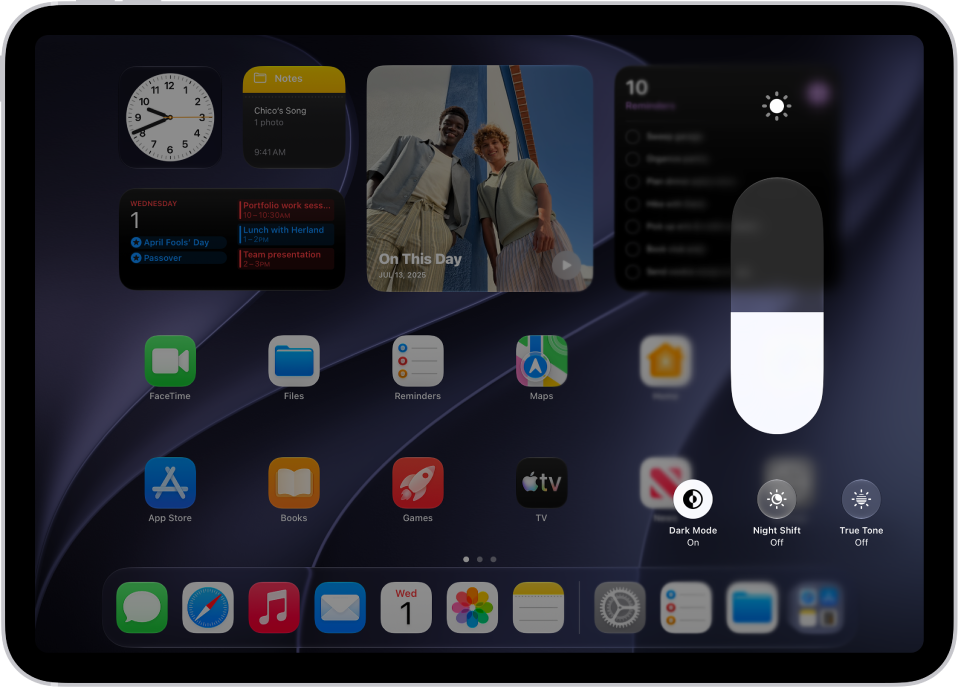
The iPad Home Screen with Dark Mode on.

To make your iPad screen dimmer or brighter, use either of the following:

  • Open Control Center, then drag the Brightness button up or down.
  • Go to the Settings app, tap Display & Brightness, then drag the slider.

Adjust the screen brightness automatically

The built-in ambient light sensor lets iPad adjust the screen brightness for current light conditions.

  1. Start the Settings app on your iPad.
  2. Tap Accessibility, then tap Display & Text Size.
  3. Turn on Auto-Brightness.

    Turning off Auto-Brightness may increase power consumption.

Turn Dark Mode on or off

Dark Mode switches the entire iPad experience to a dark color scheme, which is perfect for low-light environments. Say you’re reading in bed. With Dark Mode on, you can use your iPad without disturbing the person next to you.

You can turn Dark Mode on or off from either of these places:

  • Open Control Center, touch and hold the Brightness button, then tap the Appearance button to turn Dark Mode on or off.
  • Go to the Settings app, tap Display & Brightness, then select Dark to turn on Dark Mode or select Light to turn it off.

Schedule Dark Mode to turn on and off automatically

You can set Dark Mode to turn on automatically at night (or on a custom schedule) in Settings.

  1. Start the Settings app on your iPad.
  2. Tap Display & Brightness, turn on Automatic, and tap Options.
  3. Select either Sunset to Sunrise or Custom Schedule.

    If you choose Custom Schedule, tap the options to schedule the times you want Dark Mode to turn on and off.

    If you select Sunset to Sunrise, iPad uses the data from your clock and geolocation to determine when it’s nighttime for you.

Turn Night Shift on or off

In a darkened room during the day, it can help to turn on Night Shift manually.

Open Control Center, touch and hold the Brightness button, then tap the Night Shift button.

Schedule Night Shift to turn on and off automatically

With a Night Shift schedule, the colors in your display shift to the warmer end of the spectrum at night, making the screen easier on your eyes.

  1. Go to the Settings on your iPad.
  2. Tap Display & Brightness, tap Night Shift, and then turn on Scheduled.
  3. To adjust the color balance for Night Shift, drag the slider below Color Temperature toward the warmer or cooler end of the spectrum.
  4. Tap From and select either Sunset to Sunrise or Custom Schedule.

    If you choose Custom Schedule, tap the options to schedule the times you want Night Shift to turn on and off.

    If you select Sunset to Sunrise, iPad uses the data from your clock and geolocation to determine when it’s nighttime for you.

    Note: The Sunset to Sunrise option isn’t available if you turned off Location Services or Setting Time Zone. To turn on Location Services, go to the Settings app, tap Privacy & Security, then tap Location Services. Setting Time Zone is in System Services on that screen.

Turn True Tone on or off

To keep the display looking consistent across different environments, True Tone on supported models uses ambient light sensors, letting it adjust the screen color based on the lighting around you.

To turn True Tone on or off, use either of the following:

  • Open Control Center, touch and hold the Brightness button, then tap the True Tone button to turn True Tone on or off.
  • Go to the Settings app, tap Display & Brightness, then turn True Tone on or off.

Use Reference Mode on iPad Pro

Reference Mode tunes the display to common color standards, which helps when you’re reviewing photo and video work. It’s available on iPad Pro 11-inch (M4 and later) and iPad Pro 12.9-inch (M1 and later) models.

  1. Start the Settings app on your iPad.
  2. Tap Display & Brightness, then tap Advanced.
  3. Turn on Reference Mode.

See also

Control Center on iPad gives you instant access to useful controls—including Airplane Mode, Do Not Disturb, volume, screen brightness, and more.

Many controls offer additional options. The Camera control, for example, can take a selfie, record a video, or take a photo, and the Power button can power off your iPad. You can rearrange, add, or remove controls, or add a custom group, and you’re able to temporarily disconnect from a Wi-Fi network or Bluetooth devices.
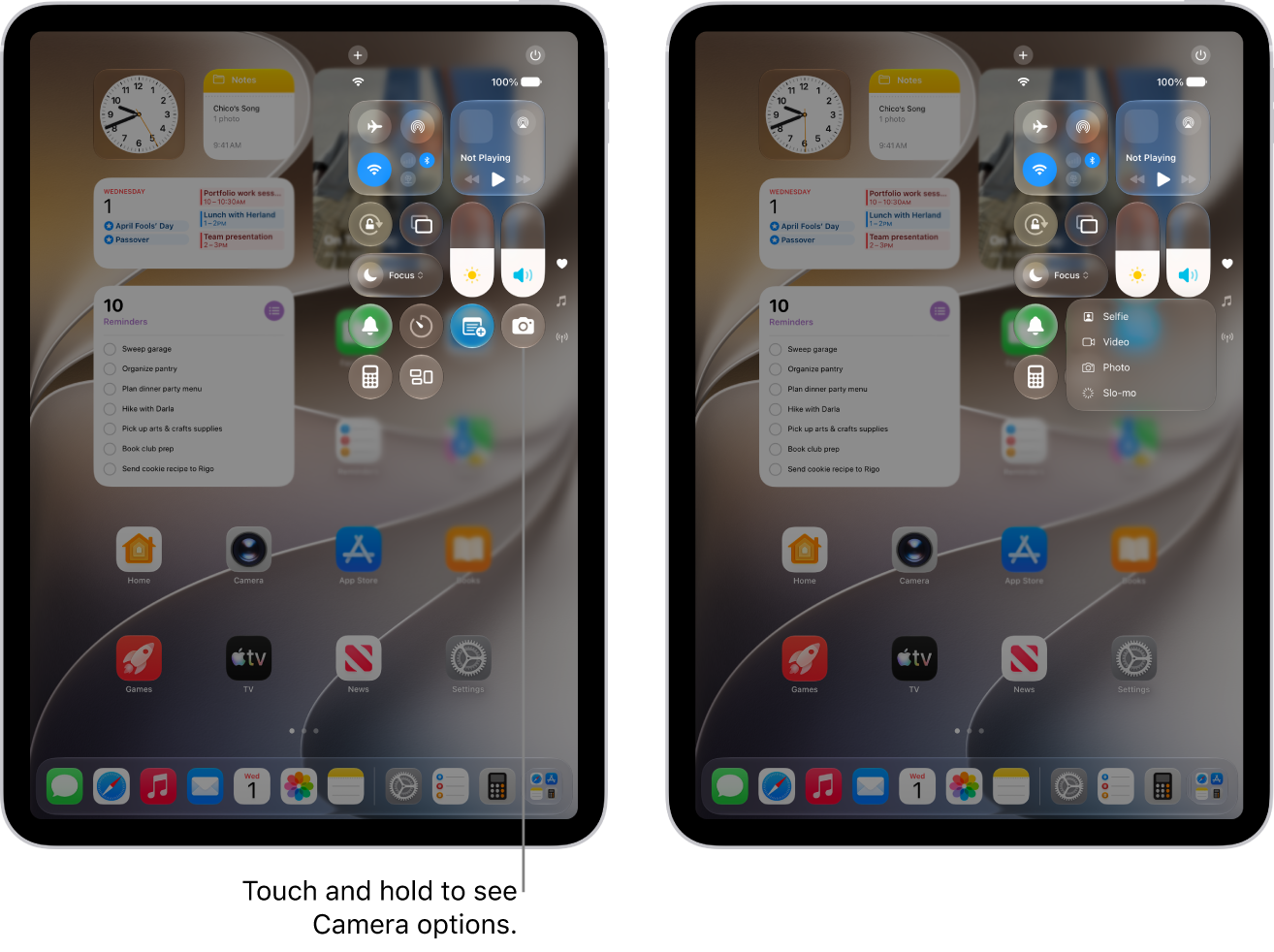
The iPad Control Center. Controls for Airplane Mode, cellular data, Wi-Fi, and Bluetooth are in the top-left group in Control Center for Wi-Fi + Cellular iPad models. The Camera control is at the bottom right of Control Center. The screen on the right shows the quick menu of options that appear when you touch and hold the Camera control.

Open Control Center

Swipe down from the top-right edge. You can jump to specific groups of controls by swiping down through the icons on the right edge of the screen. Swipe up through the icons to go back to the first group.

To close Control Center, swipe up from the bottom center of the screen.

Access more controls in Control Center

Many controls offer additional options. To see available options, touch and hold a control. For example, you can do the following in Control Center:

  • Touch and hold the top-left group of controls, then tap the AirDrop button to open the AirDrop options.
  • Touch and hold the Camera button to take a selfie, record a video, or take a photo.
  • Touch and hold the Control Center Power button at the top right of the screen (while Control Center is open). Then drag the slider to power off the iPad.

Customize controls

You can rearrange, add, or remove Control Center controls.

  1. Open Control Center.
  2. Tap the Add button at the top left of Control Center to begin editing the controls.
  3. Do any of the following:

    • Rearrange controls: Drag a control to a new position.
    • Remove a control or a set of controls: Tap the Remove button at the upper left of the control.
    • Resize a control: Drag the handle at the lower right edge of the control.
    • Create a new section of controls: Tap the bottommost icon (the little circle) along the right edge of the screen. Then tap Add a Control, and choose which controls to add to your custom group. Or you can drag a control off the bottom of the page to create a new section.
    • Add more controls: Tap Add a Control to open the controls gallery. Tap a control to add it to Control Center.
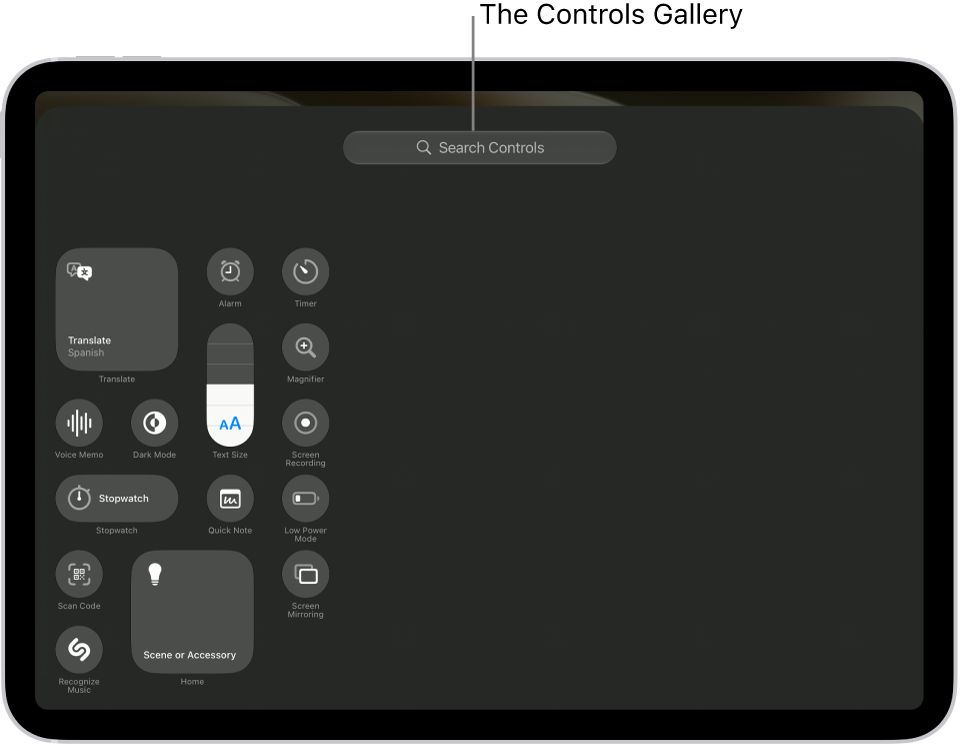
      Control Center in edit mode, with the controls gallery open, showing all the available controls.

  4. When you finish customizing, close Control Center by swiping up from the bottom center of the screen.

Add a custom group of controls

You can even add a whole new group of controls to Control Center.

  1. Open Control Center.
  2. Tap the Add button at the top left of Control Center. Then tap the bottommost icon (the little circle) along the right edge of the screen.
  3. Tap Add a Control at the bottom of Control Center to open the controls gallery. Then tap a control in the controls gallery to add it to the group.
  4. To further customize the new group of controls, do any of the following:

    • Rearrange controls: Drag a control to a new position.
    • Remove a control or a set of controls: Tap the Remove button at the upper left of the control.
    • Resize a control: Drag the handle at the lower right of the control.
    • Add more controls: Tap Add a Control at the bottom of Control Center. Then tap a control to add it to the group.

      Note: If you don’t see the control you want to add, type its name in the search field at the top.

  5. When you’re finished, close Control Center by swiping up from the bottom center of the screen.

Temporarily disconnect from a Wi-Fi network

In Control Center, tap the Wi-Fi Switch button; to reconnect, tap it again.

To see the name of the connected Wi-Fi network, touch and hold the Wi-Fi Switch button.

Because Wi-Fi isn’t turned off when you disconnect from a network, AirPlay and AirDrop still work, and iPad joins known networks when you change locations or restart iPad. To turn off Wi-Fi, go to the Settings app, then tap Wi-Fi. (To turn on Wi-Fi again in Control Center, tap the Wi-Fi Switch button.) For information about turning Wi-Fi on or off in Control Center while in Airplane Mode, see Choose iPad settings for travel.

Temporarily disconnect from Bluetooth devices

In Control Center, tap the Bluetooth Switch button; to allow connections, tap the button again.

Because Bluetooth® isn’t turned off when you disconnect from devices, location accuracy and other services are still enabled. To turn off Bluetooth, go to the Settings app, tap Bluetooth, then turn it off. To turn on Bluetooth again in Control Center, tap the Bluetooth Switch button. For information about turning Bluetooth on or off in Control Center while in Airplane Mode, see Choose iPad settings for travel.

Turn off access to Control Center in apps

Go to the Settings app, tap Control Center, then turn off Access Within Apps.

See also

Many apps give you a different view when you rotate iPad, as long as the rotation lock is off. You can also lock the screen orientation so it doesn’t change when you rotate iPad, and while it’s locked, the Lock Rotation icon appears in the status bar.

Rotate the screen

  1. To make sure the rotation lock is off, open Control Center and tap the Lock Rotation button if it’s red.

    Note: If you don’t see the Lock Rotation button, add it to Control Center. See Customize controls.

  2. Turn your iPad sideways.

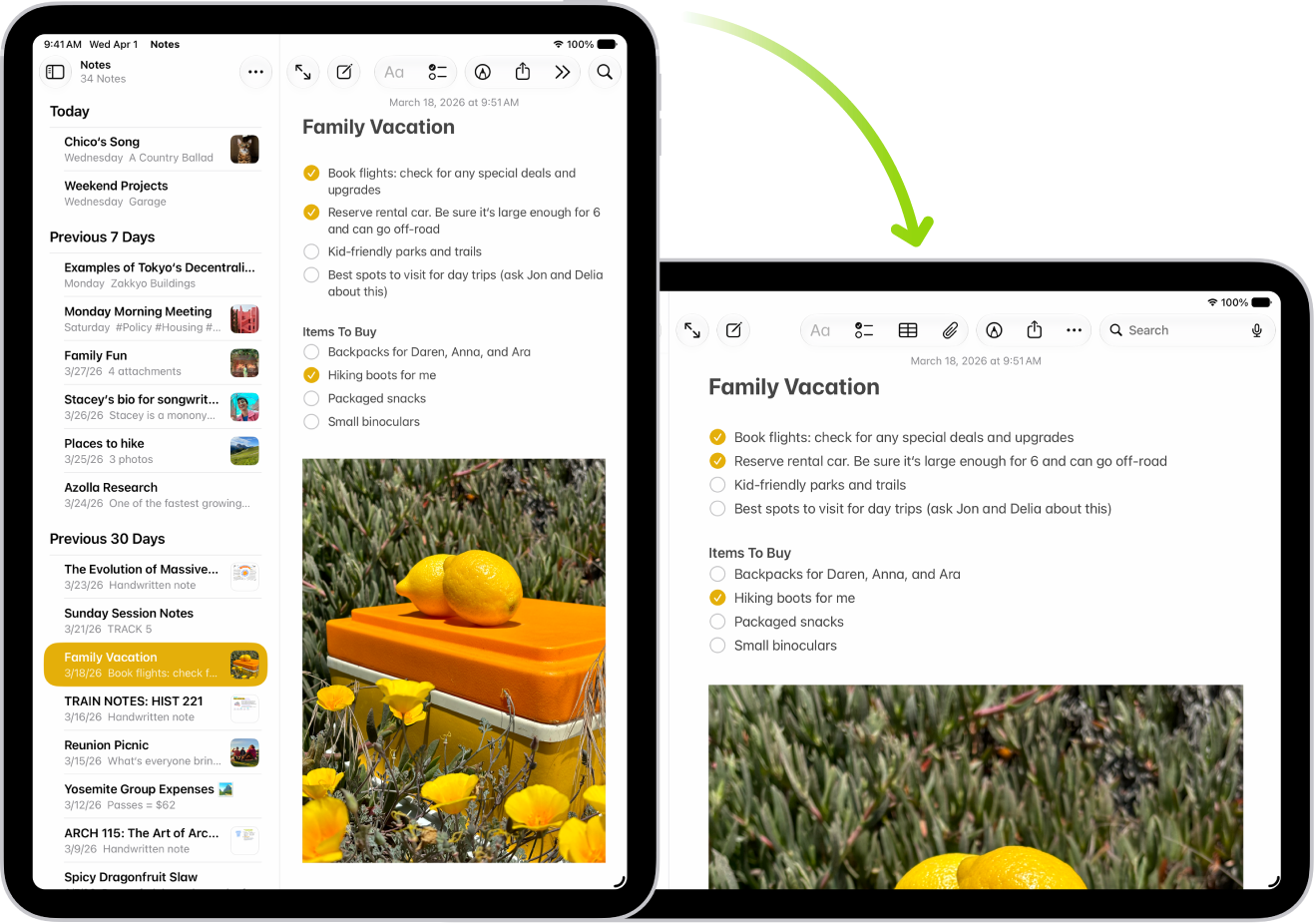
    In the background, iPad displays a Notes screen in portrait orientation; in the foreground, iPad is rotated and shows the Notes screen in landscape orientation.

Lock or unlock the screen orientation

The screen orientation can be locked so it won’t change when you rotate iPad.

Open Control Center, then tap the Lock Rotation button. The button is red when the orientation is locked, and gray when it isn’t.

Note: If you don’t see the Lock Rotation button, add it to Control Center. See Customize controls.

With the screen orientation locked, you’ll see the Lock Rotation icon in the status bar.

See also

When you travel with iPad, choose settings that comply with airline requirements. Some airlines let you keep your iPad turned on if you switch to Airplane Mode.

Turning on Airplane Mode switches off Wi-Fi, Bluetooth®, and cellular networks at first, but you can turn them back on even while it’s on. That way, you can make or receive FaceTime calls or use features and accessories that require wireless communication. When Airplane Mode is on, its icon shows up in the status bar at the top of your screen.

To choose settings that minimize cellular charges when you travel (Wi-Fi + Cellular models), see View or change cellular data settings on iPad (Wi-Fi + Cellular models).

When you travel abroad, you may be able to sign up for cellular service with a carrier in the region you’re visiting, right from your iPad (available on Wi-Fi + Cellular models with Touch ID or Face ID). See Connect to a cellular network if Wi-Fi isn’t available.

Turn on Airplane Mode

Open Control Center, then tap the Airplane Mode Switch button.

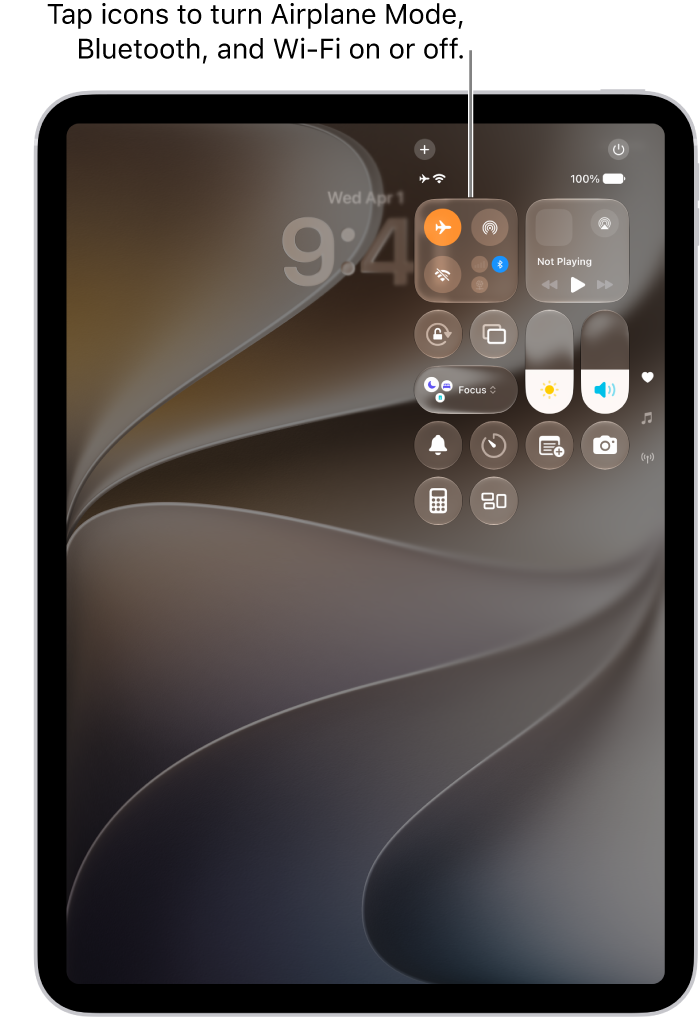
The Control Center screen showing that tapping the top-left button turns on Airplane Mode.

If you’d rather, turn Airplane Mode on or off in Settings. When it’s on, you’ll see its icon in the status bar at the top of the screen.

Turn on Wi-Fi or Bluetooth while in Airplane Mode

If your airline allows it, you can use Wi-Fi or Bluetooth while in Airplane Mode.

  1. Open Control Center, then turn on Airplane Mode.
  2. Tap the Wi-Fi Switch button to turn on Wi-Fi or the Bluetooth Switch button to turn on Bluetooth.

    If you turn on Wi-Fi or Bluetooth while in Airplane Mode, it may still be on the next time you return to Airplane Mode. To turn off Wi-Fi or Bluetooth while in Airplane Mode, open Control Center, then tap the Wi-Fi Switch button or the Bluetooth Switch button.

See also

You can use your iPhone to help you find Apple Watch if it’s nearby. (Requires iPhone with iOS 17 or later.)

You add Ping My Watch to Control Center on your iPhone, then ping your watch from there. If you have more than one Apple Watch, it plays on whichever watch is selected in All Watches. You can also learn how to play a sound on your iPhone, iPad, Mac, or Apple Watch and protect a lost Apple Watch.

Add Ping My Watch to Control Center

  1. On your iPhone, open Control Center with one of the following methods:

    • On an iPhone with Face ID: Swipe down from the top-right corner of the screen.
    • On an iPhone with a Home button: Swipe up from the bottom edge of the screen.
  2. Tap the Add button at the top left of the screen.

    You see Control Center in edit mode.

  3. Tap Add a Control at the bottom of the screen to open the controls gallery, scroll down to the Watch controls, and tap Ping My Watch.

Ping your watch from Control Center on iPhone

  1. On your iPhone, open Control Center with one of the following methods:

    • On an iPhone with Face ID: Swipe down from the top-right corner of the screen.
    • On an iPhone with a Home button: Swipe up from the bottom edge of the screen.
  2. Tap the Ping Apple Watch button.

    If you have more than one Apple Watch, the sound will play on the watch that’s selected in All Watches in the Apple Watch app on your iPhone.

See also

You can use Apple Watch to shine a light on a door lock at night, alert others when you’re out for an evening run, or illuminate nearby objects.

There are three modes: steady white light, flashing white light, or steady red light. You adjust the brightness by turning the Digital Crown.

Here’s how to use the flashlight on Apple Watch.

Turn on the flashlight

  1. Press the side button to open Control Center on Apple Watch.
  2. Tap the Flashlight button.
  3. Do any of the following:
    • Change the light: Swipe left or right to choose a mode—steady white light, flashing white light, or steady red light.
    • Adjust the brightness: Turn the Digital Crown.

Turn off the flashlight

Do any of the following:

  • Press the Digital Crown.
  • Swipe down from the top of the watch face.

See also