On iPad, you can make your screen dimmer or brighter (dimming the screen extends battery life). You can also adjust the screen color and brightness manually or automatically with Dark Mode, True Tone, and Night Shift.
You can change it in Control Center or in Settings. iPad can also adjust brightness for current light conditions using its ambient light sensor.
Here’s how to adjust the screen brightness and color on iPad.
Adjust the screen brightness manually
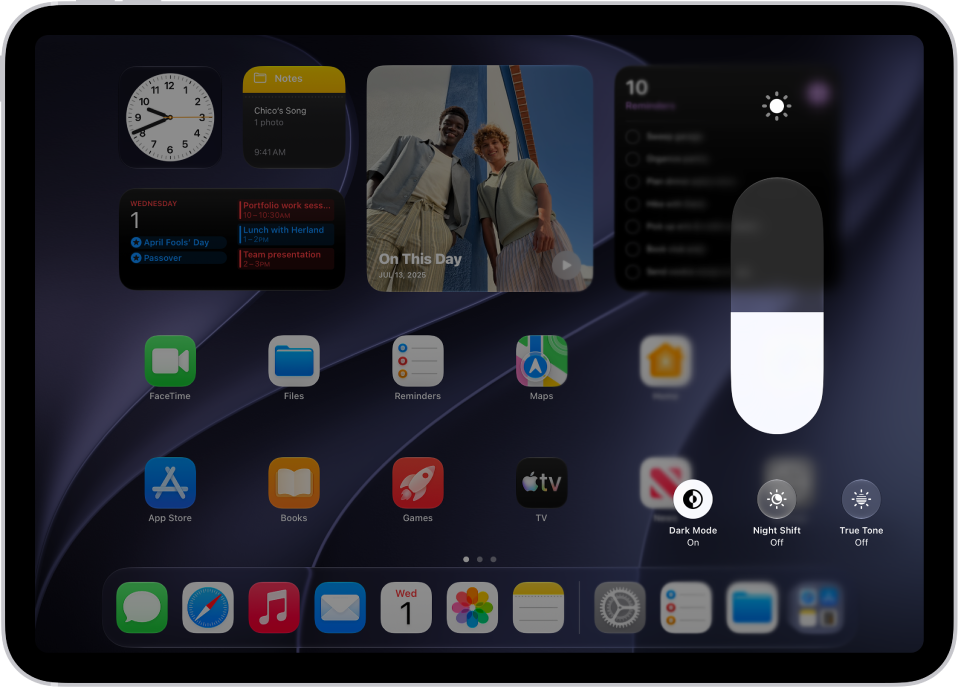
To make your iPad screen dimmer or brighter, use either of the following:
- Open Control Center, then drag the Brightness button up or down.
- Go to the Settings app, tap Display & Brightness, then drag the slider.
Adjust the screen brightness automatically
The built-in ambient light sensor lets iPad adjust the screen brightness for current light conditions.
- Start the Settings app on your iPad.
- Tap Accessibility, then tap Display & Text Size.
-
Turn on Auto-Brightness.
Turning off Auto-Brightness may increase power consumption.
Turn Dark Mode on or off
Dark Mode switches the entire iPad experience to a dark color scheme, which is perfect for low-light environments. Say you’re reading in bed. With Dark Mode on, you can use your iPad without disturbing the person next to you.
You can turn Dark Mode on or off from either of these places:
- Open Control Center, touch and hold the Brightness button, then tap the Appearance button to turn Dark Mode on or off.
- Go to the Settings app, tap Display & Brightness, then select Dark to turn on Dark Mode or select Light to turn it off.
Schedule Dark Mode to turn on and off automatically
You can set Dark Mode to turn on automatically at night (or on a custom schedule) in Settings.
- Start the Settings app on your iPad.
- Tap Display & Brightness, turn on Automatic, and tap Options.
-
Select either Sunset to Sunrise or Custom Schedule.
If you choose Custom Schedule, tap the options to schedule the times you want Dark Mode to turn on and off.
If you select Sunset to Sunrise, iPad uses the data from your clock and geolocation to determine when it’s nighttime for you.
Turn Night Shift on or off
In a darkened room during the day, it can help to turn on Night Shift manually.
Open Control Center, touch and hold the Brightness button, then tap the Night Shift button.
Schedule Night Shift to turn on and off automatically
With a Night Shift schedule, the colors in your display shift to the warmer end of the spectrum at night, making the screen easier on your eyes.
- Go to the Settings on your iPad.
- Tap Display & Brightness, tap Night Shift, and then turn on Scheduled.
- To adjust the color balance for Night Shift, drag the slider below Color Temperature toward the warmer or cooler end of the spectrum.
-
Tap From and select either Sunset to Sunrise or Custom Schedule.
If you choose Custom Schedule, tap the options to schedule the times you want Night Shift to turn on and off.
If you select Sunset to Sunrise, iPad uses the data from your clock and geolocation to determine when it’s nighttime for you.
Note: The Sunset to Sunrise option isn’t available if you turned off Location Services or Setting Time Zone. To turn on Location Services, go to the Settings app, tap Privacy & Security, then tap Location Services. Setting Time Zone is in System Services on that screen.
Turn True Tone on or off
To keep the display looking consistent across different environments, True Tone on supported models uses ambient light sensors, letting it adjust the screen color based on the lighting around you.
To turn True Tone on or off, use either of the following:
- Open Control Center, touch and hold the Brightness button, then tap the True Tone button to turn True Tone on or off.
- Go to the Settings app, tap Display & Brightness, then turn True Tone on or off.
Use Reference Mode on iPad Pro
Reference Mode tunes the display to common color standards, which helps when you’re reviewing photo and video work. It’s available on iPad Pro 11-inch (M4 and later) and iPad Pro 12.9-inch (M1 and later) models.
- Start the Settings app on your iPad.
- Tap Display & Brightness, then tap Advanced.
- Turn on Reference Mode.
See also