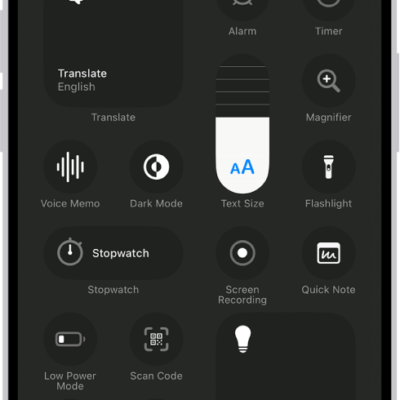
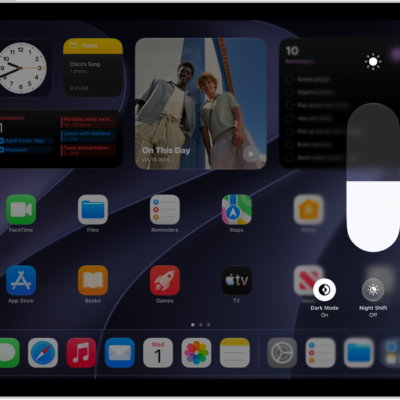
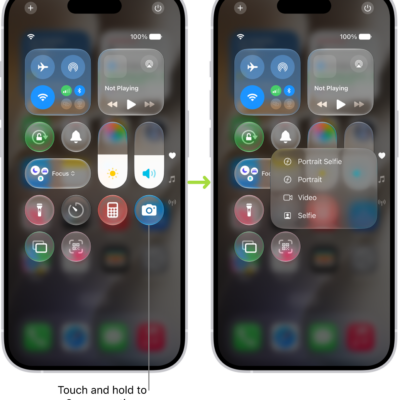
With Live Listen, you can stream sound from the microphone on iPhone to your MFi hearing devices or AirPods. This can help you hear better in some situations—for example, when having a conversation in a noisy environment.
And you don’t have to reach for your phone to control it. When you use Live Listen on your iPhone, you can remotely start, stop, or jump back in the session from your nearby paired Apple Watch. With Live Captions generated on your iPhone, you can also view the transcription of the conversation directly on your wrist, with the text appearing on your Apple Watch screen in real time as your iPhone picks up audio.
It’s especially helpful when you want to discreetly read conversations or need visual reinforcement of audio content, whether you’re in a noisy restaurant, attending a lecture, or simply prefer reading along, or when it’s hard to hear clearly.
Note: Live Captions isn’t available in all languages, countries, or regions. The accuracy of Live Captions may vary and shouldn’t be relied upon in high-risk or emergency situations.
Set up Apple Watch as a remote control for Live Listen
Starting Live Listen requires turning on Remote Control and adding the Hearing Controls to Control Center on Apple Watch first.
Note: You need your iPhone and Apple Watch signed in to the same Apple Account.
- Start the Settings app on your iPhone.
- Tap Accessibility, tap Audio & Visual and tap Live Listen. Turn on Remote Control.
- On your Apple Watch, press the side button to open Control Center.
- Scroll to the bottom and tap Edit. Tap the Add button.
- Tap Accessibility and then tap the Hearing Controls button to add the Hearing Controls to Control Center.
Use Apple Watch as a remote control for Live Listen
From Apple Watch, you can start a new session or control one that’s already in progress.
- Position your iPhone near the sound source.
- Press the side button to open Control Center and tap the Hearing Controls button.
- In the Hearing Devices window, scroll down to Live Listen.
- Do any of the following:
- Start a session: Turn on Live Listen.
- Rewind: Tap Go back 10 seconds.
- Return to the live audio stream: Tap Skip back to live.
- View the live transcription: Tap Live Listen Captions.
- Stop the session: Turn off Live Listen.
See also