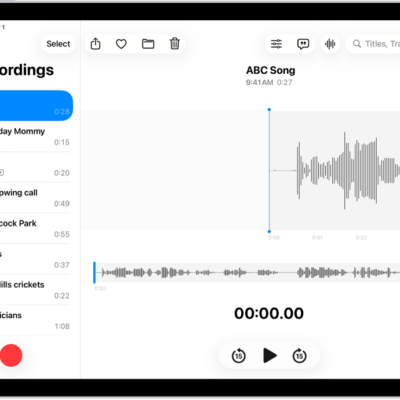
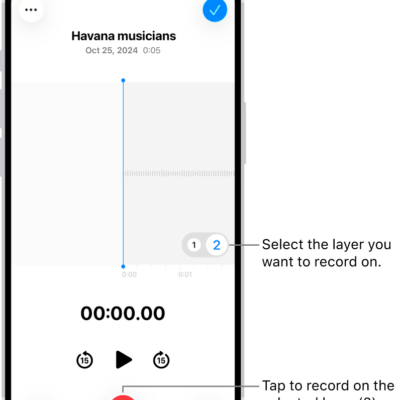
You can play audio you recorded on your iPad using the playback controls, and adjust the playback options to change playback speed, reduce background noise, and fill in silences.
You can change the playback speed, turn on Studio Sound, enhance a recording, and skip over gaps while it plays. On supported models, Studio Sound adjusts the level of background sound and reverb, and each setting stays with the recording you chose it for.
Note: Changing these settings won’t affect the recording itself in any way. Any setting you choose for a recording stays with that recording only, and it’s applied each time you play the recording, not to other recordings.
| Control | Description |
|---|---|
 |
Play |
 |
Pause |
 |
Skip backward 15 seconds |
 |
Skip forward 15 seconds |
Quick tip: While the recording is open, tap its name, and you can rename it.
Change the playback speed
You can play a recording at a faster or slower speed.
- Go to the Voice Memos app on your iPad.
- In the list of recordings, tap the recording you want to play.
- Tap the Options button and drag the slider toward the tortoise for a slower speed, or toward the rabbit for a faster speed.
- Tap the Options button. Then tap the Play button to play the recording.
Turn on Studio Sound
Studio Sound, available on supported models, adjusts the level of background sound and reverb so your recording sounds more like it came out of a studio.
For a Spatial Audio recording made on iPhone 18 Pro or iPhone 18 Pro Max that was shared as an Editable file, you can enhance music rather than treat it as background sound. On other iPhone models, Spatial Audio recordings reduce music along with background sound.
- Start the Voice Memos app on your iPad.
- Tap the recording you want to play and then tap the Options button.
- Turn on Studio Sound. Drag the slider to increase or decrease the effect.
Logic Pro is where you can continue to fine-tune recordings enabled with Studio Sound.
Enhance a recording
To reduce background noise and echo when you play a Mono or Stereo recording, you can enhance it.
- Start the Voice Memos app on your iPad.
- In the list of recordings, tap the recording you want to enhance.
- Tap the Options button, then turn on Enhance Recording.
- Tap the Options button. Then tap the Play button to play the recording.
Skip over gaps when playing back a recording
When you play your Mono and Stereo recordings, Voice Memos can analyze them and skip over gaps automatically.
- Start the Voice Memos app on your iPad.
- Tap the recording you want to play.
- Tap the Options button and then turn on Skip Silence.
- Tap the Options button. Then tap the Play button to play the recording.
Reset the playback options
All the playback options can return to their original settings at once.
- Start the Voice Memos app on your iPad.
- Tap the recording you want to turn off playback options for.
- Tap the Options button at the top of the screen and tap Reset.
See also