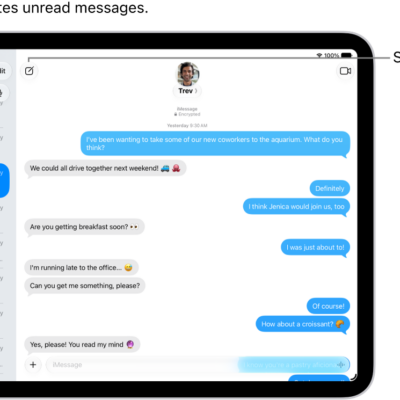
You can use read receipts to automatically let someone know when you’ve seen their text messages. When read receipts are on, the sender sees the word “Read” below messages they’ve sent to you, and if you haven’t read their message, they see “Delivered.”
You can turn on read receipts for everyone or for individual contacts, and turn them off if you don’t want others to know you’ve opened their messages. A setting you change for one contact stays with that contact, too.
Turn on read receipts
When read receipts are on, everyone knows when you’ve opened their messages.
- Start the Settings app on your iPad.
- Tap Apps, then tap Messages.
- Turn on Send Read Receipts.
Note: When you’ve turned off read receipts for a particular contact, you’ll need to turn the setting back on for that contact individually. (For the steps, see Turn on read receipts for one person, below.)
Turn off read receipts
Turn off read receipts if you’d rather others not know you’ve opened their messages.
- Start the Settings app on your iPad.
- Tap Apps, then tap Messages.
- Turn off Send Read Receipts.
Note: The only conversations this affects are those with contacts whose read receipts you never turned on individually. (To change it for one contact, see Turn off read receipts for one person, below.)
Turn on read receipts for one person
You can turn on read receipts in a single conversation, even if read receipts are turned off generally, and that one recipient will know when you’ve seen their incoming messages.
- Go to the Messages app on your iPad.
- Tap a conversation, then tap the contact icon at the top of the conversation.
- Turn on Send Read Receipts.
Turn off read receipts for one person
If an individual you turned on read receipts for should stop getting read receipts, turn the setting off for that one contact.
- Start the Messages app on your iPad.
- Tap a conversation, then tap the contact icon at the top of the conversation.
- Turn off Send Read Receipts.
Get read receipts when someone else sees your messages
You can turn on read receipts only for yourself. To get read receipts when someone opens your messages, ask the recipient to turn them on. For the steps, see Turn on read receipts for one person, above.
See also
- Keep track of messages on iPad
- Control app tracking permissions on iPad
- Control access to information in apps on iPad