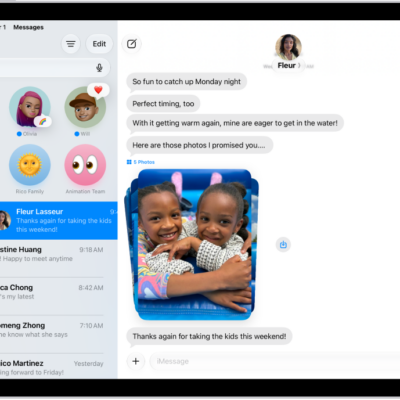
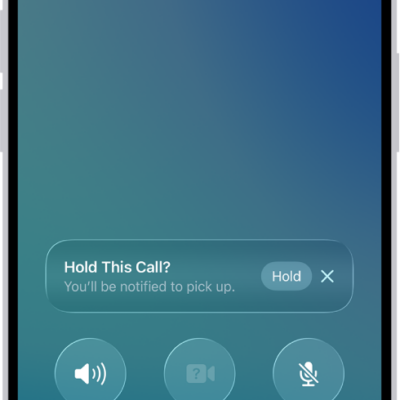
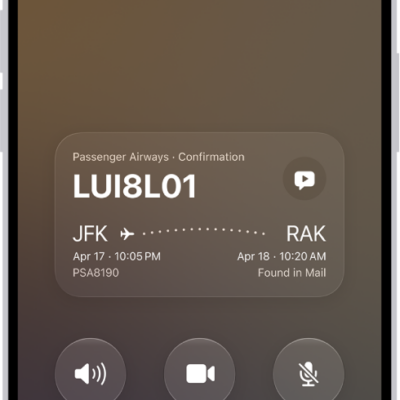
You can relay phone calls and text messages through your iPhone to your iPad, so it’s easy to stay in touch no matter which device you’re on. Both devices need Wi-Fi on and the same Apple Account, and they need to be within 30 feet (10 meters) of each other. You can send and receive both iMessage and SMS messages.
Note: Cellular charges may apply. Wi-Fi Calling isn’t available from all carriers.
Before you begin
Before you begin, check that each of the following is true:
- Both devices have Wi-Fi turned on and are connected to the same Wi-Fi network.
- You’re signed in to the same Apple Account on both devices.
If you use a VPN, its configuration shouldn’t prevent local networking, since that may interfere with some Continuity features.
Set up your iPhone to allow phone calls on your iPad
- On your iPhone, open the Settings app.
- Tap Apps, then tap Phone.
-
Tap Calls on Other Devices, turn on Allow Calls on Other Devices, and choose the devices you want to allow to make and receive calls.
The devices you choose can make and receive calls when they’re near your iPhone, connected to the same Wi-Fi network, and signed in to the same Apple Account.
Note: If you don’t have the Phone app on your iPad, you can download it from the App Store.
Make or receive phone calls on your iPad
Set up your iPhone to allow calls on your other devices, and your iPad can make and receive phone calls.
-
Make a call: Tap a phone number in Contacts, Calendar, FaceTime, Messages, or Safari. Or open the Phone app, then tap the Keypad button and type a number, or search for a contact.
If you make a call from another device by relaying it through your iPad with Dual SIM, the call is made using your default voice line.
- Receive a call: Swipe or tap the notification to answer or ignore the call.
Send and receive messages on your iPad
You can send and receive both iMessage and SMS/RCS/MMS messages on your iPad.
For sending and receiving iMessages on iPad, read our article, Get started with Messages on iPad.
If phone calls and text messages on your iPad aren’t working
- Make sure that you’re signed in to the same Apple Account on both devices.
- Make sure that your iPhone and iPad have Wi-Fi turned on.
- Your devices must be within 30 feet (10 meters) of one another.
Besides making and receiving phone calls on your iPad, you can use Handoff to move a FaceTime call from one device to another. See our guide, Hand off a FaceTime call from your iPad to your other Apple devices.
See also