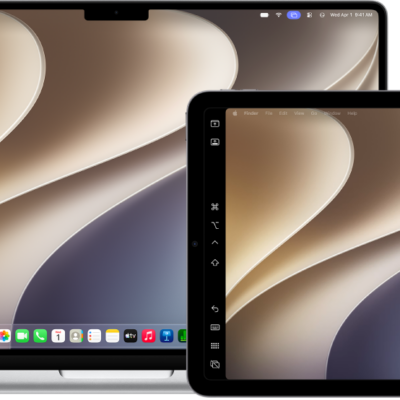
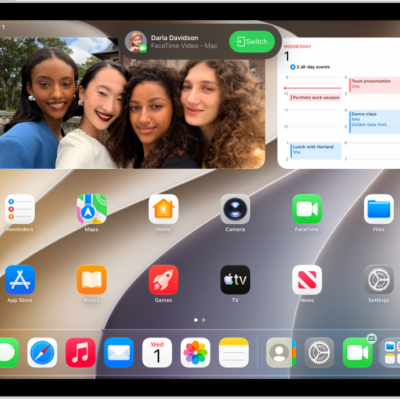
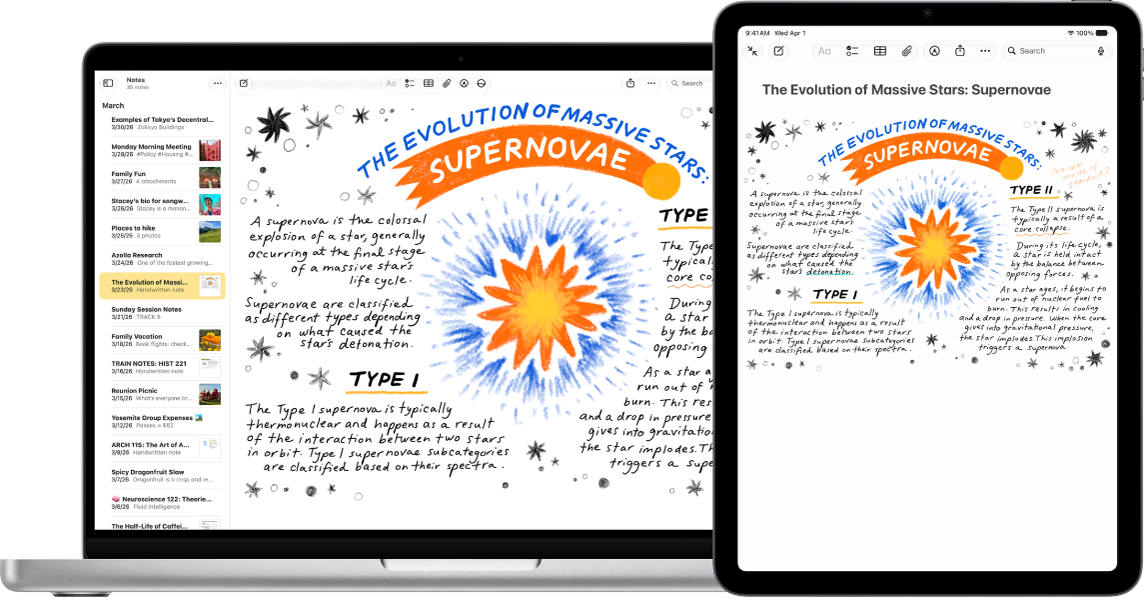
With the Continuity Camera and Continuity Sketch features, you can draw a sketch, take a photo, or scan a document using your nearby iPad and have it appear instantly on your Mac, exactly where you want it—like in an email, note, or folder. You can also mark up a file on your Mac with your iPad using Continuity Markup.
Both devices need Wi-Fi and Bluetooth® turned on and the same Apple Account. Depending on where it’s inserted, you can mark up a photo or scan, crop it, or apply a filter.
Before you begin
Before you start, check that everything on this list is in place:
- Both devices have Wi-Fi and Bluetooth® turned on.
- You’re signed in to the same Apple Account on both devices.
- Both devices meet minimum system requirements for Continuity Camera, Continuity Sketch, and Continuity Markup.
If you’re running a VPN, its configuration shouldn’t prevent local networking, because that may interfere with some Continuity features.
Where the photo or scan is inserted determines whether you can mark it up or adjust other aspects, like cropping it or applying a filter.
Insert a sketch, photo, or scan from your iPad
Draw a sketch on your iPad, and Continuity Sketch makes it appear on your Mac. Continuity Camera does the same on your Mac for photos you take or documents you scan on your iPad.
-
On your Mac, Control-click where you want to insert the sketch or photo—for example, in an open window, like a note or email message.
You can also Control-click the desktop or a folder in a Finder window.
-
Choose an option from the pop-up menu.
You may need to click “Insert from iPhone or iPad” before seeing the options.
-
Do any of the following:
-
Add a sketch: On your iPad, draw a sketch using your finger.
On iPad, you can also use Apple Pencil.
- Take a photo: On your iPad, take a photo. Then tap Use Photo or Retake.
- Scan a document: On your iPad, scan a document. Your iPad detects the edges of the document and autocorrects any skewing of the image. If you want to adjust the area included in the scan, drag the frame or its edges. When you’re ready, tap Keep Scan or Retake. You can continue to scan documents until you’re done and tap Save.
-
Add a sketch: On your iPad, draw a sketch using your finger.
You might be able to mark up the photo or scan, or crop it, apply a filter, and adjust other aspects, depending on where it’s inserted.
Note: If you take scans on your iPad, they aren’t saved on the device.
Use your iPad to mark up a file on your Mac
With Continuity Markup, your iPad can add text, make drawings, and crop and rotate images, PDF documents, and more on your Mac.
- On your Mac, click the desktop to open the Finder.
-
Control-click the file you want to mark up and choose Quick Actions. Choose Markup.
The file opens.
- In the toolbar, click the iPad button or click the Markup button (the button may have an arrow next to it) and then choose your device.
-
Use the Markup tools to draw, add text or shapes, and more.
On iPad, you can also use Apple Pencil.
- When you’re done, tap Done on your iPad.
- To save your changes, click Done on your Mac.
If Continuity Camera, Continuity Sketch, or Continuity Markup aren’t working
- Make sure you’re signed in to the same Apple Account on both devices.
- Make sure that both devices have Wi-Fi and Bluetooth turned on.
- Make sure your device meets minimum system requirements for Continuity Camera.