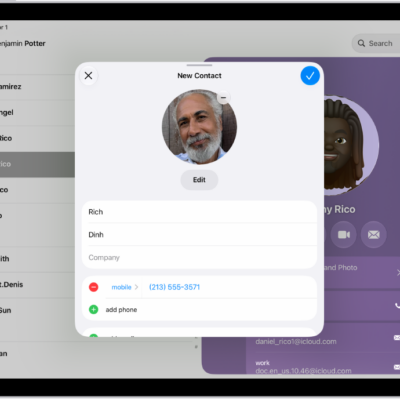
Use the Contacts app to keep phone numbers, email addresses, birthdays, and more, all in one place. You can create a contact, add contacts from accounts like iCloud, Google, or Yahoo, share a contact by choosing the fields you want to include, and keep your contacts in sync.
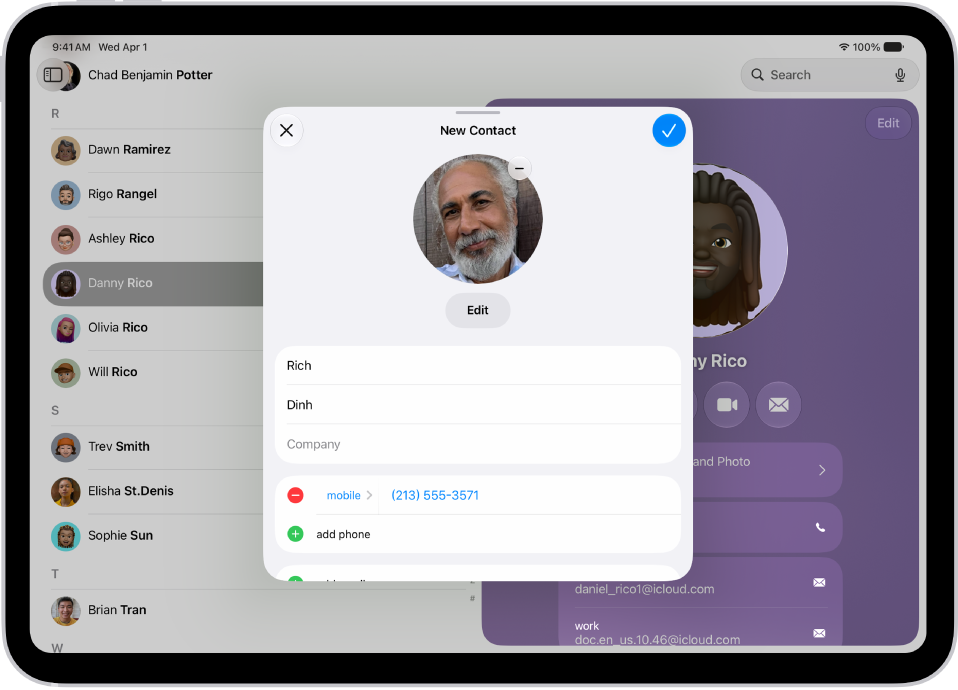
Create a contact
To create a contact, go to the Contacts app, tap the Add button, add the contact’s details, then tap the Done button.
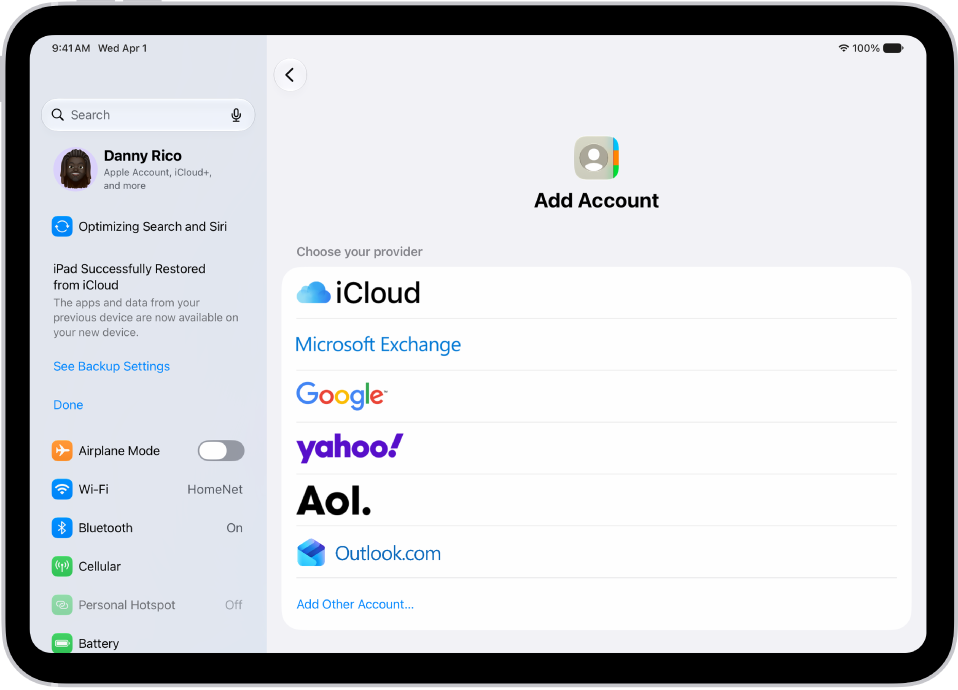
Add other accounts
If you have contacts saved in other accounts like iCloud, Google, or Yahoo, you can add them to the Contacts app to see all your contacts in one place. Go to Settings > Apps > Contacts, tap Contacts Accounts, then tap Add Account.
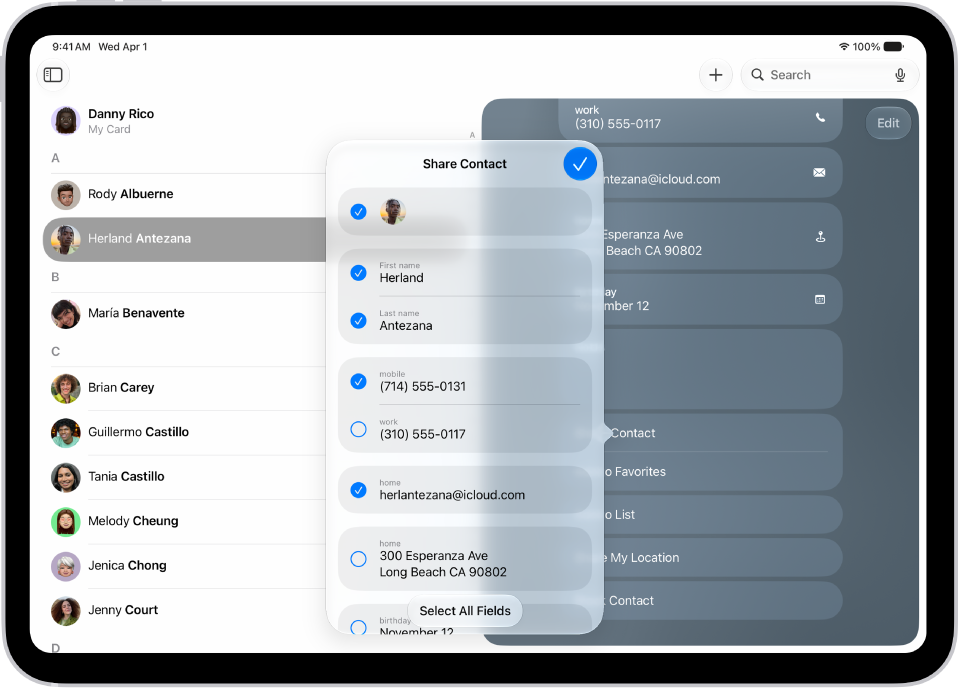
Share a contact
It’s easy to share a contact. Select a contact, then tap Share Contact. Choose the fields you want to share, tap the Done button, then choose a sharing option such as Messages or Mail.
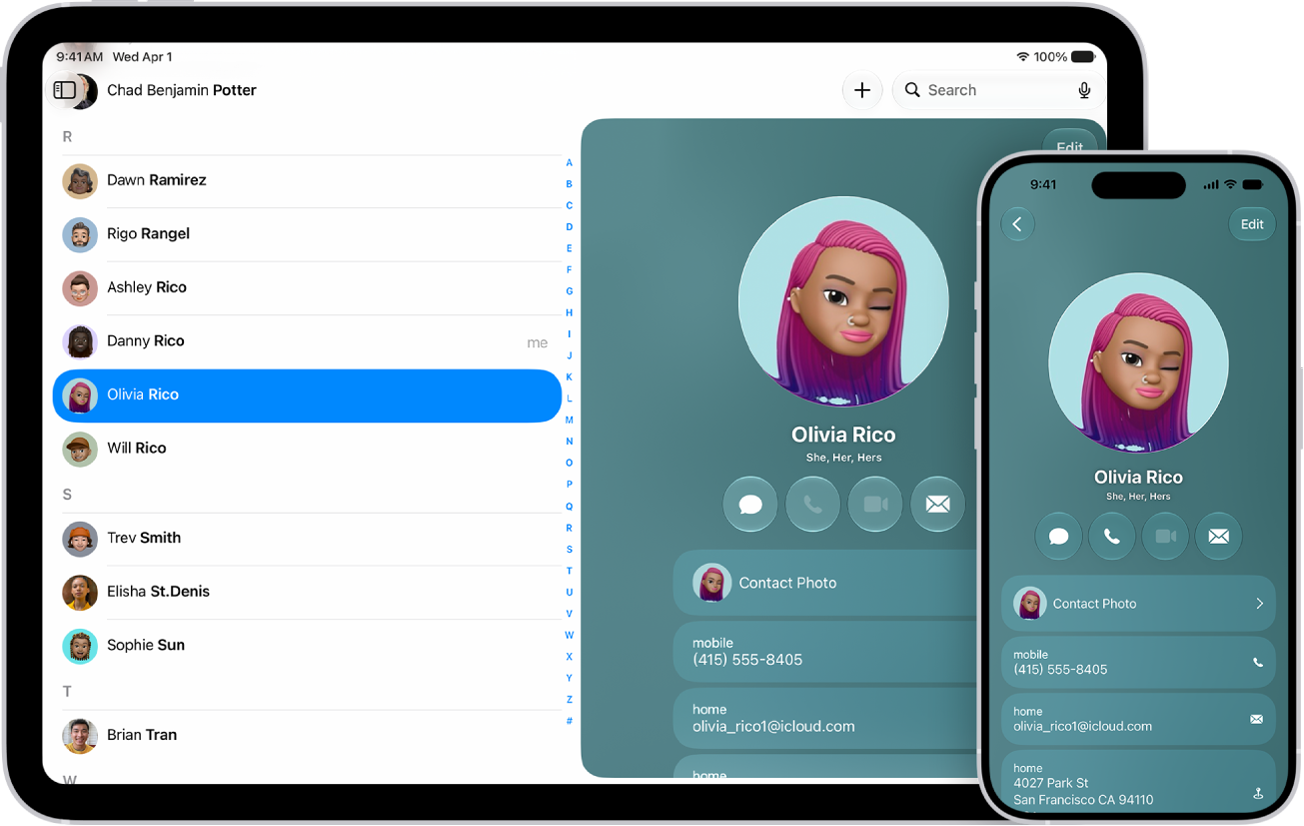
Sync your contacts
See your contacts on your other Apple devices when you’re signed in to the same Apple Account. Go to Settings > [your name] > iCloud. Tap See All next to Saved to iCloud, then turn on Contacts.
For more on managing your contacts, check out these guides:
- Add or remove accounts in Contacts on iPad
- Sync contacts across devices on iPad
- Add or edit your contact info and photo on iPad
- Edit contacts on iPad