Did you update your iPhone to iOS 26 and now some or all of your contacts disappeared from your iPhone?
If contacts aren’t showing up on your iPhone after iOS 26 update, you can use this guide as a fix. But before we dive into the different options, remember that various problems can make your iPhone contacts disappear.
And therefore, there are various solutions that you can use to fix it. So, try each of these methods and see which one helps to restore contacts on your iPhone.
1. Restart Your iPhone
One of the first steps you should try if contacts disappeared after iOS 26 update is to restart your iPhone. Sometimes an iOS glitch might be preventing your iPhone from displaying contacts, an a simple restart may get rid of the minor issues you’re facing. Simply turn your iPhone off it back on. Once your iPhone is back up and running, confirm if your contacts have been restored. If not, move on to the next solution.
2. Resync Your Contacts With iCloud
If contacts are still missing on your iPhone, try resyncing your Contacts app with iCloud. We’ll do this by disabling iCloud access to Contacts and then re-enabling it again. Here’s how:
- Open the Settings app on your iPhone.
- Tap on your name at the top of the screen.
- Tap iCloud.
- Tap See All.
- Toggle off Contacts.
- Select Keep on My iPhone to save copies of synced contacts to your iPhone. You can also select Delete from My iPhone if you want. Don’t worry; this option doesn’t make your contacts disappear.
- Re-enable Contacts again. And if your iPhone asks to merge existing contacts, select Merge.
After that, give your device a few minutes, then check to see if your contacts have been restored. If you’re still facing problems, read on for more solutions.
3. Show All Contacts in Your Phone App
Contacts might not show up on your iPhone because you have hidden some of them. You may not know this, but your iPhone usually places your contacts in groups based on your connected accounts. To see all your contacts, no matter their group, you need to ensure all groups are visible.
So, follow these steps to show hidden contact groups:
- Open the Phone app on your iPhone.
- Tap the Contacts tab.
- Tap All Contacts at the top to view all your saved contacts. If you don’t see All Contacts button, tap back button.
If some contacts from a particular account weren’t showing up on your iPhone after iOS 26 update, this should fix the issue. However, read on if you still don’t see all your contacts.
4. Add All Your Accounts to Your iPhone
If you have several accounts that you use, chances are contacts might be saved across them. To fix this, you need to add all your accounts to your iPhone to ensure you have access to all your contacts. So, follow these steps to add an account to your iPhone:
- Open the Settings app on your iPhone.
- Scroll down and select Apps.
- Tap Contacts.
- Tap Contact Accounts. You’ll see all accounts that are currently added to your iPhone.
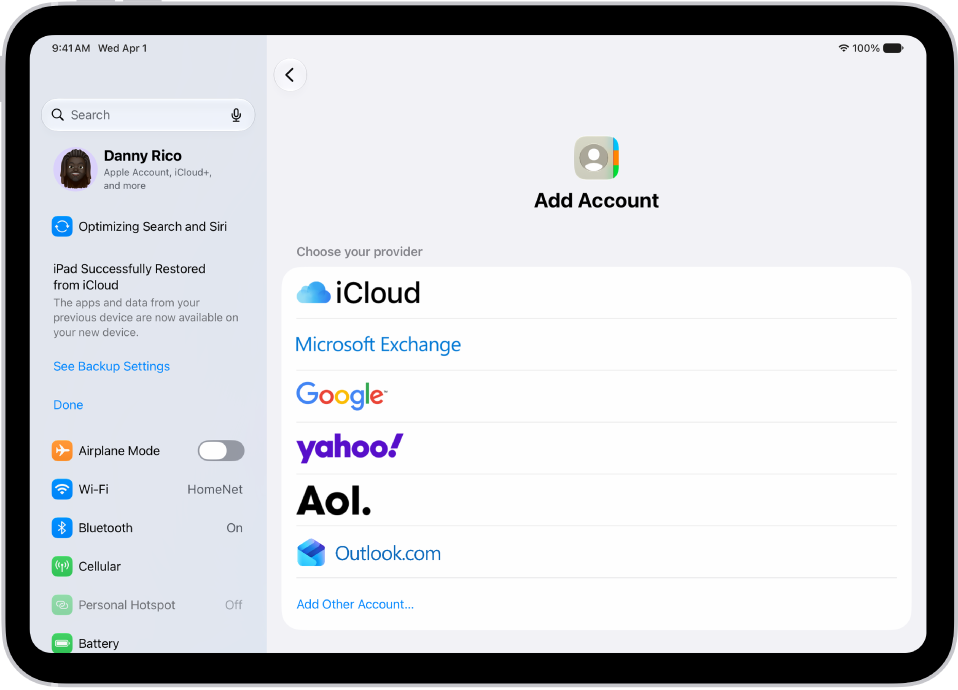
- Tap Add Account, select the type of account, and log in using your credentials.
After successful login, the account will appear under Settings > Apps > Contacts > Contact Accounts.
If you don’t see any contacts from the newly added account, follow the steps in the next tip to ensure contact visibility.
5. Modify Your Contact Account Settings
Your Accounts settings also affect the visibility of your contacts. You need to ensure that all your connected accounts have Contacts sync enabled. To do this, follow these steps:
- Launch the Settings app on you’re iPhone.
- Scroll down and tap Apps.
- Tap Contacts.
- Tap Contact Accounts. You will see all your connected accounts listed here.
- Tap each account and ensure Contacts is toggled on.
If contacts from one of your connected accounts weren’t showing up on your iPhone, this should help fix the issue.
Additionally, you can try disabling and enabling Short Name on your iPhone. While this feature is handy to ensure more names fit on the screen, it can sometimes be problematic. To do this, go to Settings > Apps > Contacts > Short Name. Disable Short Name, then wait about 15 seconds then turn it on.
6. Rebuild Your iPhone Contacts
Another way to restore contacts that disappeared after iOS 26 update is by force rebuilding them. To do this, you’ll have to edit one of your contacts first, then restart your iPhone. Here’s how:
- First, select any visible contact from the Phone app and select Edit in the top right.
- Add some new details—they don’t have to be accurate. You can add a fake email, address, note, or anything.
- Once done, tap Done in the top right and then restart your iPhone.
When your iPhone powers on, it will have to rebuild all the contact names and details. Once your iPhone restores all the contacts, you can delete the fake information you added to the contact above. Check if your contacts have been restored after a few minutes. If this doesn’t solve your issue, try data recovery tools.
7. Recover Lost Data Using iCloud or Data Recovery Tools
Before you try third-party data recovery tools, we advise using iCloud first.
- Go to icloud.com/contacts, then sign in to your Apple Account (if necessary).
- Click the App Launcher button in the toolbar, then click Data Recovery.
- Click Restore Contacts. Available versions are listed by the date and time they were archived.
- To the right of the version you want to restore, click Restore.
There may be more versions than can be displayed. Scroll to see them all.
Note: Wait until iCloud finishes restoring your contacts before you change them. During the restore process, any changes you make aren’t saved
Tip: If you recently deleted a contact either from iCloud.com or your iPhone, it may take up to 24 hours for the archive to appear.
If that doesn’t work, you can try using third-party data recovery tools to restore your contacts. There are a variety of affordable tools on the market for the job.
8. Seek the Help of Apple Support
If all else fails or you don’t want to spend money on third-party data recovery tools, you can get tech support with the Apple Support app for more assistance.
Alternatively, you can reach out to them via Apple’s support website. Either way, a certified expert should help sort out the issue in more ways than we could.
Restore Missing Contacts After iOS 26 Update
Contacts disappeared after iOS 26 update issue has been reported by many iPhone users. If it has also happened to you, don’t panic. There are a variety of ways to restore missing contacts. In summary, you could restart your iPhone, resync with iCloud, show all contacts in your Phone app, add all accounts to your iPhone, modify account settings, or force rebuild your contacts.
If none of these solutions work for you, you can try restoring lost contacts from your iCloud backups. If that fails, make sure to contact Apple’s support team for further help. Using third-party data recovery tools should be your last resort, as you will certainly have to pay for it. Hopefully, one of the free methods works for you.