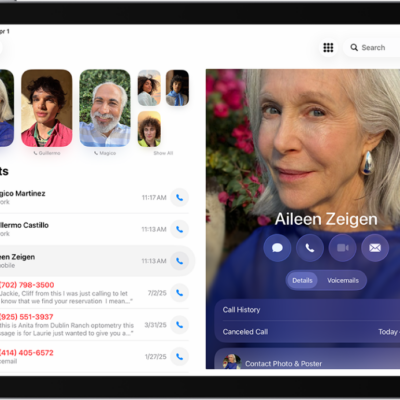
On iPad you can block specific callers and you can change your setting to automatically identify, screen, filter, and block unknown and spam calls.
Using information from Apple Business Connect, supported carriers, and supported caller ID apps, iPad can help identify incoming calls. With Business Call Identification, caller information comes from Apple Business Connect or your carrier. You can also screen or silence unknown numbers, and filter unknown and spam calls.
Here’s how to screen and block calls on iPad.
Turn on call identification
To help identify incoming calls, iPad uses information from supported carriers, Apple Business Connect, and supported call identification apps.
- Open the Settings app on your iPad.
- Tap Apps and tap Phone. Then tap Call Blocking & Identification.
- Turn on one or more of the following:
- Business Call Identification: Caller information is identified by Apple Business Connect or your carrier.
- Call Identification apps: Caller information is identified by supported caller ID apps.
Screen or silence unknown numbers
Without interrupting you, Call Screening automatically answers calls from unknown numbers. Your iPad rings only after the caller shares their name and reason for calling, and it passes along their response so you can decide whether to pick up. Another option is to silence calls from unknown callers and send them straight to voicemail.
- Open the Settings app on your iPad.
- Tap Apps, then tap Phone.
- Choose one of the following:
- Never: Call Screening is turned off and your iPad will ring when you receive a call from an unsaved number.
- Ask Reason for Calling: Calls from unknown numbers will be asked for more information before iPad rings.
- Silence: Calls from unsaved numbers will be silenced, sent to voicemail, and appear in the Recents list.
Note: Siri speaks in your iPad’s default language when answering calls. To change it, see our article, Change the language and region.
Filter unknown and spam calls
- Open the Settings app on your iPad.
- Tap Apps, then tap Phone.
- Turn on the following:
- Unknown Callers: Calls from unknown numbers are removed from your Recents list and sent to the Unknown Callers list.
- Spam: Calls identified by your carrier as potential spam or fraud are silenced, sent to voicemail, and moved to the Spam list.
You can mark an unknown caller as known to prevent future calls from being sent to the Unknown Callers list. Go to the Phone app, tap the Filter button, tap Unknown Callers, tap Mark as Known next to the call, then tap Mark as Known.
To remove a number from your known callers, tap the Filter button, tap Calls, tap the number you want to remove, then tap Mark as Unknown at the bottom of the contact card on the right side of the screen.
Block or unblock calls from specific people or numbers
- Open the Phone app on your iPad.
- Tap the Filter button in the top left of your screen. Then tap Calls, Missed, Unknown Callers, or Spam.
- Tap the number or contact you want to block on the left side of your screen.
- On the right side of your screen, tap Block Contact or Unblock Contact.
View calls from unknown or spam callers
- Open the Phone app on your iPad.
- Tap the Filter button.
- Tap Unknown Callers or Spam.
See also