








Got a tip for us?

Contacts

In the Contacts app, you can add multiple accounts—such as iCloud, Microsoft Exchange, Google, and Yahoo. You can choose a default account, set up LDAP or CardDAV accounts, show or hide accounts, and delete accounts.

Third-party apps can add contacts, too, though those contacts are managed by the app and can’t be edited in Contacts. For accounts that don’t support Push, you can set a Fetch schedule instead.

Here’s how to add or remove accounts in Contacts on iPad.

Add your iCloud contacts

  1. Start the Settings app on your iPad.
  2. Tap [your name], then tap iCloud.
  3. Tap See All next to Saved to iCloud and turn on Contacts.

Add your contacts from other accounts

You can manage contacts from other accounts, like Yahoo, Microsoft Exchange, and Google, right in the Contacts app.

  1. Start the Settings app on your iPad.
  2. Tap Apps, then tap Contacts.
  3. Tap Contacts Accounts and tap Add Account.
  4. Choose an account, sign in to it, then turn on Contacts.

Note: For an account without Push notification support, a Fetch schedule keeps your contacts from that account updated. Go to Settings > Apps > Contacts and tap Contacts Accounts, then tap Fetch New Data, and choose a schedule under Fetch. If you choose Automatically, your iPad downloads new data while it’s charging and connected to Wi-Fi.

Add contacts from contacts provider apps

If you allow it, third-party apps can add contacts to the Contacts app. The third-party app manages those contacts, and they can’t be edited in the Contacts app.

  1. Start the Settings app on your iPad.
  2. Tap Apps, then tap Contacts.
  3. Tap Providers, then turn on the option for an app.

Choose your default account

You can select a default account where new contacts are automatically added.

  1. Start the Settings app on your iPad.
  2. Tap Apps, then tap Contacts.
  3. Tap Default Account and tap the account you want to make your default.

Set up an LDAP or CardDAV account to access business or school directories

  1. Start the Settings app on your iPad.
  2. Tap Apps, then tap Contacts.
  3. Tap Contacts Accounts and tap Add Account.
  4. Tap Add Other Account and then tap Add LDAP Account or CardDAV Account.
  5. Enter the account information.

Remove a contact account

Remove an account, and its contacts leave your iPad. They’re still in your internet account (for example, iCloud.com or Google) and on any other devices you’d already set up.

  • Turn off iCloud contacts: Go to Settings > [your name] > iCloud. Tap See All next to Saved to iCloud, then turn off Contacts.

    You can choose to keep or delete the previously synced iCloud contacts on your iPad.

  • Temporarily stop using an account: Go to Settings > Apps > Contacts > Contacts Accounts, tap the account, then turn off Contacts.

    To view the contacts in that account on your iPad again, turn on Contacts.

  • Delete an account: Go to Settings > Apps > Contacts > Contacts Accounts, tap the account, then tap Delete Account.

    If you don’t see Sign Out or Delete Account, your account may be managed by your organization. See an administrator for removal instructions.

See also
You can use the Contacts app to share your own contact information, or another person’s, with someone else using Messages, Mail, or another sharing option. You just choose the contact and the fields you want to include, and send it. You can also add or remove accounts in Contacts.

  1. Start the Contacts app on your iPad.
  2. Select the contact you want to share.
  3. Tap Share Contact, select the fields you want to include, and tap Done.
  4. Select a method to share the contact, then tap Send.

See also

You can create, edit, and view contact information, share contacts using NameDrop, and keep your contacts up to date across devices with iCloud.

You can text, call, and email directly from the Contacts app, too. When you create a contact, you can add a phone number, email, and address. And you can see your own contact card, or block or delete a contact.

Here’s how to use the Contacts app on Apple Watch.

Create a contact

  1. Start the Contacts app on your Apple Watch.
  2. Tap the Add button.
  3. Enter the contact’s name and, optionally, company.
  4. Add a phone number, email, and address, then tap the Checkmark button.

See contact information

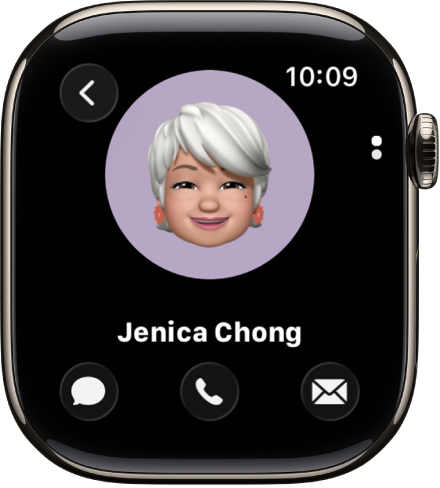
The Contacts app lets you text, call, and email directly.

The Contacts app showing a contact. The contact’s picture is in the middle of the screen with the name below. Phone, Messages, and More Options buttons appear below. A Back button is at the top left.

  1. Start the Contacts app on your Apple Watch.
  2. Turn the Digital Crown to scroll through your contacts.
  3. Tap a contact and then do any of the following:
    • Text: Tap the Message button to open an existing message thread or begin a new one.
    • Call: Tap the Phone button to see the contact’s phone numbers. Tap a number to start a call.
    • Email: Tap the Email button.

Share, edit, block, or delete a contact

  1. Start the Contacts app on your Apple Watch.
  2. Turn the Digital Crown to scroll through your contacts.
  3. Tap a contact and scroll down. Then do any of the following:
    • Share a contact: Tap the Share button and then choose a sharing option.
    • Edit a contact: Tap the Edit button, then choose information to edit. You can remove a field such as address or email by tapping Remove below the field.
    • Block a contact: Tap Block Contact.
    • Delete a contact: Tap Delete Contact.

See your own contact card

  1. Start the Contacts app on your Apple Watch.
  2. Tap your profile picture at the top right.

Exchange contact information with NameDrop

  1. Do one of the following:

    • Share from Apple Watch to iPhone: Hold the display of your Apple Watch a few centimeters from the top of the other person’s iPhone.
    • Share from Apple Watch to another Apple Watch: Go to the Contacts app on your Apple Watch, tap your picture in the top-right corner and tap Share. Then bring your watch close to the other person’s Apple Watch.

    A glow emerges from both devices, and Apple Watch vibrates to indicate a connection is being made.

  2. Continue holding your devices near each other until NameDrop appears on both screens.
  3. Choose to share your contact card and receive the other person’s, or to only receive the other person’s.
  4. Continue holding your devices near each other.

    To cancel, move the two devices away from each other before NameDrop completes.

See also

To keep your contact information up to date across all your devices where you’re signed in to your Apple Account, you can use iCloud. With iCloud, your contacts stay up to date automatically. You can also sync the information between iPhone and your Mac or Windows device instead.

  1. Open Settings, tap [your name], and then tap iCloud.
  2. Tap See All next to Saved to iCloud and turn on Contacts.

To keep the information current across iPhone and your computer, you can sync it between iPhone and your Mac or Windows device instead.

Using iCloud for Contacts keeps your contacts up to date automatically, so options for syncing them with your computer don’t appear.

When you have contacts from multiple sources, you might have multiple entries for the same person. In the Contacts app, link contact cards for the same person in different accounts so they appear only once in your All Contacts list.

Linked contact cards are displayed as a single unified contact. Contact cards with the same first and last name can also be merged, one at a time or all at once.

Resolve duplicate contacts

Have two or more contact cards with the same first and last name? Merge the duplicate contacts.

  1. Start the Contacts app on your iPhone.
  2. Below My Card, tap View Duplicates.
  3. Tap individual contacts to review and merge them, or tap Merge All to merge all duplicate contacts.

Link contacts manually

Two entries for the same person that aren’t linked automatically can be unified manually.

  1. Start the Contacts app on your iPhone.
  2. Tap one of the contacts, tap Edit, and then tap Link Contacts.
  3. Choose the other contact entry to link to and tap Link.

When you link contacts with different first or last names, the names on the individual cards don’t change, but only one name appears on the unified card. To choose which name appears on the unified card, tap one of the linked cards, tap the contact’s name on that card, then tap Use This Name For Unified Card.

Note: Linking contacts doesn’t merge them. Any changes or new information you add in a unified contact are copied to each source account where that information already exists.

On iPhone, you can easily block contacts from being able to communicate with you in the Phone, Messages, and FaceTime apps, and you can unblock a contact at any time. You just add a blocked contact and select a contact to block.

Block a contact

  1. Open the Settings app on your iPhone.
  2. Tap Privacy & Security and tap Blocked Contacts.
  3. Tap Add Blocked Contact and then select a contact to block.

Unblock a contact

  1. Open the Settings app on your iPhone.
  2. Tap Privacy & Security and tap Blocked Contacts.
  3. Select a Blocked Contact and scroll down. Tap Unblock Contact.

You can export some or all of your contacts to another device or app. You can export an existing list or create a new list, select the fields you want to include, and then send or save the exported contact cards, such as with Messages or Mail.

  1. Open the Contacts app on your iPhone.
  2. Tap the Lists button.
  3. Touch and hold an existing list (or create a new list by tapping Add List).
  4. Tap Export, select the fields you want to include, and tap the Done button.
  5. Choose a method to send or save the exported contact cards, such as Messages or Mail.

On iPhone, you control which of your contacts an app can access. The first time an app wants to access your contacts, you receive a request from the app, along with an explanation. For example, a messaging app may ask to access your contacts in order to find friends who are using the same app.

After you grant or deny the app’s request, choose which contacts the app can access, all of them or just a few, with Limited Access. You can always change the access you granted later.

  1. Open Settings and then tap Privacy & Security.
  2. Tap Contacts, then tap the app.
  3. Choose how much access to your contacts you’re giving the app (below Contacts Access).
  4. If you’re giving Limited Access, tap Edit Selected Contacts to choose individuals.

    Select or deselect individual contacts, then tap Done.

You can import contacts from a SIM card, vCard, or from a directory. Importing from a SIM card works on GSM models, and a vCard arrives as a .vcf attachment in an email or message. You can also add a contact from a directory, like a GAL, CardDAV, or LDAP directory, right in the Contacts app.

Import contacts from a SIM card (GSM)

  1. Open the Settings app on your iPhone.
  2. Tap Apps, then tap Contacts.
  3. Tap Import SIM Contacts.

Import contacts from a vCard

Tap a .vcf attachment in an email or message.

Add a contact from a directory

  1. Open the Contacts app on your iPhone.
  2. Tap the Lists button and tap the GAL, CardDAV, or LDAP directory you want to search.
  3. Enter your search.
  4. Tap the person’s name to save their information to your contacts.

In the Contacts app, you can add multiple accounts, such as iCloud, Microsoft Exchange, Google, and Yahoo. You can choose a default account, set up LDAP or CardDAV accounts, show or hide accounts, and delete accounts.

You can also let third-party apps add contacts to the Contacts app. Those contacts are managed by the app, though, so you can’t edit them in Contacts.

Here’s how to add or remove accounts in Contacts on iPhone.

Add your iCloud contacts

  1. Open the Settings app on your iPhone.
  2. Tap [your name], then tap iCloud.
  3. Tap See All next to Saved to iCloud and turn on Contacts.

Add your contacts from other accounts

The Contacts app can manage your contacts in other accounts, too, such as Google, Yahoo, and Microsoft Exchange.

  1. Open the Settings app on your iPhone.
  2. Tap Apps, then tap Contacts.
  3. Tap Contacts Accounts and tap Add Account.
  4. Choose an account, sign in to it, then turn on Contacts.

Note: Some accounts don’t support Push notifications. If you add one, you can still update your contacts from it on a Fetch schedule. Go to Settings > Apps > Contacts, tap Contacts Accounts, and then tap Fetch New Data. Choose a schedule under Fetch, and if you choose Automatically, your iPhone downloads new data whenever it’s charging and connected to Wi-Fi.

Add contacts from contacts provider apps

Third-party apps can add contacts to the Contacts app if you allow it. Because the third-party app manages them, those contacts can’t be edited in Contacts.

  1. Open the Settings app on your iPhone.
  2. Tap Apps, then tap Contacts.
  3. Tap Providers, then turn on the option for an app.

Choose your default account

If you select a default account, new contacts are automatically added to it.

  1. Open the Settings app on your iPhone.
  2. Tap Apps, then tap Contacts.
  3. Tap Default Account and tap the account you want to make your default.

Set up an LDAP or CardDAV account to access business or school directories

  1. Open the Settings app on your iPhone.
  2. Tap Apps, then tap Contacts.
  3. Tap Contacts Accounts and tap Add Account.
  4. Tap Add Other Account and then tap Add LDAP Account or CardDAV Account.
  5. Enter the account information.

Remove a contact account

Once you remove an account, its contacts no longer appear on your iPhone. They remain in your internet account, like iCloud.com or Google, and on any other devices you had already set up.

  • Turn off iCloud contacts: Go to Settings > [your name] > iCloud. Tap See All next to Saved to iCloud, then turn off Contacts.

    You can choose to keep or delete the previously synced iCloud contacts on your iPhone.

  • Temporarily stop using an account: Go to Settings > Apps > Contacts > Contacts Accounts, tap the account, then turn off Contacts.

    To view the contacts in that account on your iPhone again, turn on Contacts.

  • Delete an account: Go to Settings > Apps > Contacts > Contacts Accounts, tap the account, then tap Delete Account.

Don’t see Sign Out or Delete Account? Your organization may manage your account, so see an administrator for removal instructions.