On the Home Screen, in Control Center, and in apps, you can see previews, open Quick Actions menus, and more. You can preview an image in Photos and see a list of options, preview the message contents in Mail, and respond to a notification on the Lock Screen. Control Center has options for items like Camera, too.
- In Photos, touch and hold an image to preview it and see a list of options.
- In Mail, touch and hold a message in a mailbox to preview the message contents and see a list of options.
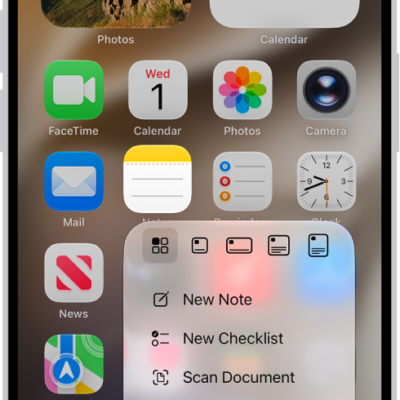
- On the Home Screen, touch and hold an app icon briefly to open a Quick Actions menu. If the icons start to jiggle, tap Done at the top right or press the Home button (on an iPad with a Home button), then try again.
- Open Control Center, then touch and hold an item like Camera or the brightness control to see options.
- On the Lock Screen, touch and hold a notification briefly to respond to it.
- When typing, touch and hold the Space bar with one finger to move the insertion point.
See also
Tag: Home Screen