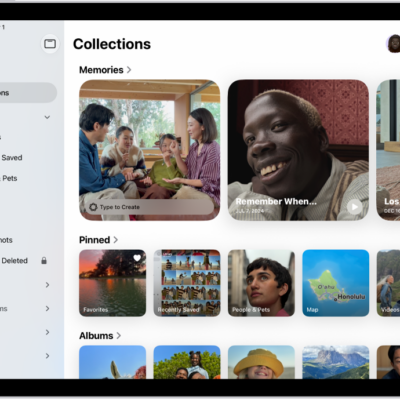
Find photos and videos in your photo library faster by sorting, filtering, or hiding certain items. You can sort the library by the date items were added or the date they were taken, and filter it by category, such as Edited, Favorites, or Captured by Me.
The Media Types filter can show only photos, videos, or screenshots, and you can apply multiple filters at the same time. Screenshots and photos and videos synced from your Mac or shared with you in Messages appear there by default, but you can hide them to reduce clutter.
Sort the library
Sort your photo library, and items appear by the date they were added or the date they were taken.
- Start the Photos app on your iPad.
- Tap the Sort and Filter button and tap one of the following options at the top of the list:
- Added: Photos and videos you added most recently appear at the bottom of the library.
- Captured: Photos and videos are sorted by the date they were taken, instead of the date they were added to the library.
Filter the library
Filters display items in your photo library by category, such as Edited, Favorites, or Captured by Me, and the Media Types filter displays only photos, videos, or screenshots.
Quick tip: You can apply multiple filters at the same time.
-
Start the Photos app on your iPad.
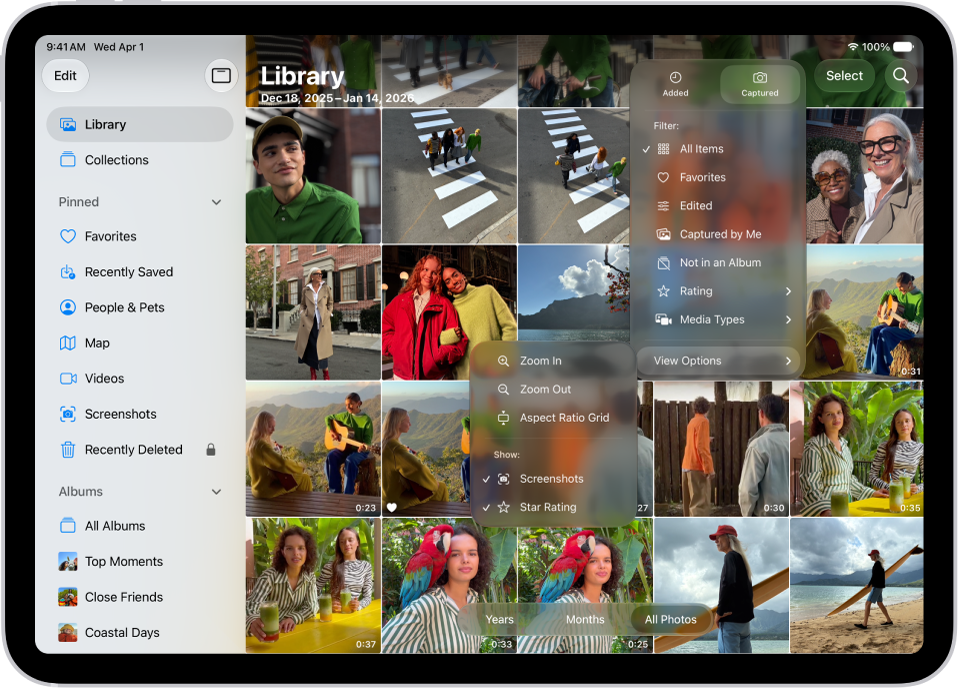
- Tap the Sort and Filter button and then tap the filter you want to apply.
- To remove the filters and return to the full library, tap Remove Filters.
Hide screenshots, items from your Mac, and items shared with you
By default, photos and videos shared with you in the Messages app, photos and videos synced from your Mac, and screenshots automatically appear in your photo library. To reduce clutter, you can hide these items.
- Start the Photos app on your iPad.
- Tap Library.
- Tap the Sort and Filter button and then tap View Options.
- Tap Screenshots, From My Mac, or Shared with You to hide these items in your library. To stop hiding them, tap the option again.
See also