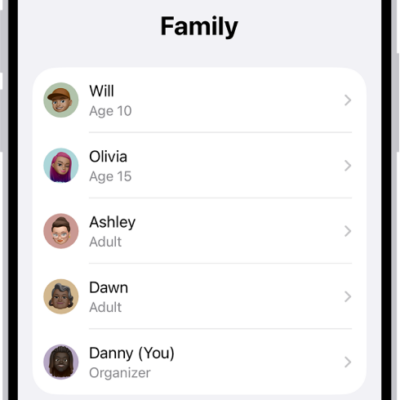
With Family Sharing, the organizer can set up Purchase Sharing to share App Store, Apple TV, and Apple Books purchases.
To share purchases, the family organizer must turn on Purchase Sharing and add a payment method. Family members can then opt in to Purchase Sharing, so they can share purchases and view shared purchases. When a family member makes a purchase, the organizer is billed, unless that family member adds a payment method to pay for their own purchases.
When a family member buys something, it’s added to their account, and eligible purchases are shared with the rest of the family. The organizer can also turn off purchase sharing later.
Turn on Purchase Sharing
Purchase sharing means the family organizer pays for family members’ purchases, so the organizer must have a valid payment method on file. Each family member can also add their own payment methods.
- Open the Settings app on your iPad.
- Tap Family, tap Purchase Sharing, and follow the onscreen instructions.
Access shared content
If you’ve opted in and purchase sharing is turned on, eligible apps and content your family members buy are yours to download and play.
Turn off Purchase Sharing
As the family organizer, you can turn off purchase sharing, and your purchases are then hidden from Family Sharing members. You’ll still see items other members have shared with you.
Note: Even though your items aren’t shared, any purchases you make still use the shared family payment method.
- Open the Settings app on your iPad.
- Tap Family, then tap Purchase Sharing.
- Tap your name and turn off Share Purchases.
- If the organizer wants to turn off purchase sharing entirely, they can tap Stop Purchase Sharing.
You can also share Apple and App Store subscriptions with family members.
See also