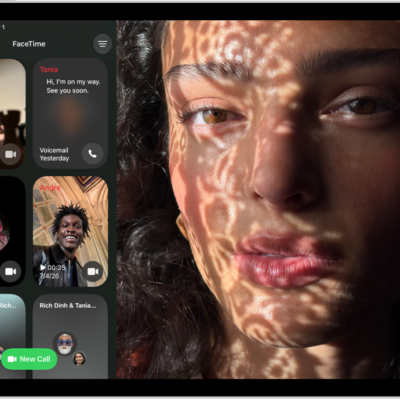
During a video call in the FaceTime app or a third-party video conferencing app, you can use full-screen video effects and add reactions with hand gestures that fill the camera frame with 3D effects. Video effects include Center Stage, Portrait, and Studio Light, which dims the background and illuminates your face.
Use video effects in FaceTime
- During a video call in the FaceTime app, tap your tile.
- Choose any of the following:
- Center Stage: Automatically keeps you (and anyone else with you) in the camera frame as you move around the field of view during a video conference call. (Available on supported models.) See Turn Center Stage off or on.
- Portrait: Automatically blurs the background and puts the visual focus on you. To adjust the amount of background blur, open Control Center, tap FaceTime, and then tap Portrait. See Blur the background with Portrait mode.
- Studio Light: Dims the background and illuminates your face. To adjust the intensity of the studio light, open Control Center, tap FaceTime, and then tap Studio Light.
- Memoji: The Memoji character you choose captures your movements, facial expressions, and voice, and conveys them through your character. On an iPad with a TrueDepth camera, you can use a Memoji character you created in Messages. See Create and send Memoji.
- Reactions: Allows you to use hand gestures to add reactions. When Reactions is turned off, you can’t use hand gestures to add reactions, but you can add reactions in FaceTime by tapping the icons that appear when you touch and hold your tile in the call. (Available on supported models.) See Add reactions in a video call.
To use video effects in third-party video conferencing apps, open Control Center, tap the app, then tap one or more effects.
Note: Memoji aren’t available in third-party video conferencing apps.
To adjust the amount of blur in Portrait mode or the intensity of Studio Light, open Control Center, then tap FaceTime (or the third-party video conferencing app). Tap Portrait or Studio Light, then adjust the slider.
Add reactions in a video call
Using simple hand gestures in the FaceTime app, or in third-party video conferencing apps, you can add reactions like hearts, balloons, fireworks, and more, which fill the camera frame with fun, 3D augmented reality effects.
Note: To use hand gestures on a supported model, tap your tile during a FaceTime call (or, in a third-party video conferencing app, open Control Center during the call) and check that Gestures is turned on. Hold your hands away from your face when you use gestures, and pause for a moment or two to activate the effect. Reactions are another option in FaceTime, and you add them by touching and holding your tile during the call and then tapping the icons that show up.
| Reaction | Gesture | Icon |
|---|---|---|
| Hearts |  |
 |
| Thumbs-up |  |
 |
| Thumbs-down |  |
 |
| Balloons |  |
 |
| Rain |  |
 |
| Confetti |  |
 |
| Laser burst |  |
 |
| Fireworks |  |
 |
See also