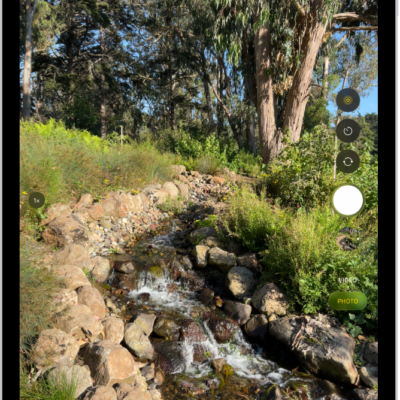
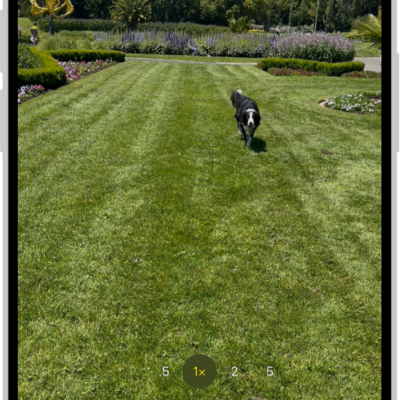
Use your iPad camera to record videos, including slow-motion and time-lapse videos.
Depending on your iPad model, you can record in HD, 4K, HD (PAL), and 4K (PAL) formats. You can zoom in and out, and zoom more precisely on supported models, and with supported AirPods, you can even record a video from the AirPod stem. When Camera is in use, a green dot appears at the top of the screen for your security.
Here’s how to record a video with your iPad camera.
Note: Video recording isn’t available during a phone or FaceTime call.
Record a video
- Open Camera on your iPad.
- Select Video mode.
- Tap the Record button or press either volume button to start recording. While recording, you can do the following:
- Pinch the screen to zoom in and out.
- To zoom more precisely, touch and hold 1x, then drag the slider (on supported models).
- Tap the Record button or press either volume button to stop recording.
With supported models of AirPods and AirPods Pro, you can press the AirPod stem to record a video.
Note: A green dot appears at the top of the screen while Camera is in use, as a security measure. Read our article, Control access to hardware features.
Record in HD or 4K video
High-quality formats like HD, 4K, HD (PAL), and 4K (PAL) are available for recording video, depending on your iPad model.
Note: Faster frame rates and higher resolutions make your video files larger.
- Open Settings, tap Camera, and then tap Record Video.
-
Select from the list of video formats and frame rates that your iPad supports.
Turn on Show PAL Formats to select a PAL option.
Note: PAL is a television video format used in many countries and regions in Europe, Africa, Asia, and South America.
Use quick toggles to change video resolution and frame rate
You change the video resolution and frame rate your iPad offers with the quick toggles at the top of the screen in Video mode.
Record a slow-motion video
In Slo-mo mode, your video records as normal, then plays back in slow motion. Later, you can edit the video and choose which parts play in slow motion. See our guide, Edit slow-motion section of a video shot in Slo-mo mode.
- Open Camera on your iPad.
- Select Slo-mo mode.
-
Tap the Record button or press either volume button to start and stop recording.
To set a portion of the video to play in slow motion and the rest at regular speed, tap the video thumbnail, then tap the Edit button. Slide the vertical bars below the frame viewer to define the section you want to play back in slow motion.
Your model determines whether you can change the frame rate and resolution. A faster frame rate and a higher resolution both make the resulting video file larger.
To switch between 120 or 240 fps and your available resolutions, tap the buttons above the Shutter button.
Record a time-lapse video
Time‑lapse captures footage at selected intervals to create a video of an experience over a period of time, such as traffic flowing or a setting sun.
- Open Camera on your iPad.
- Select Time-lapse mode.
- Position your iPad to frame your subject. Place it on a stable surface or tripod.
- Tap the Record button to start and stop recording.
Adjust Auto FPS settings
In low-light situations, iPad models that support Auto FPS can improve the video quality by automatically reducing the frame rate to 24 fps.
Go to Settings > Camera > Record Video, then do one of the following:
- On iPad (9th generation), iPad Pro 11-inch (1st generation and 2nd generation), and iPad Pro 12.9-inch (3rd generation and 4th generation): Turn on Auto Low Light FPS.
- On iPad (10th generation), iPad mini (A17 Pro), iPad mini (6th generation), iPad Air (4th generation and later), iPad Pro 11-inch (3rd generation and later), and iPad Pro 12.9-inch (5th generation and later): Tap Auto FPS, then apply Auto FPS to 30-fps video only or to both 30- and 60-fps video.
After you apply Auto FPS, when the camera is open and in Video mode, you can tap the FPS control to switch between 24, 30, or 60 fps.
Lock the white balance setting
To get more accurate color capture based on lighting conditions, lock the white balance when recording videos on your iPad.
Go to Settings > Camera > Record Video, then turn on Lock White Balance.
See also