You can view, change, and cancel your subscriptions from Apple as well as subscriptions you purchased in apps from the App Store.
Your purchase history includes free and paid apps, in-app purchases, subscriptions, music, and more, and you can view and redownload apps. You can narrow the results by date range, cost, or type, and if you’re the organizer of a Family Sharing group, by family member, too.
Here’s how to see your purchases and subscriptions in the App Store on iPad.
See your purchase history
Along with free and paid apps from the App Store, your purchase history includes in-app purchases, subscriptions, music, videos, books, AppleCare+, and more.
- Start the App Store app on your iPad.
-
Tap the My Account button or your picture at the top right, tap Apps & Purchase History, and then tap Purchase History.
You may be asked to authenticate with Face ID, Touch ID, or your passcode.
- To narrow the results, enter the name, price, or order ID in the search field.
-
To change the search criteria, tap Last 90 Days, Paid and then set any of the following:
- Date range
- Cost (free or paid)
- Type
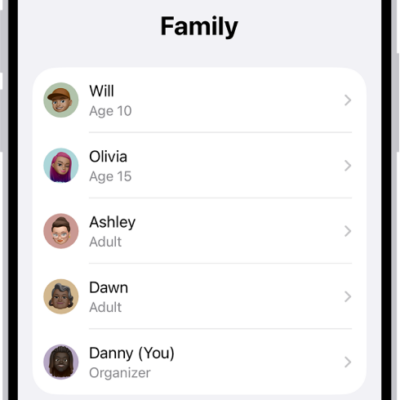
- Family member (available if you’re the organizer of a Family Sharing group)
View and redownload apps
- Start the App Store app on your iPad.
- Tap the My Account button or your picture at the top right and tap Apps & Purchase History. Then tap Your Apps.
- If you’re part of a Family Sharing group, tap My Apps or choose a family member.
- Find the app you want to download (if it’s still available in the App Store) and tap the Redownload button.
Change or cancel a subscription
- Start the Settings app on your iPad.
- Tap your name and then tap Subscriptions.
- Do any of the following:
- Cancel a subscription: Tap an active subscription and tap Cancel Subscription or Cancel All Services.
- Change a subscription: Tap an active subscription and choose a different option.
- Renew a subscription: Tap an expired subscription, then tap Renew.
- Share a subscription: Turn on Share with Family to automatically share eligible subscriptions with other members in your Family Sharing group.
- Get Renewal Receipts: Turn on Renewal Receipt Emails to receive a receipt each time one of your subscriptions renews.
See also
- Sign in and manage your Apple Account on iPad
- Share Apple and App Store subscriptions with family members on iPad
Tag: App Store