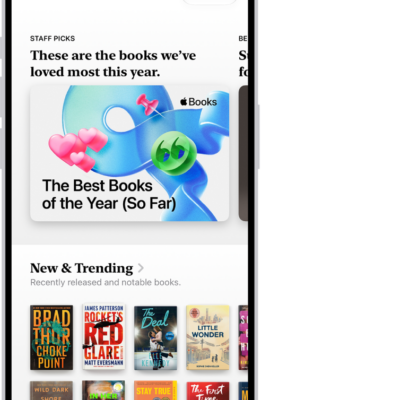
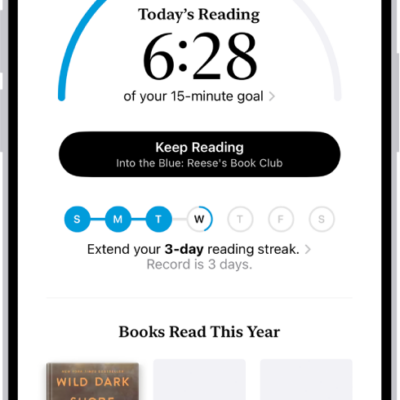
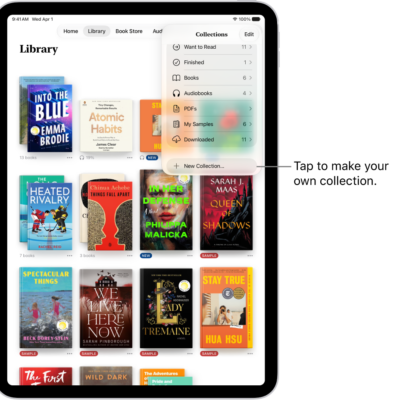
You can access your books and audiobooks in the Books app on your other Apple devices such as your iPhone, Mac, or Apple Vision Pro. You can also sync your reading position, highlights, notes, library collections, and more.
To keep everything updated, you sign in to the same Apple Account on each device. Purchases made on your other devices can download automatically, too, and your Home, Library, and collections can sync with iCloud Drive.
Note: Apple Books isn’t available in all countries or regions.
Access your books on your other devices
Sign in to the same Apple Account on every device, and then do the following so your Books content and information stays updated across your other Apple devices:
- Automatically download purchases made on other devices: Go to Settings > Apps > Books, then turn on Purchases from Other Devices.
- Sync reading position, bookmarks, notes, and highlights: Go to Settings > [your name] > iCloud, tap See All next to Saved to iCloud, then turn on Books.
- Sync Home, Library, and collections: Go to Settings > Apps > Books, then below Syncing, turn on Home and iCloud Drive.
Access your books on your Mac
Do one of the following to see your books, audiobooks, and PDFs on your Mac:
- macOS 15 or later: Choose Apple menu > System Settings, click your name at the top of the sidebar, then click iCloud. Click iCloud Drive, click Apps Syncing to iCloud Drive, then turn on Books.
- macOS 13–14.5: Choose Apple menu > System Settings, click your name at the top of the sidebar, then click iCloud. Click iCloud Drive, click Apps syncing to iCloud Drive, then select Books. Click Back, then click Done.
- macOS 10.15–12.5: Choose Apple menu > System Preferences, then click Apple ID. Click iCloud in the sidebar, then select iCloud Drive. Click Options, then select Books.
- macOS 10.14 or earlier: Choose Apple menu > System Preferences, then click iCloud. Select iCloud Drive, click Options, then select Books.
Your collections, bookmarks, notes, and highlights can show up on your Mac, too: Open Books, then do one of the following:
- macOS 13 or later: Choose Books > Settings, click General, then select “Collections, bookmarks, and highlights.”
- macOS 12.5 or earlier: Choose Books > Preferences, click General, then select “Collections, bookmarks, and highlights.”
See also