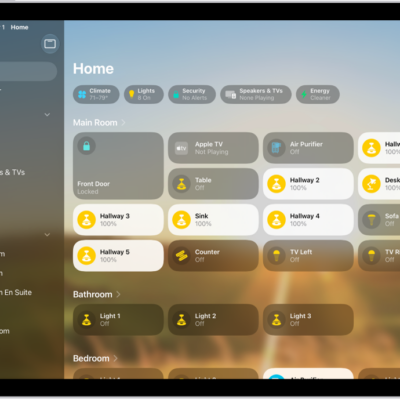
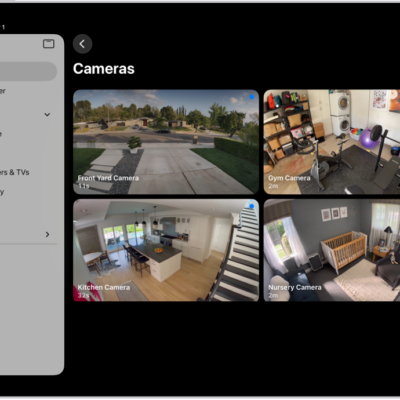
In the Home app, you can invite other people to control all your smart accessories, or invite a guest to control some or all of your doors, locks, and security system accessories during specific times.
Residents get local access to all accessories in the home at any time, plus optional remote access, while guests get local-only access to specific doors, locks, and security systems. People you invite can accept in the notification or in the Home app.
Note: Remote access and guest access only work with a home hub, such as an Apple TV 4K or a HomePod speaker.
Invite residents to control accessories
At any time, Home Residents have local access to all accessories in the home, plus optional remote access.
- Open the Home app on your iPad.
- On the Home tab, tap the Add button, tap Add People, and then tap Resident.
- Tap the Add button to choose people with an Apple Account from your contacts list, or enter their Apple Account email addresses in the To field.
- Tap Invite.
- Ask the invitee to do one of the following:
- In the notification: (iPhone or iPad) Tap Accept.
- In the Home app: (iPhone or iPad) Tap the More button, tap Home Settings, and then tap the invitee’s name.
- On Apple TV 4K: Tap Show Me on Apple TV and turn on one or more Apple TVs.
Invite guests to control accessories
Home Guests get local-only access to specific doors, locks, and security system accessories, limited to a set schedule.
Note: Home Guests access requires iOS 18, iPadOS 18, or later.
- Open the Home app on your iPad.
- On the Home tab, tap the Add button and tap Add People. Then tap Guest.
- Tap the Add button to choose people with an Apple Account from your contacts list, or enter their Apple Account email addresses in the To field.
- Select any of the following for the guest schedule:
- Anytime: The guest can access the selected accessories anytime.
- Specific Dates: The guest can only access the selected accessories on the dates specified.
- Specific Days & Times: The guest can only access the selected accessories on the days and during the times specified.
- Select which doors, locks, and security system accessories the guest can access.
- Tap Invite.
- Ask the invitee to do one of the following:
- In the notification: (iPhone or iPad) Tap Accept.
- In the Home app: (iPhone or iPad) Tap the More button, tap Home Settings, and then tap the invitee’s name.
Allow others to access your AirPlay-enabled speakers and TVs
- Open the Home app on your iPad.
- Tap the More button, then tap Home Settings.
- Tap Speaker & TV and choose an option.
You can allow everyone, anyone on the same network, or only people you’ve invited to share the home. You can also require a password that allows speaker access.
Allow Resident and Guest Attribution
With Attribution, your name can appear in activity history and notifications when you arrive, leave, or interact with accessories.
Note: Home members who use Face Recognition to identify people based on their photo library will still see your name.
- Open the Home app on your iPad.
- Tap the More button, then tap Home Settings.
- Tap a person and then enable Attribution.
See also