Control iPad and its apps using a few simple gestures—tap, touch and hold, swipe, scroll, and zoom. Each one has its own symbol in the table below. If you’re using Magic Trackpad or Magic Mouse, there are also gestures that work on your trackpad or mouse, and they’re covered in their own guides.
| Symbol | Gesture |
|---|---|
 |
Tap. Briefly touch an item on the screen with one finger. For example, to open an app, tap its icon on the Home Screen. |
 |
Touch and hold. Press an item on the screen until something happens. For example, if you touch and hold the wallpaper of the Home Screen, the app icons begin to jiggle. |
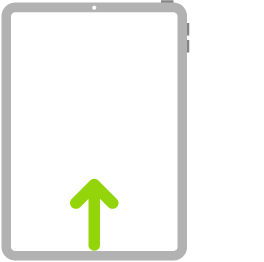
| Swipe. Move one finger across the screen quickly. For example, swipe left on the Home Screen to see more apps. | |
 |
Scroll. Move one finger across the screen without lifting. For example, in Photos, you can drag a list up or down to see more. Swipe to scroll quickly; touch the screen to stop scrolling. |
 |
Zoom. Place two fingers on the screen near each other. Spread them apart to zoom in, or move them toward each other to zoom out.
You can also double-tap a photo or webpage to zoom in, and double-tap again to zoom out. In Maps, double-tap and hold, then drag up to zoom in or drag down to zoom out. |
For gestures that work on a Magic Trackpad or Magic Mouse, see our guide, Trackpad gestures for iPad, or our article, Mouse actions and gestures for iPad.
See also
Tag: Setup