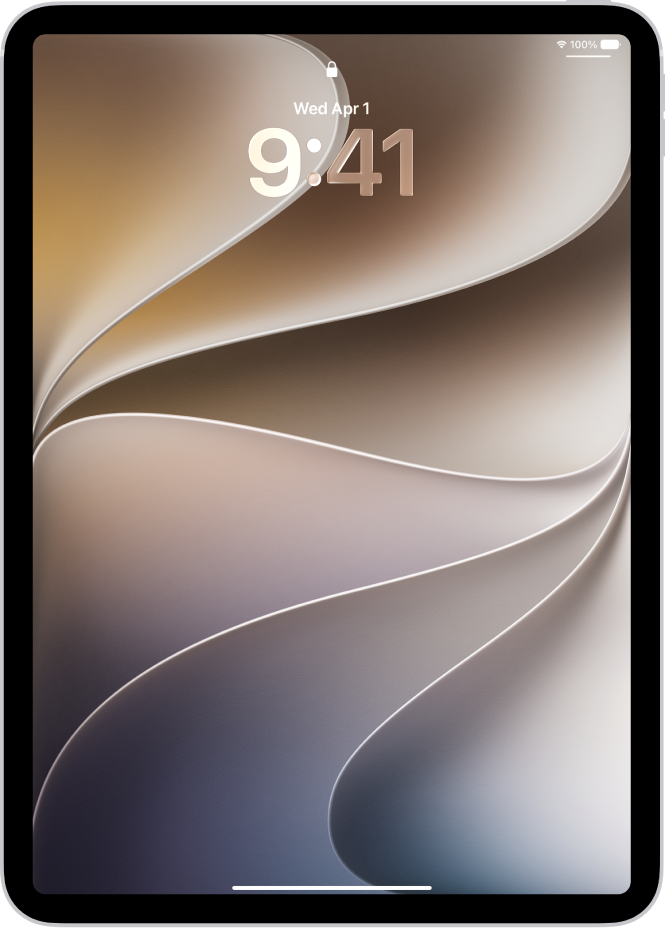
The Lock Screen, which shows the current time and date and your most recent notifications, appears when you first turn on or wake iPad. From it, you can see notifications, open Camera and Control Center, get information from your favorite apps at a glance, and control media playback.
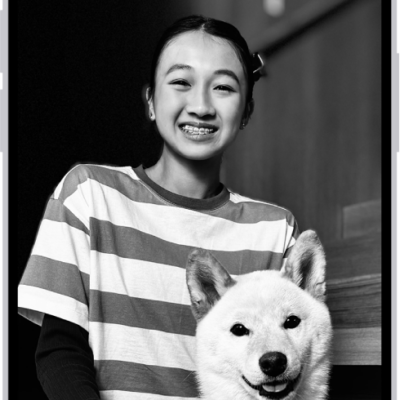
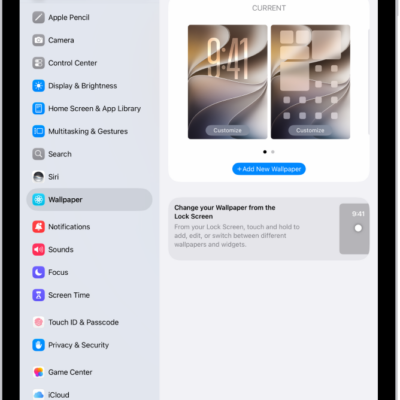
You can personalize your Lock Screen with a wallpaper, a favorite photo, a different font for the time, and widgets. See Create a custom iPad Lock Screen. And you can choose whether notification previews show while iPad is locked.
Access features and information from the Lock Screen
Even while iPad is locked, you can get to the features and information you need most right from the Lock Screen.
- Open Camera: Swipe left. See Take photos with your iPad camera.
- Open Control Center: Swipe down from the top-right corner. See Use and customize Control Center.
- See earlier notifications: Swipe up from the center. See View and respond to notifications.
- View more widgets: Swipe right. See Add, edit, and remove widgets. You can interact with widgets on the Lock Screen and the Home Screen to perform tasks—for example, tap an item in the Reminders widget to check it off, or tap the Play button in the Podcasts widget to play an episode.
- Start drawing and taking notes: On supported models, tap Apple Pencil on the Lock Screen. Whatever you create is saved in Notes.
- Control media playback: Use the playback controls (Now Playing) on the Lock Screen to play, pause, rewind, or fast-forward media playing on your iPad. See View and control Live Activities on the Lock Screen.
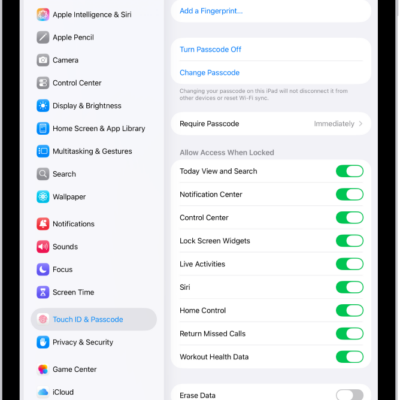
To choose what you can get to from the Lock Screen, check out our guide, Turn on Lock Screen features.
Show notification previews on the Lock Screen
- Start the Settings app on your iPad.
- Tap Notifications, tap Show Previews, and tap Always.
Notification previews show text from Messages, lines from Mail messages, and Calendar invitation details. To learn more, see our article, View and respond to notifications.
View and control Live Activities on the Lock Screen
An app’s Live Activities can show up on your Lock Screen, which makes it easy to follow their progress. Think order updates from food delivery apps, directions from Maps, live sports updates from the Apple TV app, and more.
Playing music, a movie, or other media on iPad? The playback controls on your Lock Screen let you play, pause, rewind, and fast-forward these Live Activities. From the iPad Lock Screen, you can even control media playback on a remote device, like your Apple TV 4K or HomePod.
To change your Live Activity settings, go to the Settings app, tap Apps, tap the app with the settings you want to change, then tap Live Activities.
Note: Not all apps have a Live Activities setting.
Monitor background tasks
On iPad, you can start an extended background task, like downloading a file from Safari, and move on to another task while it finishes. Background tasks keep running until they’re completed while you’re doing something else.
Ongoing background tasks show up as Live Activities on your Home Screen and Lock Screen, letting you know they’re running so you can monitor their progress.
See also