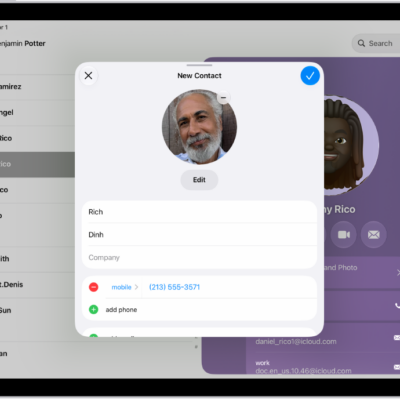
When you have contacts from multiple sources, you might have multiple entries for the same person. In the Contacts app, you link contact cards for the same person in different accounts so they appear only once in your All Contacts list, as a single unified contact.
If you have more than one card with the same first and last name, Contacts can merge them for you, and you can link contacts manually, too.
Resolve duplicate contacts
If more than one contact card shares the same first and last name, the Contacts app can combine those duplicate contacts for you.
- Start the Contacts app on your iPad.
- Below My Card, tap View Duplicates.
- Tap individual contacts to review and merge them, or tap Merge All to merge all duplicate contacts.
Link contacts manually
If two entries for the same person aren’t linked automatically, you can unify them manually.
- Start the Contacts app on your iPad.
- Tap one of the contacts, tap Edit, and then tap Link Contacts.
- Choose the other contact entry to link to and tap Link.
When you link contacts with different first or last names, the names on the individual cards don’t change, but only one name appears on the unified card. To choose which name appears on the unified card, tap one of the linked cards, tap the contact’s name on that card, then tap Use This Name For Unified Card.
Note: Linking contacts doesn’t merge those contacts. If you change or add information in a unified contact, the update goes to each source account where that information already exists.
See also